
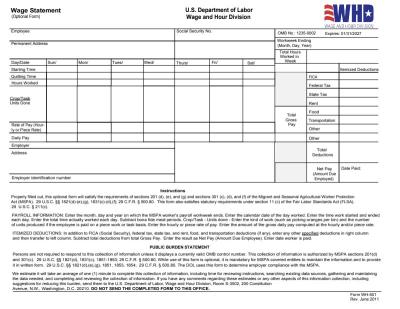
Form WH-501 — Election Worker Exemption, filled in online.
Form WH-501 — Election Worker Exemption — official fillable PDF form
Type in the panel and watch each answer land on the page. Filling in and signing is free; downloading needs a free account, which includes 5 downloads a month.
Or fill it another way:
- Category
- HR & personnel
- Fillable fields
- 64
- Pages
- 1
- Paper size
- 792 × 612 pt
Five ways to fill this form.
-
Fill it in here
Type in the panel and watch it land on the form. Sign it, then download.
Free to fill and sign Start filling -
Many at once, from a spreadsheet
One row per person, one finished PDF for each.
Paid plan · you can walk through it Start with a spreadsheet -
Send it to someone to fill in
Email a link. They fill it in without an account and you get the answers back.
Paid plan · you can walk through it Send a request -
From your own software
Fill it over the API. One request returns the finished PDF.
Paid plan -
Let an AI assistant do it
Connect ChatGPT or Claude once, then describe what goes on the form.
With a free account
What is this form?
Form WH-501 Wage Statement is an official fillable form issued or used by U.S. Department of Labor, Wage and Hour Division. Despite the legacy seeder label, the attached official PDF is the optional WH-501 Wage Statement used to record a worker’s hours, crop or task, units, rate, gross pay, itemized deductions, and net pay under MSPA and FLSA recordkeeping rules. The official layout is part of the filing record: identifiers, checkboxes, calculations, certifications, and signature areas must remain in the order expected by the receiving organization.
Prepare the form from current source records rather than memory. Confirm names, tax or account numbers, dates, addresses, amounts, case references, and status choices against the documents for the relevant reporting period. A technically complete PDF can still be rejected when a number is transposed, a selection conflicts with another page, an attachment is missing, or an outdated edition is used.
PDFengine maps the existing AcroForm fields and produces a reviewable PDF; it does not decide eligibility, calculate a legal entitlement, validate evidence, sign for the filer, or submit the result. Read the current official instructions before relying on the final copy, especially where the form affects tax, employment, benefits, customs, medical treatment, or court rights.
Who needs to fill this out?
- Agricultural employers covered by the Migrant and Seasonal Agricultural Worker Protection Act
- Farm labor contractors preparing written pay information
- Payroll staff recording hourly, piece-rate, or task-based earnings
- Workers reviewing the wage statement provided for a workweek
Use the form only for the transaction and edition described in the official instructions. If the facts involve multiple people, tax years, claims, entries, estates, employers, or reporting periods, determine whether a separate form or continuation record is required for each one.
Where and how to submit
Provide the completed wage statement to the worker and retain the required payroll record for the applicable period. The form instructions expressly say not to send the completed statement to the Department of Labor office shown for burden comments. Before delivery, verify the current destination, deadline, signature method, fee or payment rule, attachment list, and accepted filing channel on the official U.S. Department of Labor, Wage and Hour Division website or in the notice that requested the form. Addresses and electronic procedures can change even when the PDF looks familiar.
Keep the completed PDF, the records used to prepare it, copies of attachments, and proof of filing or delivery. Record any confirmation, case, entry, account, or tracking number. If the receiving organization requests a correction, update the source information and clearly identify the replacement rather than sending several unexplained versions.
How to fill it out
- Step 1 — Employee: Enter the value exactly as it appears in the authoritative record. Preserve full legal names, number sequences, leading zeroes, punctuation, and the date format printed on the form. Compare the entry with the supporting document before moving to the next section.
- Step 2 — Workweek Ending (Month, Day, Year): Use this field to connect the PDF to the correct person, employer, estate, transaction, claim, or reporting period. Do not substitute an internal nickname or shortened reference when the official identifier is available, because mismatched identifiers commonly delay processing.
- Step 3 — Total Hours Worked in Week: Select only the option that is true on the signing or reporting date. Read nearby notes and conditional instructions before checking a box; if two choices appear inconsistent, resolve the underlying facts instead of marking both or adding an unsupported guess.
- Step 4 — Starting Time: Friday: Report the requested amount, date, or description from the relevant ledger, notice, order, payroll record, statement, or case file. Reconcile repeated figures across pages and retain the calculation or source schedule so the result can be explained later.
- Step 5 — Crop/Task Units Done: Complete every related subfield as one unit and use the exact units shown on the form. When a field is not applicable, follow the official instruction for blanks, zeroes, or “not applicable” rather than inventing placeholder information.
- Step 6 — Rate of Pay (Hourly or Place Rate) - Sunday: Check whether this entry requires an attachment, continuation sheet, certification, or explanation. Label supporting pages with the filer and case or account reference when permitted, and never include sensitive records that the recipient did not request.
- Step 7 — Net Pay (Amount Due Employed): Review the finished page against the source documents. Confirm spelling, identifiers, selections, totals, dates, contact details, signatures, and attachment references, then save a clean final PDF separately from drafts so the wrong version is not submitted.
Frequently asked questions
Can I use an older copy of Form WH-501 Wage Statement?
Use the edition accepted for the relevant period or transaction. Check the official instructions because an older layout may omit required fields or carry an expired approval date.
Does PDFengine submit the form automatically?
No. PDFengine creates a completed PDF for review and download; the responsible filer must sign where required, attach evidence, and deliver it through an accepted channel.
What should I do when a field does not apply?
Follow the form-specific instruction for blanks, zeroes, or “N/A.” Do not guess, remove official fields, or enter filler text that could be interpreted as a factual answer.
How should I correct an error after saving the PDF?
Correct the underlying source value, generate and review a new final copy, and follow the recipient’s amended or replacement procedure if the earlier version was already delivered.
Should I send supporting records with the form?
Include only documents required by the current instructions or specifically requested by the recipient. Keep a complete copy and avoid sending originals unless the official procedure expressly requires them.
Can I create Form WH-501 Wage Statement in bulk?
Yes. PDFengine supports bulk generation of Form WH-501 Wage Statement via Excel or CSV upload — use one row per form and PDFengine generates the PDFs together. You can also automate creation through the PDFengine API.
Ready to fill it in?
Fill in this formMore forms in this category
-
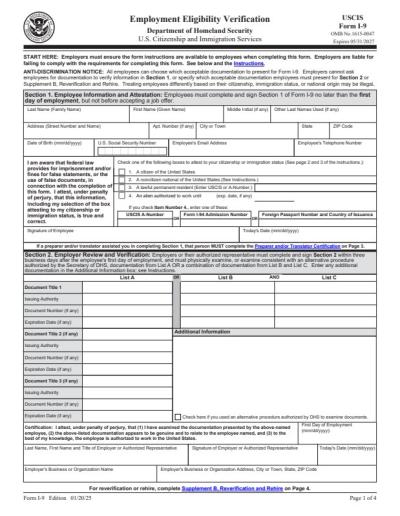 Form I-9Employment Eligibility Verification
-
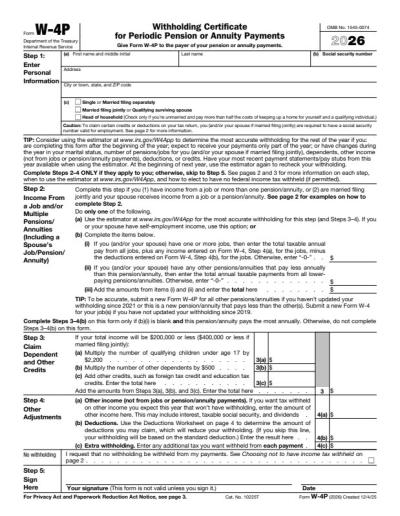 Form W-4PWithholding Certificate for Periodic Pension or Annuity Payments
-
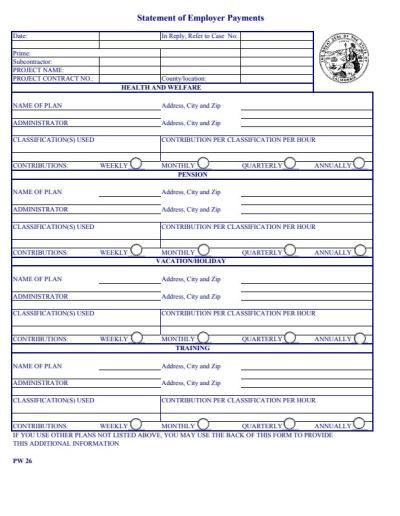 Contractor Fringe Benefit Statement (California DIR)Contractor Fringe Benefit Statement (California DIR) — official fillable PDF form
-
 DA Form 5960 Basic Allowance for Housing Authorization and Dependency DeclarationDA Form 5960 Basic Allowance for Housing Authorization and Dependency Declaration is an of...