
Employment Verification Form Texas, filled in online.
Employment Verification Form Texas — official fillable PDF form
Type in the panel and watch each answer land on the page. Filling in and signing is free; downloading needs a free account, which includes 5 downloads a month.
Or fill it another way:
- Category
- HR & personnel
- Fillable fields
- 95
- Pages
- 2
- Paper size
- US Letter, 8.5 × 11 in
Five ways to fill this form.
-
Fill it in here
Type in the panel and watch it land on the form. Sign it, then download.
Free to fill and sign Start filling -
Many at once, from a spreadsheet
One row per person, one finished PDF for each.
Paid plan · you can walk through it Start with a spreadsheet -
Send it to someone to fill in
Email a link. They fill it in without an account and you get the answers back.
Paid plan · you can walk through it Send a request -
From your own software
Fill it over the API. One request returns the finished PDF.
Paid plan -
Let an AI assistant do it
Connect ChatGPT or Claude once, then describe what goes on the form.
With a free account
What is this form?
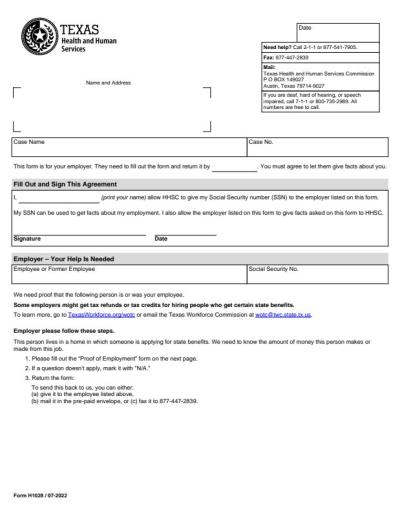
Employment Verification Form Texas is an official form used to verify a person's employment, job status, hours, and pay details for a Texas case or benefits process. In practical use, the form works as a structured record: it keeps names, dates, identifiers, checkboxes, and narrative answers in one place so the receiving agency or organization can review the facts without having to rebuild the story from emails or handwritten notes. That matters when the form becomes part of a tax file, licensing review, compliance packet, social-services case, HR record, or another official workflow tied to deadlines and supporting documents.
This template follows the official layout issued by the Texas case or benefits process named on the form. Because PDFengine preserves the original field order and labels, you can type directly into the same boxes reviewers expect to see. Common fields such as Date, Name and Address, Case Name and (print your name), Signature are easier to check when they are entered cleanly instead of squeezed into a scanned copy. That reduces rework, makes signatures and dates easier to confirm, and gives you a cleaner PDF to save, share internally, or attach to a case or transaction record.
The form is still an official document, so the content should match the underlying facts and any supporting records. Use the fillable version to prepare a precise submission, not to improvise answers. If a field refers to an account number, case identifier, permit, license detail, payroll fact, medical note, delivery fact, or household detail, it should match the source records that sit behind the form. A polished PDF is helpful, but accuracy is what makes the finished document usable in the real workflow.
Who needs to fill this out?
- Employers asked to confirm current or former employment. They benefit from a typed, reviewable version that keeps the official structure intact and makes supporting documents easier to match.
- Workers routing the form to the employer handling payroll or personnel records. They benefit from a typed, reviewable version that keeps the official structure intact and makes supporting documents easier to match.
- Case or benefit staff reviewing whether someone worked and what they earned. They benefit from a typed, reviewable version that keeps the official structure intact and makes supporting documents easier to match.
- HR or payroll teams preparing documented answers from company records. They benefit from a typed, reviewable version that keeps the official structure intact and makes supporting documents easier to match.
Where and how to submit
Have the employer complete and return the form through the workflow that requested verification and keep a copy with the case or HR file. The document becomes much more useful when the employer's answers about start date, job type, pay frequency, average hours, and bonuses all match payroll or personnel records instead of guesswork.
Before sending it, compare the completed PDF with the records that support it: notices, invoices, payroll data, delivery papers, license information, provider notes, or case documentation. If the workflow later asks for corrections, having a saved draft and a clean final copy makes those updates much faster.
How to fill it out
- Step 1 — Case header: Use Date, Name and Address, Case Name, Case No., This form is for your employer. They need to fill out the form and return it by to show which case requested the verification and when it is needed. Review the values against the source records before moving on, because this part often determines whether the form is tied to the correct file, person, shipment, account, case, or medical record. Clean entries here also make later signatures, timelines, and follow-up questions much easier to handle.
- Step 2 — Worker identity: Use (print your name), Signature, Date, Employee or Former Employee, Social Security No. to identify the person whose employment is being confirmed. Review the values against the source records before moving on, because this part often determines whether the form is tied to the correct file, person, shipment, account, case, or medical record. Clean entries here also make later signatures, timelines, and follow-up questions much easier to handle.
- Step 3 — Employer identity: Use Company or Employer, Address (Street, City, State, ZIP code), Employee Name (as shown on your records), Employee Address (Street, City, State, ZIP Code – as shown on your records) to match the verification to the employer's records and the right employee file. Review the values against the source records before moving on, because this part often determines whether the form is tied to the correct file, person, shipment, account, case, or medical record. Clean entries here also make later signatures, timelines, and follow-up questions much easier to handle.
- Step 4 — Employment status: Use Is (or was) this person employed by you? Yes, Is (or was) this person employed by you? No, If yes, what type of job? Full Time, If yes, what type of job? Part Time, If yes, what type of job? Permanent, If yes, what type of job? Temporary to show whether the person worked there and under what type of arrangement. Review the values against the source records before moving on, because this part often determines whether the form is tied to the correct file, person, shipment, account, case, or medical record. Clean entries here also make later signatures, timelines, and follow-up questions much easier to handle.
- Step 5 — Pay details: Use Rate of Pay, Per Hour, Per Day, Per Week, Per Month, Per Job, How Often Paid?, Average Hours Per Pay Period, Commissions Tips Bonuses: Yes to document how the person is paid, how often, and whether extra compensation applies. Review the values against the source records before moving on, because this part often determines whether the form is tied to the correct file, person, shipment, account, case, or medical record. Clean entries here also make later signatures, timelines, and follow-up questions much easier to handle.
Frequently asked questions
Who usually fills out this form?
The worker may start the process, but the employer or the employer's payroll or HR team usually completes the verification details from official records.
Why do job type and pay frequency matter?
They help the receiving case or benefits process understand whether the person works full time or part time and how income should be evaluated.
Should the employer use payroll records?
Yes. Rate of pay, pay period, hours, and bonus information should come from payroll or personnel records whenever possible.
What if the person no longer works there?
The form can still be used to verify former employment if the employer can confirm the dates and status from historical records.
Should a copy be kept?
Yes. Keeping a copy with the case or HR file helps if the agency later asks for clarification or updated employment information.
Can I create Employment Verification Form Texas in bulk?
Yes. PDFengine supports bulk generation of Employment Verification Form Texas via Excel or CSV upload — upload a spreadsheet with one row per form and PDFengine generates all PDFs at once. You can also automate bulk creation programmatically via the PDFengine API.
Ready to fill it in?
Fill in this formMore forms in this category
-
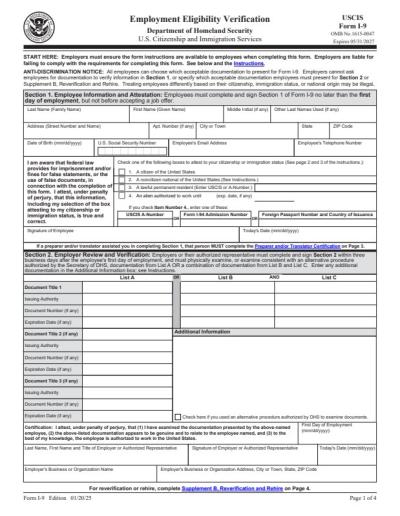 Form I-9Employment Eligibility Verification
-
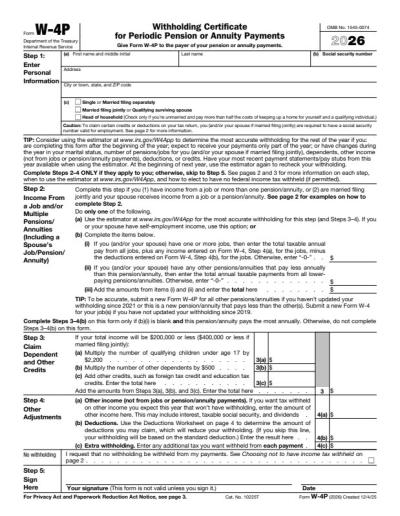 Form W-4PWithholding Certificate for Periodic Pension or Annuity Payments
-
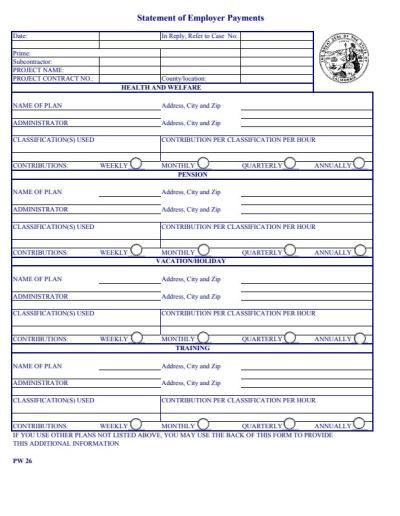 Contractor Fringe Benefit Statement (California DIR)Contractor Fringe Benefit Statement (California DIR) — official fillable PDF form
-
 DA Form 5960 Basic Allowance for Housing Authorization and Dependency DeclarationDA Form 5960 Basic Allowance for Housing Authorization and Dependency Declaration is an of...