
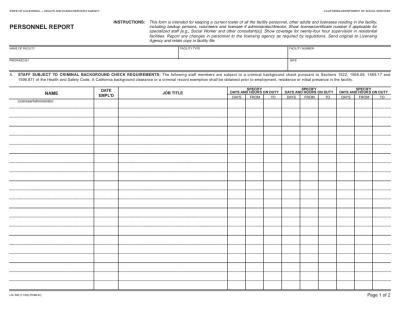
Lic 500 personnel report, filled in online.
Lic 500 personnel report — official fillable PDF form
Type in the panel and watch each answer land on the page. Filling in and signing is free; downloading needs a free account, which includes 5 downloads a month.
Or fill it another way:
- Category
- HR & personnel
- Fillable fields
- 546
- Pages
- 2
- Paper size
- 792 × 612 pt
Five ways to fill this form.
-
Fill it in here
Type in the panel and watch it land on the form. Sign it, then download.
Free to fill and sign Start filling -
Many at once, from a spreadsheet
One row per person, one finished PDF for each.
Paid plan · you can walk through it Start with a spreadsheet -
Send it to someone to fill in
Email a link. They fill it in without an account and you get the answers back.
Paid plan · you can walk through it Send a request -
From your own software
Fill it over the API. One request returns the finished PDF.
Paid plan -
Let an AI assistant do it
Connect ChatGPT or Claude once, then describe what goes on the form.
With a free account
What is this form?
LIC 500 Personnel Report is used to maintain and report the current roster of facility personnel, resident adults, licensees, backup persons, volunteers and specialized staff, including work schedules and background-check status. It is issued or maintained by California Department of Social Services Community Care Licensing. PDFengine provides the official fillable layout so the information can be entered before the completed PDF is downloaded.
\nThe form should be completed from current source records rather than memory. Names, identification numbers, dates, monetary amounts and technical details must agree with the related licenses, returns, contracts or supporting documents. A fillable copy improves legibility, but it does not determine eligibility, give legal or tax advice, create agency approval or replace any attachment, payment, identity check or in-person step required by the receiving organization.
\nBefore starting, read the complete PDF and its instructions, collect the evidence needed for every applicable section and confirm that this edition is accepted for the transaction or filing period. Save an unsubmitted working copy, review the final PDF after generation and keep the signed or filed version with delivery evidence. If an answer depends on law, professional judgment or an agency decision, consult the current official instructions or a qualified adviser.
Who needs to fill this out?
This template is intended for people who have a genuine reason to complete the official form, including:
\n- \n
- California licensed community-care facilities maintaining their required personnel roster. This person or organization should have access to the source records and authority to provide the requested information. \n
- New applicants documenting proposed staffing and supervision coverage. This person or organization should have access to the source records and authority to provide the requested information. \n
- Administrators reporting personnel changes to their licensing office. This person or organization should have access to the source records and authority to provide the requested information. \n
- Residential facilities demonstrating twenty-four-hour staffing coverage. This person or organization should have access to the source records and authority to provide the requested information. \n
It is not a substitute for deciding whether the form applies. A representative may prepare entries, but the responsible taxpayer, owner, licensee, employer, buyer, seller or applicant should review the result and sign personally when required. If more than one person’s rights or confidential data are involved, obtain authorization and share the completed document only through an appropriate channel.
Where and how to submit
Send the original LIC 500 to the California Community Care Licensing office serving the facility when required by the licensing process or when reporting changes, and retain a copy in the facility file. The roster should remain current; a filled PDF is a snapshot and does not replace ongoing personnel and clearance records.
\nUse only a delivery method accepted by the receiving organization and verify the destination on its current official website or instructions. Record the submission date, method, confirmation or tracking number and the exact version sent. Do not email sensitive personal, health, tax or identity information unless the recipient explicitly provides a secure and authorized route.
\nPDFengine prepares the data in the PDF; it does not transmit the form, collect a filing fee or monitor acceptance. If the receiving party returns the document, correct the identified issue in a new copy rather than writing over an unclear original, then retain both the rejection notice and corrected submission for the file.
How to fill it out
Work through the form in its printed order. The following steps use the actual labels in the field schema:
\n- \n
- Step 1 — Facility header: Complete “NAME OF FACILITY,” “FACILITY TYPE,” “FACILITY NUMBER,” “PREPARED BY” and “DATE.” Use the facility’s licensed name and current number on both pages. \n
- Step 2 — Background-check roster: In section A, enter each applicable staff member under the repeated “Name” fields, followed by “Date Employed” and “Job Title.” Include the licensee or administrator and every person subject to criminal-background-check requirements. \n
- Step 3 — Duty schedules: For every listed person, fill the repeated “Days,” “From” and “To” fields. Show actual coverage, including overnight or weekend periods, so a reviewer can verify supervision across the facility’s operating schedule. \n
- Step 4 — Specialized credentials: Where relevant, record license or certificate information for administrators, social workers, consultants or other specialized staff. Check the identifiers against current credential records before entering them. \n
- Step 5 — Exempt personnel: Use section B for people believed exempt from background-check requirements, again entering names, employment dates, job titles and duty hours. Do not place someone in this section merely because clearance is still pending. \n
- Step 6 — Certification and final review: Complete the certification signature and date for the exempt section, reconcile the roster with payroll and facility records, and ensure no required person or shift is omitted. Save a clean copy before submission. \n
After completing the fields, download the PDF and inspect every page at normal size. Check that long answers are visible, checkboxes show the intended choice and signatures or dates are placed in the correct block. Correct the source entries and regenerate the document if anything is clipped, duplicated or inconsistent.
Frequently asked questions
Is LIC 500 Personnel Report the official form?
\nThis template uses the prepared official PDF and preserves its AcroForm fields. Confirm the edition, revision date and filing-period requirements with California Department of Social Services Community Care Licensing before relying on it, because agencies and transaction parties can replace forms or instructions.
\nDoes completing the PDF submit or approve the form?
\nNo. PDFengine creates a completed PDF only. You remain responsible for signatures, attachments, payments, delivery and any appointment, verification or acceptance step required by the recipient.
\nWhich records should I use while completing it?
\nUse the current records that support each field, such as identification, licenses, tax returns, title documents, contracts, technical specifications or care records. Keep copies of the source documents and calculations with the finalized form when legally permitted.
\nCan I correct an answer after generating the PDF?
\nYes, correct the entry and generate a clean replacement before submission. If the document has already been signed or filed, follow the recipient’s amendment or replacement procedure instead of silently altering the retained copy.
\nHow should signatures and sensitive data be handled?
\nFollow the recipient’s rules for handwritten, witnessed, notarized or electronic signatures. Limit access to completed files, store them securely and use an approved secure delivery method whenever the form contains tax identifiers, health information or identity documents.
\nWhat if I am unsure whether a field applies?
\nRead the official instructions and the printed context around that field before answering. For legal, tax, licensing, care or contractual consequences, ask the responsible agency or an appropriately qualified professional rather than guessing.
\nCan I create LIC 500 Personnel Report in bulk?
\nYes. PDFengine supports bulk generation of LIC 500 Personnel Report via Excel or CSV upload — upload a spreadsheet with one row per form and PDFengine generates all PDFs at once. You can also automate bulk creation programmatically via the PDFengine API.
Ready to fill it in?
Fill in this formMore forms in this category
-
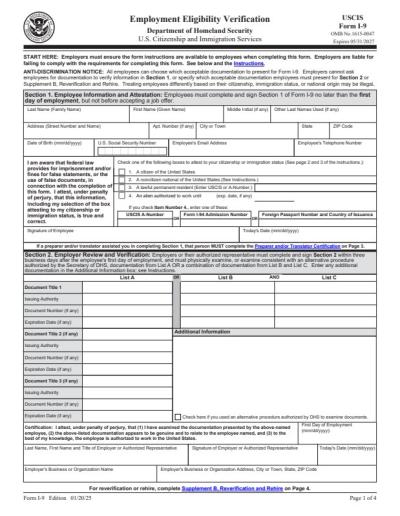 Form I-9Employment Eligibility Verification
-
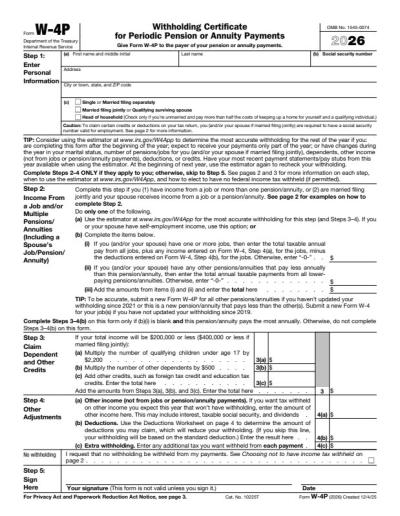 Form W-4PWithholding Certificate for Periodic Pension or Annuity Payments
-
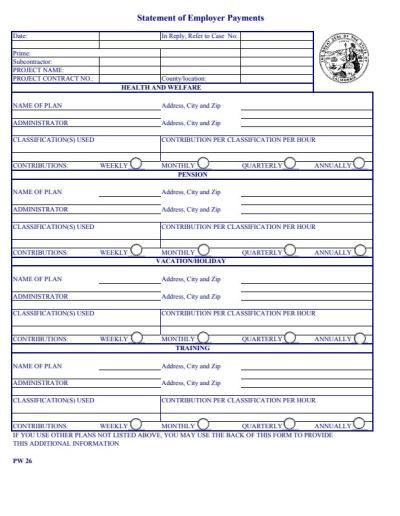 Contractor Fringe Benefit Statement (California DIR)Contractor Fringe Benefit Statement (California DIR) — official fillable PDF form
-
 DA Form 5960 Basic Allowance for Housing Authorization and Dependency DeclarationDA Form 5960 Basic Allowance for Housing Authorization and Dependency Declaration is an of...