
SEPE — Declaración de carencia de documentación, filled in online.
SEPE — Declaración de carencia de documentación is an official SEPE form that can be completed online and downloaded as a PDF.
Type in the panel and watch each answer land on the page. Filling in and signing is free; downloading needs a free account, which includes 5 downloads a month.
Or fill it another way:
- Category
- Government
- Fillable fields
- 27
- Pages
- 1
- Paper size
- A4, 210 × 297 mm
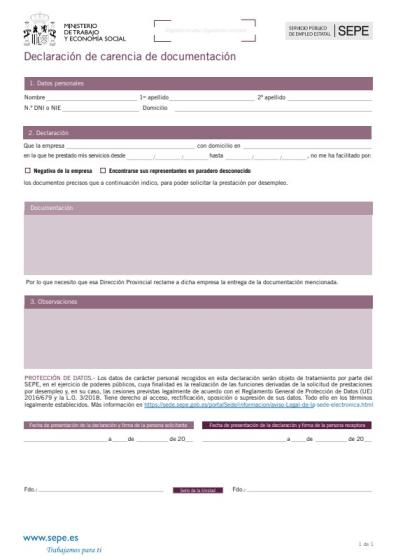
Five ways to fill this form.
-
Fill it in here
Type in the panel and watch it land on the form. Sign it, then download.
Free to fill and sign Start filling -
Many at once, from a spreadsheet
One row per person, one finished PDF for each.
Paid plan · you can walk through it Start with a spreadsheet -
Send it to someone to fill in
Email a link. They fill it in without an account and you get the answers back.
Paid plan · you can walk through it Send a request -
From your own software
Fill it over the API. One request returns the finished PDF.
Paid plan -
Let an AI assistant do it
Connect ChatGPT or Claude once, then describe what goes on the form.
With a free account
What is this form?
SEPE — Declaración de carencia de documentación is an official form issued or used by SEPE. Its purpose is to declare that required employment or company documentation cannot currently be supplied and explain why. The fillable PDF preserves the authority’s original layout while letting you prepare a legible working copy online. It does not change the official procedure, eligibility rules, deadlines, or evidence requirements.
Complete the form from current source documents rather than memory. Names, identification numbers, dates, addresses, benefit references, vehicle details, or contribution records should match the records held by the issuing authority. PDFengine helps create the PDF, but the applicant remains responsible for reviewing the instructions, signing where required, and using the correct submission channel.
Who needs to fill this out?
- People or organizations directly involved in the procedure described by SEPE — Declaración de carencia de documentación.
- Applicants, benefit recipients, employers, carriers, representatives, or record holders who must provide accurate information to SEPE.
- Advisers and administrative teams preparing a draft for review before the authorized person signs it.
- Users who want a typed, readable copy and a consistent archive of the information submitted.
Do not use the form merely because its title seems relevant. Confirm that the current version, jurisdiction, and procedure apply to your situation. A representative should also check whether a separate authorization, identity document, or original signature is required.
Where and how to submit
Submit the declaration to the SEPE office processing the related claim, together with every substitute record you do have. Keep proof of filing and provide the missing document later if SEPE requests it. Submission rules can change, so confirm the current address, portal, appointment requirement, deadline, signature method, and accepted attachments on the issuing authority’s official website. PDFengine does not submit the form automatically. A generated PDF is a draft until it is signed and delivered according to the authority’s rules.
Record the filing or mailing date and keep the confirmation with the final PDF. If the authority requests more information, quote the same case or reference number and send only the requested material through an accepted channel so the supplement is linked to the correct file.
How to fill it out
- Step 1 — Nombre and 1er apellido: Enter the primary identity or record details exactly as shown on official documents. Preserve accents, full legal names, number sequences, and leading zeroes. If a field does not apply, follow the form instructions instead of inventing a value.
- Step 2 — 2º apellido: Select or enter the relevant status, period, option, or reference. Check that this answer agrees with the procedure you are requesting and with any notice you received from the authority.
- Step 3 — N.º DNI o NIE and Domicilio: Complete address, date, account, vehicle, employment, or contact details carefully. Use the official format shown on the form and verify dates against source records.
- Step 4 — Que la empresa: Provide the requested procedural or financial information. Calculate totals from supporting records, not estimates, and make sure repeated values are consistent on every page.
- Step 5 — con domicilio en and attachments: Review declarations, tick only boxes that accurately describe the case, and gather every attachment listed in the current official instructions. Do not upload original identity documents unless the authority specifically requires them.
- Step 6 — final review and signature: Re-read the completed PDF page by page. Confirm names, numbers, dates, selections, totals, signatures, and contact details. Save a final copy before submitting it through the authorized channel.
Frequently asked questions
Is SEPE — Declaración de carencia de documentación the official form?
The template uses the official PDF layout and its fillable fields. Always compare the revision date and instructions with the current version published by SEPE before filing.
Does completing the PDF submit my request automatically?
No. PDFengine prepares a downloadable PDF only. You must still sign it where required, attach evidence, and submit it through the official online, mail, office, or record-retention route.
What should I do if a field does not apply?
Follow the official instructions for that field. Leave it blank or use the authority’s accepted notation only when permitted; do not enter invented information simply to fill every box.
Which documents should I use while completing the form?
Use current identity, address, employment, benefit, contribution, vehicle, financial, or case records that match the procedure. Keep the supporting documents together so you can answer follow-up questions consistently.
Can someone else complete the form for me?
A helper may prepare a draft, but the responsible applicant or authorized representative must verify every answer. Representation can require a separate authorization and does not remove signature or evidence obligations.
How do I correct a mistake after creating the PDF?
Correct the source data and generate a clean replacement before submission. If the form was already filed, contact SEPE and follow its correction or supplementary-document procedure instead of silently sending a second version.
Can I create SEPE — Declaración de carencia de documentación in bulk?
Yes. PDFengine supports bulk generation of SEPE — Declaración de carencia de documentación via Excel or CSV upload: use one row per form and PDFengine generates the PDFs together. You can also automate bulk creation programmatically through the PDFengine API. Each generated form still needs an individual accuracy review, any required signature, and proper submission.
Ready to fill it in?
Fill in this formMore forms in this category
-
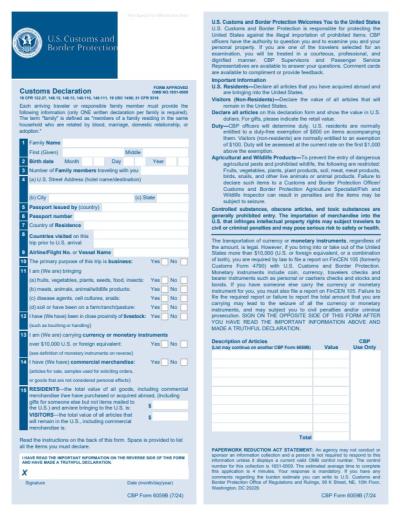 CBP Form 6059B — Customs DeclarationOfficial U.S. Customs and Border Protection arrival declaration form for travelers enterin...
-
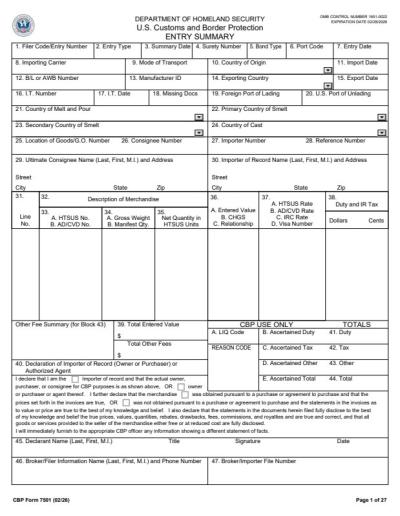 CBP Form 7501 — Entry SummaryOfficial U.S. Customs and Border Protection form used to summarize imported merchandise en...
-
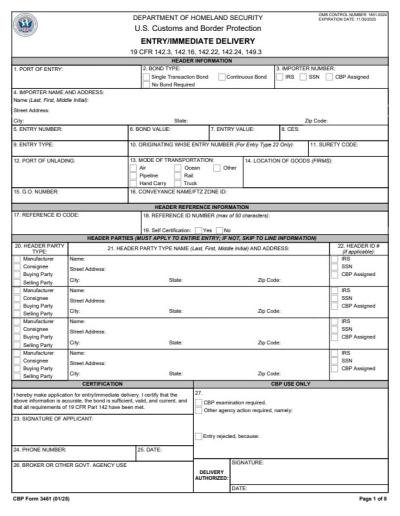 CBP Form 3461 — Entry/Immediate DeliveryOfficial U.S. Customs and Border Protection form for entry and immediate delivery of impor...
-
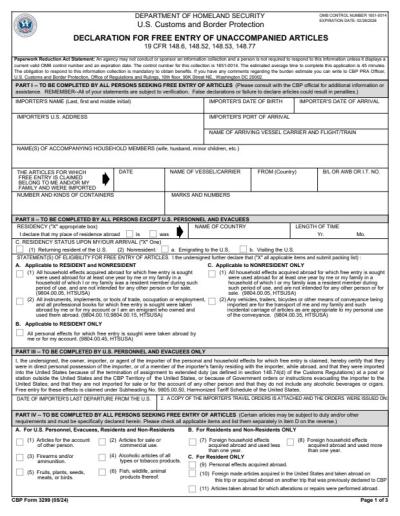 CBP Form 3299 — Declaration for Free Entry of Unaccompanied ArticlesOfficial U.S. Customs and Border Protection form for claiming free entry of unaccompanied...