
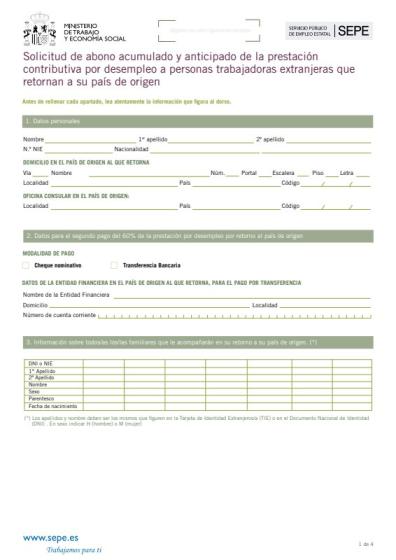
SEPE — Solicitud de abono acumulado y anticipado para extranjeros no comunitarios (APRE), filled in online.
SEPE — Solicitud de abono acumulado y anticipado para extranjeros no comunitarios (APRE) is an official SEPE form for Spanish unemployment benefits, employment records, or related social-security procedures.
Type in the panel and watch each answer land on the page. Filling in and signing is free; downloading needs a free account, which includes 5 downloads a month.
Or fill it another way:
- Category
- Government
- Fillable fields
- 135
- Pages
- 4
- Paper size
- A4, 210 × 297 mm
Five ways to fill this form.
-
Fill it in here
Type in the panel and watch it land on the form. Sign it, then download.
Free to fill and sign Start filling -
Many at once, from a spreadsheet
One row per person, one finished PDF for each.
Paid plan · you can walk through it Start with a spreadsheet -
Send it to someone to fill in
Email a link. They fill it in without an account and you get the answers back.
Paid plan · you can walk through it Send a request -
From your own software
Fill it over the API. One request returns the finished PDF.
Paid plan -
Let an AI assistant do it
Connect ChatGPT or Claude once, then describe what goes on the form.
With a free account
What is this form?
SEPE — Solicitud de abono acumulado y anticipado para extranjeros no comunitarios (APRE) is an official form issued or administered by the Spanish public employment service. Official SEPE fillable PDF form for unemployment benefits and related applications. It provides a fixed government layout for collecting the facts, declarations, and supporting details needed to process the request. This PDF contains 215 mapped AcroForm fields, including Nombre, 1º apellido, and 2º apellido. The labels remain in the language used on the official PDF so users can match this guidance to the document.
Filling the original PDF online improves legibility and makes a structured review possible before the form enters an administrative, immigration, employment, lending, or benefits workflow. PDFengine preserves the official layout and creates a downloadable working copy; it does not decide eligibility, submit the form, or replace the current instructions. Prepare identity records, account or case references, addresses, dates, amounts, and supporting evidence first. Consistent source data reduces corrections and helps the receiving office connect the form to the right person and file.
Who needs to fill this out?
- Applicants, petitioners, borrowers, employers, sponsors, or benefit claimants whose situation is covered by this official form
- Authorized representatives helping a person prepare the official PDF without changing the underlying declarations
- HR, legal, finance, immigration, benefits, or compliance teams checking entries against source records
- International users who need to prepare an official form before sending it to a United States or Spanish authority
- Operations teams producing multiple consistent drafts from structured Excel or CSV data
Confirm that this is the correct form, edition, language, and filing route before entering sensitive information. A related form, supplement, evidence package, or online procedure may also be required. When a declaration affects legal status, public benefits, immigration rights, debt, or business obligations, obtain qualified advice if the official instructions do not resolve the situation.
Where and how to submit
Send the completed form to SEPE electronic office or the employment-benefits office specified in the current instructions. Use the current instructions to verify the correct office, electronic portal, mailing address, accepted delivery method, deadline, fee, and required attachments. Do not assume that downloading the PDF files it automatically. Some procedures require an online account, an in-person appointment, original evidence, identity verification, or a separate payment even when the working form is prepared as a PDF.
Before transmitting personal, financial, employment, or immigration information, confirm the current procedure on SEPE.es. Keep an exact copy of the final signed document together with supporting records, proof of delivery, confirmation numbers, and later correspondence. If the authority requests a correction, respond using the official case or reference number and retain both the original and corrected versions so the administrative history remains clear.
How to fill it out
- Step 1 — Identify the applicant or reporting party: Locate Nombre in the form and copy the value from an authoritative record. Check spelling, dates, number formatting, and the relationship with nearby fields. Do not guess missing information; confirm it with the applicant, employer, lender, case file, or official evidence before continuing.
- Step 2 — Complete contact and address details: Locate 1º apellido in the form and copy the value from an authoritative record. Check spelling, dates, number formatting, and the relationship with nearby fields. Do not guess missing information; confirm it with the applicant, employer, lender, case file, or official evidence before continuing.
- Step 3 — Enter identifiers and reference numbers: Locate 2º apellido in the form and copy the value from an authoritative record. Check spelling, dates, number formatting, and the relationship with nearby fields. Do not guess missing information; confirm it with the applicant, employer, lender, case file, or official evidence before continuing.
- Step 4 — Record the main request, amount, or election: Locate N.º NIE in the form and copy the value from an authoritative record. Check spelling, dates, number formatting, and the relationship with nearby fields. Do not guess missing information; confirm it with the applicant, employer, lender, case file, or official evidence before continuing.
- Step 5 — Complete supporting declarations: Locate N.º NIE in the form and copy the value from an authoritative record. Check spelling, dates, number formatting, and the relationship with nearby fields. Do not guess missing information; confirm it with the applicant, employer, lender, case file, or official evidence before continuing.
- Step 6 — Review choices and certification fields: Locate Nacionalidad in the form and copy the value from an authoritative record. Check spelling, dates, number formatting, and the relationship with nearby fields. Do not guess missing information; confirm it with the applicant, employer, lender, case file, or official evidence before continuing.
- Step 7 — Validate the final PDF: Locate Vía in the form and copy the value from an authoritative record. Check spelling, dates, number formatting, and the relationship with nearby fields. Do not guess missing information; confirm it with the applicant, employer, lender, case file, or official evidence before continuing.
Review every page after generation. Confirm that repeated names and identifiers match, checkboxes do not conflict, totals reconcile with supporting documents, and long text is fully visible. A blank field should be intentionally blank under the official instructions, not accidentally skipped. Complete any required signature, certification, attachment, fee payment, or separate online filing step before submission.
Frequently asked questions
What is this form used for?
It records the request, report, declaration, or certification described in the official title. The current SEPE instructions determine eligibility, evidence, exceptions, and processing rules.
Can I submit the PDF immediately after filling it out?
Not always. Review signatures, attachments, fees, delivery method, and any separate online step before sending it to the responsible office.
Which records should I use?
Use authoritative identity, address, employment, financial, case, or benefit records. Avoid estimates unless the official instructions expressly permit them.
What if a field does not apply?
Follow the instruction for that line. Leave it blank or enter “N/A” only when the form or agency guidance permits that treatment.
How do I correct an error?
Correct the working copy before submission. If it was already sent, follow the official correction or case-update procedure and keep both versions.
Does PDFengine send this form to SEPE?
No. PDFengine fills and exports the PDF; the user remains responsible for submission, signatures, evidence, fees, and deadlines.
Can I create SEPE — Solicitud de abono acumulado y anticipado para extranjeros no comunitarios (APRE) in bulk?
Yes. Upload an Excel or CSV file with one row per form and map each column to the relevant field. PDFengine generates the forms together, and the workflow can also be automated through the PDFengine API. Review every generated form individually before it is signed or submitted.
Ready to fill it in?
Fill in this formMore forms in this category
-
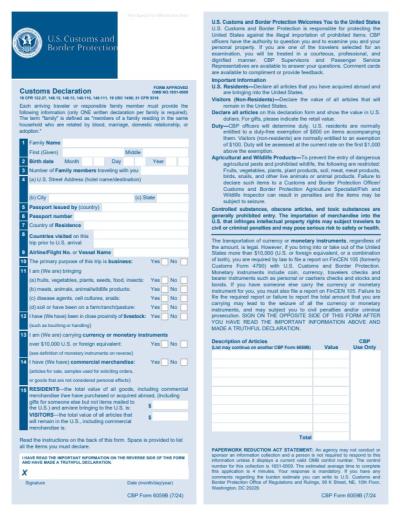 CBP Form 6059B — Customs DeclarationOfficial U.S. Customs and Border Protection arrival declaration form for travelers enterin...
-
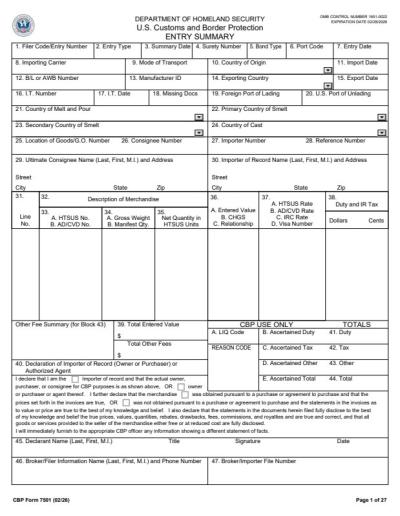 CBP Form 7501 — Entry SummaryOfficial U.S. Customs and Border Protection form used to summarize imported merchandise en...
-
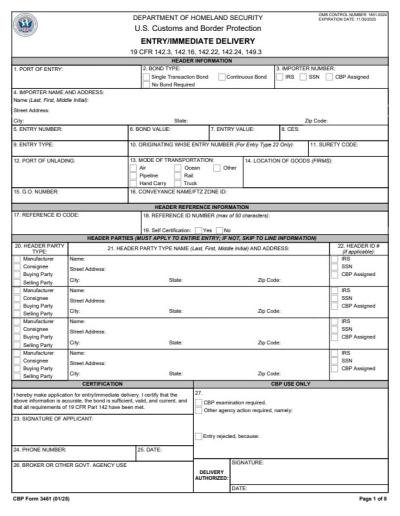 CBP Form 3461 — Entry/Immediate DeliveryOfficial U.S. Customs and Border Protection form for entry and immediate delivery of impor...
-
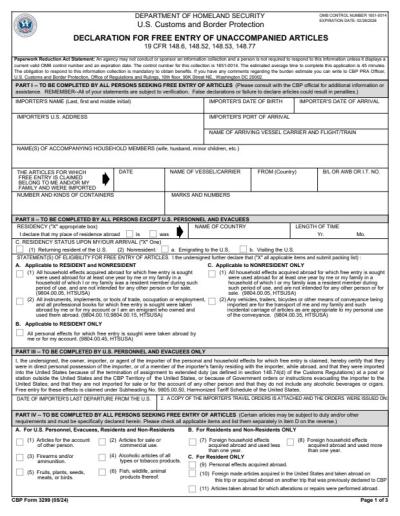 CBP Form 3299 — Declaration for Free Entry of Unaccompanied ArticlesOfficial U.S. Customs and Border Protection form for claiming free entry of unaccompanied...