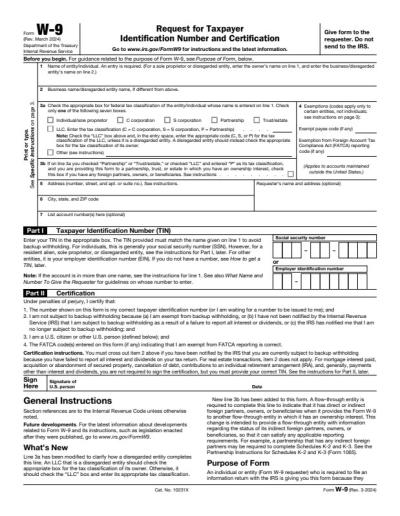
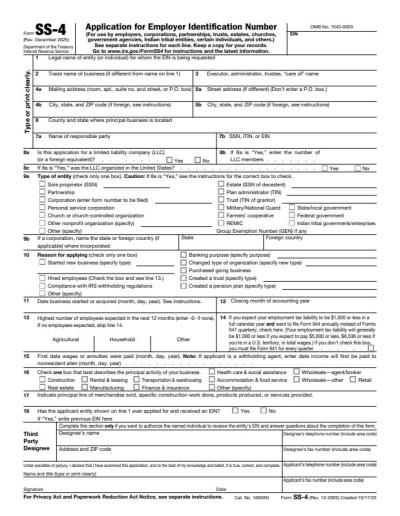
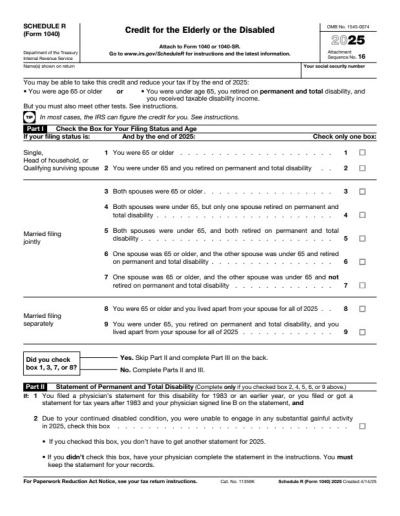
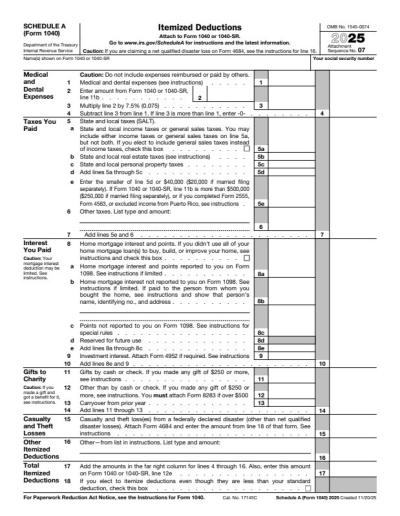
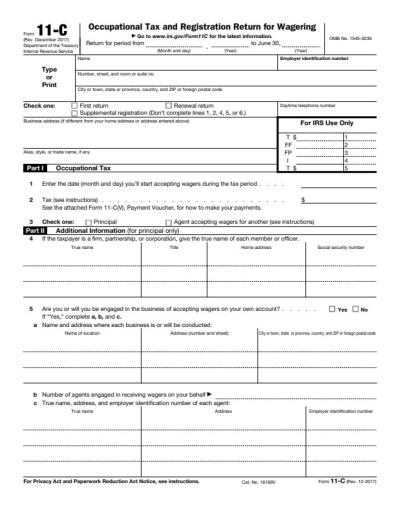
IRS Form 11-C Occupational Tax and Registration Return for Wagering, filled in online.
IRS Form 11-C Occupational Tax and Registration Return for Wagering — official fillable PDF form
Type in the panel and watch each answer land on the page. Filling in and signing is free; downloading needs a free account, which includes 5 downloads a month.
Or fill it another way:
- Category
- Tax
- Fillable fields
- 103
- Pages
- 6
- Paper size
- US Letter, 8.5 × 11 in
Five ways to fill this form.
-
Fill it in here
Type in the panel and watch it land on the form. Sign it, then download.
Free to fill and sign Start filling -
Many at once, from a spreadsheet
One row per person, one finished PDF for each.
Paid plan · you can walk through it Start with a spreadsheet -
Send it to someone to fill in
Email a link. They fill it in without an account and you get the answers back.
Paid plan · you can walk through it Send a request -
From your own software
Fill it over the API. One request returns the finished PDF.
Paid plan -
Let an AI assistant do it
Connect ChatGPT or Claude once, then describe what goes on the form.
With a free account
What is this form?
IRS Form 11-C Occupational Tax and Registration Return for Wagering is an official form issued by the Internal Revenue Service (IRS) to register a wagering business or occupation and calculate the federal occupational tax that applies to principals and agents who accept taxable wagers. The return covers the annual tax period ending June 30 and records each business location, responsible person, and wagering role. It is a registration and tax return, not a substitute for Form 730 or state gambling licenses.
\nUse the official instructions for the relevant filing year alongside this fillable version. PDFengine helps you enter data into the original PDF and download a completed copy, but it does not decide eligibility, calculate facts that are not supplied, or submit the form for you. Before signing, compare every identifier, date, amount, checkbox, and attachment against source records. A technically complete PDF can still be rejected when information is inconsistent, a required schedule is missing, or an outdated revision is used.
Who needs to fill this out?
This template is most relevant to people and organizations in the following situations:
\n- Principals accepting taxable wagers on their own account. Review the official eligibility and filing rules before relying on this form.
- Agents who accept wagers for another person or organization. Review the official eligibility and filing rules before relying on this form.
- Businesses adding locations or responsible persons during the tax period. Review the official eligibility and filing rules before relying on this form.
- Existing wagering operations filing a renewal, amended, or final return. Review the official eligibility and filing rules before relying on this form.
If your facts fall outside these examples, consult the issuing agency’s current instructions or a qualified adviser. Do not enter placeholder identifiers or estimates merely to make every field appear complete; leave fields blank only when the instructions permit it and use the required notation when a line calls for zero, none, or not applicable.
Where and how to submit
File the completed return with the IRS address stated in the current Form 11-C instructions and include payment using an accepted IRS method. Keep a signed copy and proof of payment for each registered location. Form 11-C is generally due before wagering activity begins and renewals are due by July 1; consult the current instructions for special rules and address changes. PDFengine does not transmit this form to the issuing agency. Download the final PDF, check that all entries remain visible, and use only the agency’s accepted filing channel. Protect the file in storage and transit because tax, identity, financial, or personnel information may be sensitive. Record the submission date, delivery or confirmation number, amount paid when applicable, and the exact version sent so you can answer a later notice or prepare a correction.
How to fill it out
Gather identification records, the related return or transaction documents, and the current agency instructions before starting. Then complete the PDF in this order:
\n- \n
- Step 1 — Return period from (Month and day): Enter the applicable date or period in the format printed on the form and confirm that it matches the tax year, transaction, or supporting record. This label comes directly from the official PDF, so match it to the same line in the agency instructions.
- Step 2 — Name: Enter the complete legal name used in the related agency record or source document; use a trade name only when the label or instructions specifically request it. This label comes directly from the official PDF, so match it to the same line in the agency instructions.
- Step 3 — Employer identification number: Copy this identifier exactly from the official record, preserving every digit and any required leading zero; then compare it a second time before continuing. This label comes directly from the official PDF, so match it to the same line in the agency instructions.
- Step 4 — Number, street, and room or suite no.: Select this option only when it accurately describes the filing or transaction, and review nearby alternatives so that conflicting choices are not marked. This label comes directly from the official PDF, so match it to the same line in the agency instructions.
- Step 5 — Principal: Select this option only when it accurately describes the filing or transaction, and review nearby alternatives so that conflicting choices are not marked. This label comes directly from the official PDF, so match it to the same line in the agency instructions.
- Step 6 — Name of location: Enter the complete legal name used in the related agency record or source document; use a trade name only when the label or instructions specifically request it. This label comes directly from the official PDF, so match it to the same line in the agency instructions.
After completing these steps, inspect the entire PDF page by page. Calculated totals should reconcile to source schedules, checkbox answers should not conflict, and names and identifiers should remain consistent across all pages. Sign and date only after that review, and add any schedules, statements, payment, or evidence required by the official instructions.
Frequently asked questions
Is Form 11-C the same as Form 730?
\nNo. Form 11-C registers the wagering occupation and reports occupational tax, while Form 730 is the monthly excise tax return for wagers. Always verify the current instructions when dates, thresholds, addresses, or agency procedures could have changed.
\nDoes every employee of a wagering business file Form 11-C?
\nNot necessarily. The principal and each person liable as an agent should apply the definitions in the official instructions to determine who must register. Always verify the current instructions when dates, thresholds, addresses, or agency procedures could have changed.
\nWhen does the occupational tax year run?
\nThe Form 11-C occupational tax year generally runs from July 1 through June 30, even when the business uses a different accounting year. Always verify the current instructions when dates, thresholds, addresses, or agency procedures could have changed.
\nDo I need a separate registration for each location?
\nList all locations as directed and report later additions promptly. State or local licensing may still require separate applications. Always verify the current instructions when dates, thresholds, addresses, or agency procedures could have changed.
\nCan I use an SSN instead of an EIN?
\nUse the taxpayer identifier requested for the filer and responsible persons. Businesses generally need an EIN; do not guess or enter another person’s identifier. Always verify the current instructions when dates, thresholds, addresses, or agency procedures could have changed.
\nCan I create IRS Form 11-C Occupational Tax and Registration Return for Wagering in bulk?
\nYes. PDFengine supports bulk generation of IRS Form 11-C Occupational Tax and Registration Return for Wagering via Excel or CSV upload: use one row per form and map each spreadsheet column to the corresponding PDF field. PDFengine then generates the completed PDFs together. You can also automate bulk creation programmatically through the PDFengine API. Bulk generation speeds up data entry but does not replace record-by-record validation, signatures, attachments, or submission through the issuing agency’s approved channel.
Ready to fill it in?
Fill in this form