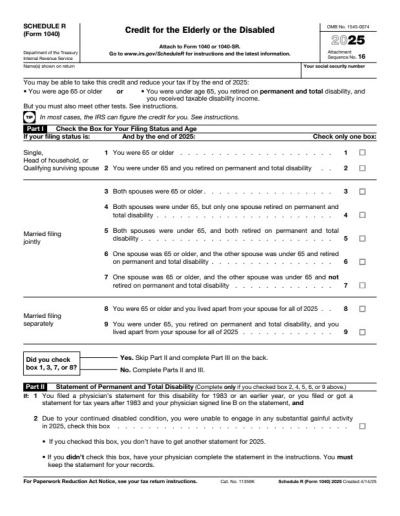
Schedule R (Form 1040) — Credit for the Elderly or the Disabled, filled in online.
Schedule R (Form 1040) — Credit for the Elderly or the Disabled — official fillable PDF form
Type in the panel and watch each answer land on the page. Filling in and signing is free; downloading needs a free account, which includes 5 downloads a month.
Or fill it another way:
- Category
- Tax
- Fillable fields
- 23
- Pages
- 2
- Paper size
- US Letter, 8.5 × 11 in
Five ways to fill this form.
-
Fill it in here
Type in the panel and watch it land on the form. Sign it, then download.
Free to fill and sign Start filling -
Many at once, from a spreadsheet
One row per person, one finished PDF for each.
Paid plan · you can walk through it Start with a spreadsheet -
Send it to someone to fill in
Email a link. They fill it in without an account and you get the answers back.
Paid plan · you can walk through it Send a request -
From your own software
Fill it over the API. One request returns the finished PDF.
Paid plan -
Let an AI assistant do it
Connect ChatGPT or Claude once, then describe what goes on the form.
With a free account
What is this form?
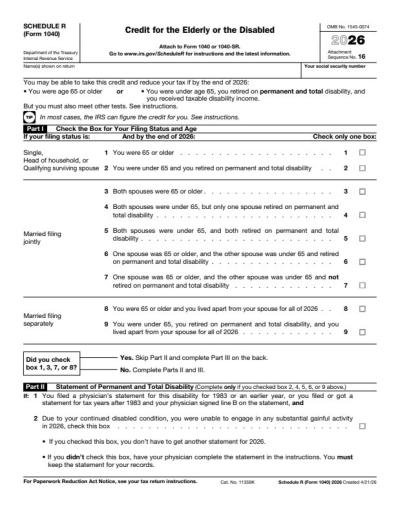
Schedule R (Form 1040) — Credit for the Elderly or the Disabled is an official fillable PDF issued or used by Internal Revenue Service. An eligible taxpayer who is elderly or permanently and totally disabled uses it to calculate the credit for the elderly or the disabled. The original layout keeps field order, identifiers, declarations and signature areas in the format expected by the receiving organization.
Prepare the form with the latest instructions and reliable source records beside you. Names, dates, addresses, identification numbers, account references, quantities and monetary amounts should match the documents that support the filing. A technically complete PDF can still be rejected when it uses an obsolete year, omits a required attachment or contains information that conflicts with another page.
PDFengine maps the existing AcroForm controls in the official document so you can produce a legible working copy without rebuilding the form. PDFengine does not decide eligibility, calculate professional advice, validate supporting evidence, sign for a filer or submit the finished form. The filer remains responsible for checking the current revision and approving the final document.
Who needs to fill this out?
- People, organizations or authorized staff specifically instructed by Internal Revenue Service to complete Schedule R (Form 1040) (2026)
- Preparers who have the current source records and permission to enter the filer’s information
- Reviewers responsible for checking identifiers, dates, calculations, selections and supporting documents before submission
- Representatives acting within a valid authorization; the form itself does not create authority unless its instructions explicitly say so
Do not use the form only because its title appears relevant. Confirm the revision, reporting period, jurisdiction and eligibility rules first. When the issuing organization has sent a notice or request, follow that document because it may identify a case-specific deadline, destination or required attachment.
Where and how to submit
Attach Schedule R to Form 1040 or 1040-SR and file the complete federal income-tax return with the IRS by the applicable deadline. Before delivery, verify the current destination, deadline, filing method, fee, attachment list and signature rules on the official Internal Revenue Service website or in the notice that required the form. A PDF created in PDFengine remains a draft until all required signatures and certifications are added and the authorized recipient receives it.
Keep the final PDF, the records used to prepare it, copies of attachments and proof of delivery or electronic acceptance. Record any confirmation, case or transaction number. If a correction is requested, update the source information and send the replacement through the channel specified by the recipient so two versions are not treated as separate filings.
How to fill it out
- Step 1 — Name(s) shown on return (
topmostSubform[0].Page1[0].f1_1[0]): Enter this item exactly as it appears in the controlling record. Preserve spelling, punctuation, leading zeroes and the printed date or number format. If the same value appears elsewhere in the form, compare both entries before moving on. - Step 2 — Your social security number (
topmostSubform[0].Page1[0].f1_2[0]): Choose or enter only information that is true for the reporting period or transaction covered by the form. Use the underlying notice, account record, certificate, payroll file or identification document rather than relying on memory. - Step 3 — 1 You were 65 or older (
topmostSubform[0].Page1[0].c1_1[0]): Complete the related entries as one section. Check whether the form asks for a legal name, mailing address, account identifier, measured amount or status choice, because a convenient shorthand may not match the official record. - Step 4 — 2 You were under 65 and you retired on permanent and total disability (
topmostSubform[0].Page1[0].c1_1[1]): Review the instructions attached to this field before using zero, “none” or “not applicable.” Blank, zero and not applicable can have different meanings, especially on tax, licensing, immigration and operational records. - Step 5 — 3 Both spouses were 65 or older (
topmostSubform[0].Page1[0].Married[0].c1_1): Reconcile this entry with totals, dates and repeated identifiers on the other pages. If an explanation or attachment is allowed, identify it clearly and make sure the referenced value still matches the field on the PDF. - Step 6 — 8 You were 65 or older and you lived apart from your spouse for all of 2026 (
topmostSubform[0].Page1[0].MarriedSeparate[0].c1_1[0]): Perform the final field-level check and then review the complete document. Confirm that selections are not contradictory and that any signature, certification, witness, preparer or official-use section is handled by the correct person.
Frequently asked questions
What is Schedule R (Form 1040) (2026) used for?
An eligible taxpayer who is elderly or permanently and totally disabled uses it to calculate the credit for the elderly or the disabled. Use the current official instructions to confirm that the form applies to the exact person, period and transaction involved.
Can I submit the PDF directly after filling it out?
Not automatically. Review every page, add any required signatures and attachments, and follow the official submission instructions; PDFengine fills the PDF but does not file it for you.
Which version of the form should I use?
Use the revision and year accepted by Internal Revenue Service for the relevant filing period. Compare the revision date, form number and official instructions before entering data.
What should I do when a field does not apply?
Follow the form instructions. Leave it blank, enter zero or use “N/A” only when the issuing authority says that treatment is valid, because those responses can have different legal or processing meanings.
Does PDFengine check whether my answers are correct?
No. PDFengine helps place information into the official fillable fields, but the filer must verify facts, calculations, eligibility, attachments and submission requirements.
Should I keep a copy of Schedule R (Form 1040) (2026)?
Yes. Save the exact submitted version with supporting records and proof of delivery or acceptance. This makes later corrections, audits or status questions easier to resolve.
Can I create Schedule R (Form 1040) (2026) in bulk?
Yes. PDFengine supports bulk generation of Schedule R (Form 1040) (2026) via Excel or CSV upload—use one row per form and PDFengine generates the PDFs together. You can also automate bulk creation through the PDFengine API.
Ready to fill it in?
Fill in this form