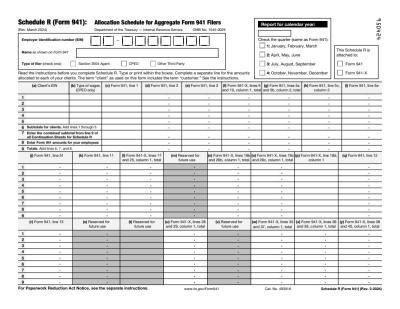
Schedule R (Form 941) — Allocation Schedule for Aggregate Filers, filled in online.
Schedule R (Form 941) — Allocation Schedule for Aggregate Filers — official fillable PDF form
Type in the panel and watch each answer land on the page. Filling in and signing is free; downloading needs a free account, which includes 5 downloads a month.
Or fill it another way:
- Category
- Tax
- Fillable fields
- 818
- Pages
- 2
- Paper size
- 792 × 612 pt
Five ways to fill this form.
-
Fill it in here
Type in the panel and watch it land on the form. Sign it, then download.
Free to fill and sign Start filling -
Many at once, from a spreadsheet
One row per person, one finished PDF for each.
Paid plan · you can walk through it Start with a spreadsheet -
Send it to someone to fill in
Email a link. They fill it in without an account and you get the answers back.
Paid plan · you can walk through it Send a request -
From your own software
Fill it over the API. One request returns the finished PDF.
Paid plan -
Let an AI assistant do it
Connect ChatGPT or Claude once, then describe what goes on the form.
With a free account
What is this form?
Schedule R (Form 941) — Allocation Schedule for Aggregate Filers is an official fillable form issued or used by Internal Revenue Service. It allocates the wages, taxes, credits, deposits, and adjustments on an aggregate Form 941 among the filer’s clients or customers. The form preserves the authority’s own field order, calculations, checkboxes, declarations, and filing references, which makes it suitable for review against the official instructions.
Prepare the form from current source records rather than memory. Confirm the reporting year or period, legal names, identification numbers, addresses, account references, dates, amounts, selections, and supporting schedules before entering anything. A mismatch between this PDF and an attached return, payroll report, court filing, vehicle record, facility log, or identity document can delay processing or cause the receiving office to ask for a corrected submission.
PDFengine maps the existing AcroForm fields in the official PDF so you can complete and review a clean working copy. PDFengine does not decide eligibility, calculate legal rights, verify supporting evidence, sign for a taxpayer or organization, or submit the document automatically. The filer remains responsible for using the current revision, reading the official instructions, approving every answer, and applying any required signature.
Who needs to fill this out?
- approved agents filing aggregate Form 941 who need an official, reviewable PDF rather than an informal summary
- certified professional employer organizations who need an official, reviewable PDF rather than an informal summary
- third-party payers authorized for client payroll reporting who need an official, reviewable PDF rather than an informal summary
- tax teams reconciling client totals to the aggregate return who need an official, reviewable PDF rather than an informal summary
If an accountant, attorney, payroll provider, agent, preparer, or other representative completes the draft, the person or organization named on the form should still compare it with the underlying records. Authorization to prepare data does not automatically include authority to sign, certify, or file.
Where and how to submit
Attach the completed Schedule R to the corresponding aggregate Form 941 and submit the combined return to the IRS; retain the client allocation records. Confirm the current destination, filing method, deadline, payment rule, signature method, and attachment list on the official Internal Revenue Service website before delivery. Government forms and procedures change, so an address or deadline copied from an old return should not be assumed to remain valid.
Keep the final PDF with the records used to prepare it, a copy of each attachment, and evidence of electronic acceptance, mailing, hand delivery, or employer receipt. Record the submission date and any confirmation, case, account, client, or tracking number. If the authority requests a correction, update the source data first and label the replacement clearly so multiple versions are not mistaken for separate filings.
How to fill it out
- Step 1 — Report for calendar year: Enter this item exactly as it appears in the relevant government, payroll, court, tax, vehicle, or facility record. Preserve complete names, identifiers, punctuation, leading zeroes, and the date or amount format printed on the form. If the source record differs from an earlier filing, resolve the difference before continuing.
- Step 2 — Line 4: (m) Form 941-X, lines 18b and 26b, column 1, total: Complete the connected fields as one section and check that every selection describes the same filing period, transaction, person, business, client, or facility. Do not select mutually inconsistent options. When the instructions make the field conditional, answer it only after confirming that the condition applies.
- Step 3 — Row 5: (bb) Form 941-X, lines 45 and 46, column 1, total: Use the supporting statement, ledger, return, title, schedule, roster, or identity document for this entry. Copy the value rather than estimating it. Where the PDF splits a number or date across several boxes, enter every segment in the printed order and retain any required zeroes.
- Step 4 — Line 6: Form 941, line 1: Reconcile this entry with related totals and repeated details elsewhere in the PDF. Amounts should follow the form’s dollars-and-cents layout, and names or account numbers should match on every page. Investigate any unexplained difference before you create the final version.
- Step 5 — Line 7: Form 941-X, lines 18a and 26b, column 1, total: Read the declaration or instruction attached to this field before selecting or entering a response. Gather the evidence that supports the answer and attach it only when the official instructions require it. Do not use a blank, placeholder, or guessed answer merely to complete the screen.
- Step 6 — Row 9: (z) Form 941-X, lines 38 and 39, column 1, total: Perform the final review around this field and the adjoining signature, date, certification, or contact area. Confirm that the authorized person will sign using an accepted method, all mandatory attachments are ready, and the saved PDF represents the version intended for filing.
After completing these fields, review every page at normal size and at print size. Check that text is visible, no checkbox is marked unintentionally, amounts use the correct units, and continuation pages or attachments can be matched to the primary form.
Frequently asked questions
Is Schedule R (Form 941) an official form?
Yes. This template uses the official PDF layout and its fillable fields. Always compare the revision and instructions with the issuing authority’s current version before filing.
Can I save a draft and finish it later?
Yes. Save a working PDF and return after collecting missing records, but protect files containing tax, identity, payroll, health, court, or financial data and remove obsolete drafts.
Do I need to sign the completed PDF?
Use the signature and certification method stated in the current instructions. Typing information into PDFengine does not replace a handwritten, electronic, witnessed, notarized, preparer, or officer signature when one is required.
What should I do if a field does not apply?
Follow the official line instruction. Leave it blank, enter zero, or use an allowed notation only when the authority says to do so; do not invent data merely to fill every box.
Which records should I use while completing the form?
Use the source documents that support the filing, such as prior returns, payroll reports, account notices, identity records, schedules, titles, contracts, rosters, or official correspondence. Reconcile repeated values across every page.
Does PDFengine submit Schedule R (Form 941) for me?
No. PDFengine creates the completed PDF. You must sign it where required and send it through the official online, mail, court, employer, agency, or in-person channel that applies.
Can I create Schedule R (Form 941) in bulk?
Yes. PDFengine supports bulk generation of Schedule R (Form 941) through Excel or CSV upload: use one row per form and PDFengine generates the PDFs together. You can also automate bulk creation through the PDFengine API.
Ready to fill it in?
Fill in this form