Schedule 3 (Form 1040), filled in online.
Additional Credits and Payments
Type in the panel and watch each answer land on the page. Filling in and signing is free; downloading needs a free account, which includes 5 downloads a month.
Or fill it another way:
- Category
- Tax
- Fillable fields
- 37
- Pages
- 1
- Paper size
- US Letter, 8.5 × 11 in
Five ways to fill this form.
-
Fill it in here
Type in the panel and watch it land on the form. Sign it, then download.
Free to fill and sign Start filling -
Many at once, from a spreadsheet
One row per person, one finished PDF for each.
Paid plan · you can walk through it Start with a spreadsheet -
Send it to someone to fill in
Email a link. They fill it in without an account and you get the answers back.
Paid plan · you can walk through it Send a request -
From your own software
Fill it over the API. One request returns the finished PDF.
Paid plan -
Let an AI assistant do it
Connect ChatGPT or Claude once, then describe what goes on the form.
With a free account
What is this form?
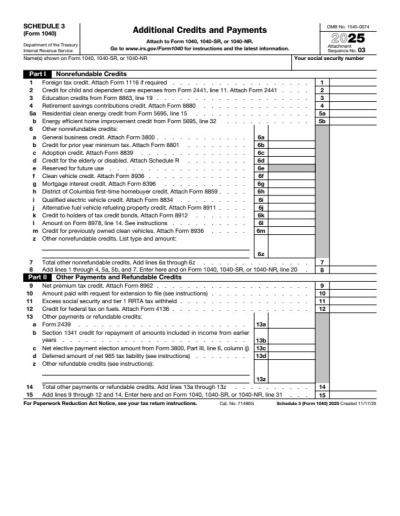
Schedule 3 (Form 1040) is the IRS schedule used for additional nonrefundable credits, refundable credits, and other payments that do not appear directly on the main return. It can include foreign tax credit, child and dependent care credit, education credits, retirement savings contributions credit, energy credits, general business credit, mortgage interest credit, net premium tax credit, extension payments, fuel tax credit, and several other credit items.
Because these amounts often come from separate IRS forms, Schedule 3 acts as the collection point before the totals are transferred back to Form 1040. PDFengine helps you complete the official fillable schedule, review the specific line references, and build a clean filing draft with the correct supporting credit totals.
Using PDFengine for Schedule 3 (Form 1040) also makes internal review easier when more than one person touches the filing process. Because the output follows the official IRS layout, a payroll manager, bookkeeper, broker operations specialist, or outside tax advisor can compare the draft line by line against source records without first translating a custom interface back into tax-form language. That is especially useful when the form later feeds another schedule, information return, withholding setup, or compliance archive.
Another practical advantage is consistency across repeated reviews. If the same payer, employer, or preparer needs to revisit the form later, the saved PDF shows exactly which line items, checkboxes, and reference amounts were used at the time of preparation. That reduces confusion when a recipient asks for clarification, when an auditor wants to trace a number back to source material, or when a correction has to be prepared without rebuilding the entire document from scratch.
Who needs to fill this out?
- Taxpayers claiming credits or refundable payments beyond the most basic Form 1040 lines
- People using Forms 1116, 2441, 8863, 5695, 3800, 8962, or similar supporting credit forms
- Households claiming energy, education, care, or retirement-related credits
- Preparers assembling a complete 2026 return package with multiple credit attachments
- Teams that want a standardized PDF draft for approval, reconciliation, recordkeeping, or secure client review
Where and how to submit
Schedule 3 is attached to Form 1040, 1040-SR, or 1040-NR. Keep the underlying forms that support each credit because the schedule usually summarizes amounts rather than explaining them in full. If you are filing electronically, verify that every referenced credit form is included in the package.
After completion, keep both the finished PDF and the records that support every amount, checkbox, or identification field on the form. The PDF is useful for review and recipient delivery, but the supporting ledger, worksheet, payroll file, brokerage statement, or benefits record is what allows you to answer later questions from the recipient, an accountant, or the IRS. A saved copy also makes future corrections easier if you later need to issue an updated version.
Before you file, share, or archive the form, compare the completed PDF once more against the source records and any related forms mentioned in the instructions. Small mismatches in names, TINs, dates, line references, or payment amounts can create extra follow-up work later. A final review pass is usually faster than correcting a distributed or filed form after the fact.
How to fill it out
- Step 1 — Header details: Enter the taxpayer name and Social Security number exactly as shown on the main return.
- Step 2 — Nonrefundable credits: Complete the upper lines for foreign tax credit, child and dependent care expenses, education credits, retirement savings contributions credit, energy credits, and other listed nonrefundable credits.
- Step 3 — Other credit carryovers: Use the lines for business, mortgage, clean vehicle, District of Columbia homebuyer, previously owned clean vehicle, and other specialized credits when those supporting forms apply.
- Step 4 — Refundable credits and payments: Finish the lower section for net premium tax credit, extension payments, excess Social Security tax withheld, credit for federal tax on fuels, and any other refundable credit lines.
- Step 5 — Total and transfer: Add the required subtotals and transfer the nonrefundable and refundable totals to the proper Form 1040 lines.
Frequently asked questions
Is Schedule 3 only for tax credits?
Mostly, but it also includes certain payments and refundable credit items that flow back to the main return.
Do I need the forms listed next to the credit lines?
Yes, in many cases the schedule expects you to carry amounts from those underlying IRS forms.
Can Schedule 3 reduce my tax bill?
Yes. Nonrefundable credits can reduce tax, and refundable items or payments can increase refunds or lower the balance due.
What is the difference between Schedule 3 and Schedule 2?
Schedule 3 collects credits and payments, while Schedule 2 collects additional taxes.
Do extension payments belong on Schedule 3?
Yes. The schedule includes a line for amounts paid with a request for extension to file.
Should I keep a copy after sending it?
Yes. Keep the completed PDF together with the supporting records so you can verify what was reported if questions come up later.
Can I use PDFengine for review before filing or sharing?
Yes. Many teams use PDFengine to prepare and review the official layout first, then file or distribute the final version through their normal workflow.
What should I check before I finalize the PDF?
Review names, identification numbers, dates, line references, and every amount against the source records so the final version matches the underlying paperwork.
Can I create Schedule 3 (Form 1040) in bulk?
Yes. PDFengine supports bulk generation of Schedule 3 (Form 1040) via Excel or CSV upload — upload a spreadsheet with one row per form and PDFengine generates all PDFs at once. You can also automate bulk creation programmatically via the PDFengine API.
Ready to fill it in?
Fill in this form