
Compressing and repairing: How to optimize your PDFs
Jip Oomen
PDFengine Team
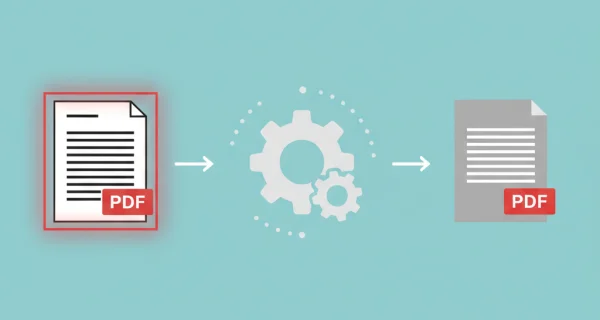
PDF file too large? Text in PDF not recognized? A corrupted PDF that won’t open? PDFs are normally easy and widely accessible file formats; but these problems can turn PDFs into a headache. Not to worry though! With PDFen you can make the most out of your PDFs, through our powerful PDF optimization tools.
PDFen offers 5 tools to optimize your PDF experience: compress, OCR, PDF/A conversion, Repair, and Rasterize. Let’s run them down one by one.
1. Compress
When? In case PDF file is too large for uploading or sharing it.
How does it work? PDF software compresses the document so that file size can (drastically) decrease, while PDF quality is mostly well-preserved.
Go to ‘optimize’ and then ‘compress’ on PDFen
Drop your PDF/ZIP file(s) into the software
Choose your compression preset. Lossless has is the least compression, then printer and Ebook, while web has the highest compression level.
Click on ‘Show More Options’ to set how much images may be compressed, to change the image resolution, and choose whether to maintain PDF/A compliance if you uploaded a PDF/A document.
Press ‘convert’ and download your result directly.
--> For choosing your compression level, remember that a higher compression level might take a little longer, and might impact the quality of your PDF. Higher compression levels do deliver the largest reduction in file size.
2. OCR
When? In case text in your PDF cannot be copied, selected, or searched (Ctrl+f)
How does it work? OCR technology recognizes and marks text elements in the PDF, making them copyable, searchable, and selectable.
Go to ‘optimize’ and then to ‘OCR’
Drop your PDF/ZIP file(s) into the software
Choose OCR language (pick the main language of the document(s))
Choose OCR quality (‘automatic’ is recommended); reprocess may be useful in case OCR wasn't succesful on a first attempt.
Press ‘convert’ and download your result directly.
--> For choosing the language, choose the main language in the document ensures the best processing of your document. In case your document contains multiple languages or languages not available, OCR can often still recognize the text. Consider applying OCR multiple times in different languages if it doesn’t work in one go.
3. PDF/A
When? If your text must be accessible in the long term (<5 years)
How does it work? PDF/A software transforms the coding of your PDF document into ISO long-term archiving compliant PDF/A file format, meaning that even if software and programs change, your document is still accessible.
Go to ‘optimize’ and then to ‘PDF/A’
Drop your PDF/ZIP file(s) into the software
Pick your PDF/A type. Not sure which one to pick? Check our blog on PDF/A, or pick 3b for an allround solid PDF/A version.
Press ‘convert’ and download your result directly.
--> Which PDF/A type to pick depends on your archiving needs. In general, type 1 is the oldest and 4 the newest. With newer types, accessibility improves and increasingly more file types can be embedded in the PDF.
4. Repair PDF
When? In case your PDF doesn’t render correctly, is corrupted, or damaged.
How does it work? Our PDF software recognizes a flaw in the PDF and can fix some of the most common issues with PDFs; mostly when a PDF is damaged or is corrupted.
Go to ‘optimize’ and then to ‘Repair PDF’
Drop your PDF or ZIP file(s) into the software
Premium users can choose to add a password, in case a file is password-protected
Press ‘convert’ and download your result directly.
--> Remember that repairing a PDF won’t always fix the issues pertaining to your document. Still unable to access the document? Consider reading this blog on the 7 most common causes (and its solutions!) for why PDFs don’t work.
4. Rasterize PDF
When? If you want to send a PDF document but make sure it cannot be easily tampered with
How does it work? PDF software translates text and vector images in the PDF into raster images, meaning the PDF becomes view-only, and security is enhanced.
Go to ‘optimize’ and then to ‘rasterize PDF’
Drop your PDF or ZIP file(s) into the software
Press ‘convert’ and download your result directly.
--> Keep in mind that rasterizing a PDF isn’t 100% foolproof in terms of security, or preventing other people from editing the document. Consider also to protect your PDF (with a password).
Optimizing efficiency
Through optimizing your PDF, you’re able to much more effectively communicate, organize and administer within your organization with PDF documents. Haven’t found what you’re looking for? Explore our PDF organization, PDF conversion, and PDF merging solutions now.
Related Articles

Can ChatGPT, Claude or Gemini Convert Email to PDF? What AI Can (and Can't) Do
No AI assistant can natively convert .eml or .msg to PDF. But Claude + MCP bridges the gap — here's...
How to Convert Email to PDF With Headers (for Archiving & Records)
Convert email to PDF while keeping headers, attachments, and transport data intact, for single files...