
What Is OCR and Why Should You Use It?
Jip Oomen
PDFengine Team
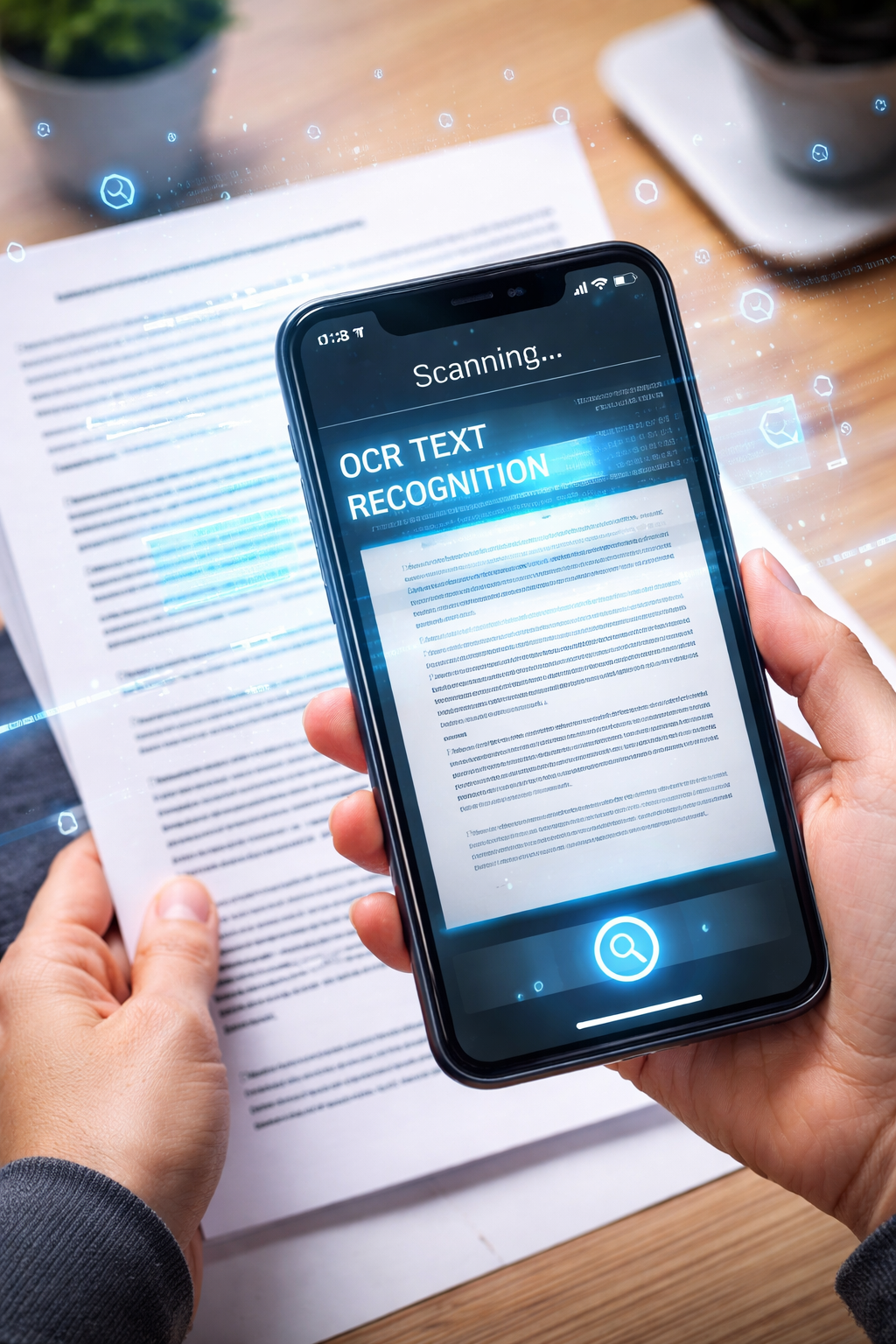
Have you ever used or scanned a document and realized that you couldn’t select, search, or copy the text? Often the problem is: the file looks like a text, but it is displayed like an image; meaning no copying, no searching, no editing, and no reliable lay-out. That is where OCR comes in. This decades old, but still highly useful technology can make your text selectable, searchable and copyable.
I. What Is OCR?
OCR stands for Optical Character Recognition. It’s a technology that converts text from scanned documents or images into machine-readable text. The technology is used most visibly by scan software, such as in translator apps, where text on a piece of paper can be recognized by a computer as well.
OCR is much broader than that though, as it will allow any computer to see and understand the text in a picture or scanned PDF. It allows you to actually do something with the text. Scan a printed contract, invoice or form, an OCR will turn that scanned image into a perfectly functioning PDF.
II. Using OCR
OCR can be used in three main cases:
1. Image to PDF
2. PDF OCR
3. PDF to word
Image to PDF
When you convert an image to PDF, OCR software will always automatically run. OCR tries to recognize if there is text in your image, and then converts it into a PDF document, making becomes selectable.
PDF OCR
In case there is text in a PDF, but you cannot edit, search, or copy it, you can choose to optimize your PDF using OCR. In this case, the PDF will be processed and OCR software will try to recognize the text that is in the document. This can also be done when the Image to PDF conversion did not convert all text correctly.
PDF to Word
When you wish to convert your PDF to Word document, it is highly advisable to use OCR. OCR will make sure to differentiate between images and text, meaning the lay-out of your document will be preserved, images will be rendered in the correct manner, and text fonts are displayed correctly and can still be edited. Especially with word documents with both images and texts, or with word documents with a complicated lay-out, OCR technology is a must.
III. When Can You Use OCR?
OCR is broader than just simple document conversions though, as it can ease a lot of digital and bureaucratic processes. Consider using one of the 3 OCR options for:
Scanned documents; digitizing paper documents like contracts, receipts, or letters by scanning them as PDF.
Photos of text; upload photos of a document or presentation slide by using OCR.
Archiving documents; Enhance your archive? Use OCR to make your archive searchable by text.
Business workflows; Apply OCR technology to process printed invoices or application forms automatically.
--> Whenever your document looks like text but acts like an image, OCR is your solution. OCR will make your document searchable, editable, and readable.
IV. The Benefits of Using OCR
Outside of being able to edit, copy, and search your files, OCR offers several other benefits, both for personal and professional use:
1. Improves document organization
Searchable text means you can easily categorize and find documents in your archive based on content, not just file names.
2. Saves time and reduces errors
Instead of manually transcribing printed text, OCR automates the process. OCR is faster, more accurate, and creates less room for mistakes.
3. Improved accessibility
OCR also helps make documents accessible for screen readers, enabling visually impaired users to access text from scanned files.
V. How to Use OCR (and Where to Do It)
At PDFen, you can use OCR in the 3 mentioned ways (PDF optimization, PDF to Word and image to PDF). How it works:
Optimize PDF
2. Go to OCR
3. Upload your document
4. Press ‘convert’ and download your document
Word to PDF
2. Upload your file
3. Press ‘OCR’ on the right
4. Press ‘convert’ and download your document
Image to PDF
Go to Image to PDF
Upload your file, and convert
OCR is automatically applied.
Related Articles
Compressing and repairing: How to optimize your PDFs
Professionalize your PDFs by using 5 essential PDF optimization tools. Learn when and how to repair,...

Can ChatGPT, Claude or Gemini Convert Email to PDF? What AI Can (and Can't) Do
No AI assistant can natively convert .eml or .msg to PDF. But Claude + MCP bridges the gap — here's...