
Convert OST to PDF
Transform your Outlook OST offline archive files into PDF documents. Extract and convert all cached emails with attachments for archiving, migration, or compliance purposes.
More information about this conversion
From simple conversions to a more complex automation using workflows, PDFengine provides professional-grade tools for every PDF task.
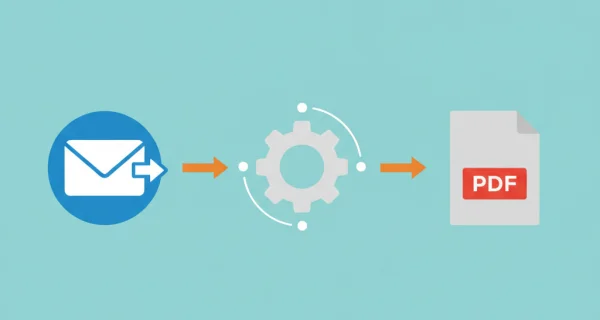
Offline Archive Conversion
Convert Outlook OST files to PDF without needing access to the original Exchange server. All cached emails are extracted and converted individually, preserving folder structure and email metadata including sender, recipients, date, and subject.
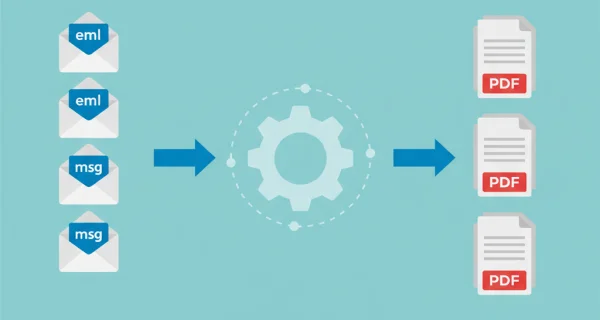
Attachments Included
Email attachments are automatically converted along with the email body. Office documents, images, and PDFs are all processed to create comprehensive archive PDFs from your OST cache.
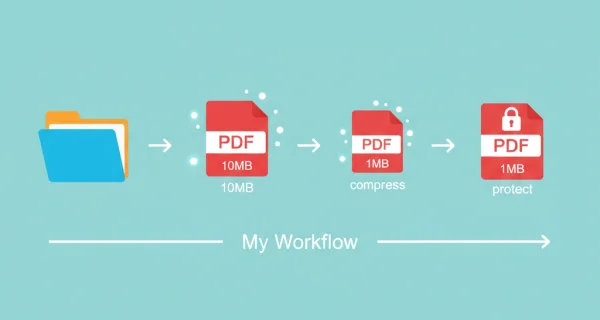
Secure Processing
Your OST files are processed securely on our servers. Files are deleted after conversion, ensuring your sensitive cached email data remains protected throughout the process.
Why choose us to convert your files
Lightning Fast Conversion
Our advanced conversion engine processes your files in seconds, not minutes. Upload, convert, and download - all within moments.
Focus on business
Archive and convert email, AutoCAD, Visio, and Office files in one streamlined workflow. Perfect for companies with recurring document processes.
Perfect Quality Every Time
Our intelligent algorithms preserve formatting, fonts, images, and layouts. What you see is what you get - no quality loss.
How it works
Process your documents easily and quickly in three steps
Upload OST File
Upload your Outlook OST offline archive file. Files up to 500MB are supported for registered users.
Automatic Extraction
We extract all cached emails from the OST archive, preserving folder structure and email relationships. Invalid or corrupted emails are skipped automatically.
Download PDFs
Each email is converted to a separate PDF file. All PDFs are packaged in a ZIP archive for easy download and organization.
Frequently Asked Questions
What is an OST file?
OST (Offline Storage Table) is Microsoft Outlook's file format for storing a local cache of your mailbox when using Exchange Server or Microsoft 365. Unlike PST files, OST files are tied to a specific Outlook profile and cannot be opened directly without the original account. Converting to PDF preserves your emails independently of the original account.
What is the difference between OST and PST files?
PST (Personal Storage Table) files are standalone archives you can open anywhere. OST files are synchronized caches tied to a specific Exchange/Microsoft 365 account and Outlook profile. OST files are often larger because they cache your entire mailbox. Both formats can be converted to PDF using our service.
Why would I need to convert OST to PDF?
Converting OST to PDF is useful when migrating to a new system, archiving emails before leaving an organization, creating compliance records, or preserving emails when you no longer have access to the original Exchange server or Microsoft 365 account.
Do I need to log in to convert OST files?
Yes, OST conversion requires a registered account. This is because OST files can be large and contain many emails, requiring more processing power. Create a free account to get started.
What happens to email attachments?
Email attachments are processed the same way as regular email-to-PDF conversion. Office documents are converted to PDF, images and existing PDFs are included directly. All attachments are merged with the email body into a single PDF per email.
What can I do if my OST file is too large?
If your OST file is too large, consider compressing it through ZIP. This is really simple. Just go to your file library, right-mouse click on your file and select ‘compress in ZIP-file’. Your file size can be greatly reduced, and you can still use the ZIP file on PDFen
Where can I find my OST file?
OST files are typically located in your Outlook data folder. On Windows, this is usually at C:\Users[username]\AppData\Local\Microsoft\Outlook. The file name often includes your email address. You can also find the location in Outlook under File > Account Settings > Data Files.
How long does OST conversion take?
Processing time depends on the number of emails and attachments in your OST file. OST files are often larger than PST files due to mailbox caching. A typical archive with 50 emails takes 2-5 minutes. Larger archives may take longer.
Why is it handy to convert my document to PDF?
Converting a file to PDF ensures your document stays consistent and accessible. PDFs lock in formatting, design, and structure, preventing layout shifts that can happen with editable file types. They’re compatible with virtually all devices and operating systems, making them ideal for professional documents, forms, reports, and presentations. PDFs are also easy to distribute; whether through email, downloads, cloud platforms, or QR-codes that let users open a file instantly on their phone.
Will documents lose quality when converted?
Our intelligent software minimizes quality loss when converting documents. As such, documents can be converted without having to worry about quality loss for a great number of times.
Will my document lay-out or format be changed if I convert it?
No; our intelligent PDF software recognizes document layouts and transforms them accurately onto a new file format. Was your lay-out or format not transformed accurately? Consider applying OCR, or applying different customization settings to convert it correctly.
Can I convert a document into PDF and convert it back into original format?
Yes! There are no limits to converting documents, and documents can safely and easily be converted back and forth. Conversion can be handy to edit a PDF document in Word, and later convert it back into an organized PDF format.
How can I merge PDF documents?
To merge PDF documents simply go to our converter, choose the file format you’re merging, and drag and drop the files you want to merge. Then you have the opportunity to edit some settings, press merge, and you’re done! You can download your merged file right away.
Can I customize my PDF documents while converting?
Yes, PDFengine offers various means of customizing your (PDF) documents. Consider adding a cover page, applying OCR, or using PDF/A as output.
Why is the text in my PDF not displayed correctly?
If the text is not copyable, clickable, or searchable, that means the text is not recognized within the PDF. Try uploading your document onto PDFen and applying OCR. OCR technology will make your text readable. In case it doesn’t work completely in one go: apply OCR a second time.
Ready to convert your offline email archive?
Transform your Outlook OST files into organized PDF documents for compliance, migration, or long-term storage - no Exchange access required.
Related Conversions
Convert other email formats and documents to PDF.
Merge PDFs
Combine multiple PDF files into one document
Office to PDF
Convert Microsoft Office documents (Word, Excel, PowerPoint) to PDF format
Compress PDF
Reduce PDF file size while maintaining quality