
How to Compare Two PDFs and Find Every Difference (Content, Visual & Metadata)
Founder, PDFengine

To compare two PDFs and find every difference, you need to answer two separate questions. First: are these the same document, and if not, on which layer do they differ (bytes, text, visual, or metadata)? Second: where on the page do the pixels actually change? Those are different jobs, and using the wrong tool is exactly why so many people end up staring at a report that marks the whole file as changed. pdfen splits the work into a layered content check and a page-by-page pixel diff, then lets you export the result as evidence.
Key Takeaways
Two PDFs can look identical yet differ on the byte, metadata, or font layer, so a single "compare" button rarely tells the full story.
A content/equality check answers "same document?" across four layers; a visual diff answers "which pixels moved?" You often need both.
Adobe Acrobat's Compare tool is Pro-only, desktop-bound, and widely reported to misfire on security settings, mismatched page sizes, and scans.
pdfen runs both comparisons online, works on scans without a text layer and on email trees, and exports the result as PDF, PNG, or JSON.
No online tool is fully client-side: comparing files means uploading them, so read privacy claims carefully.
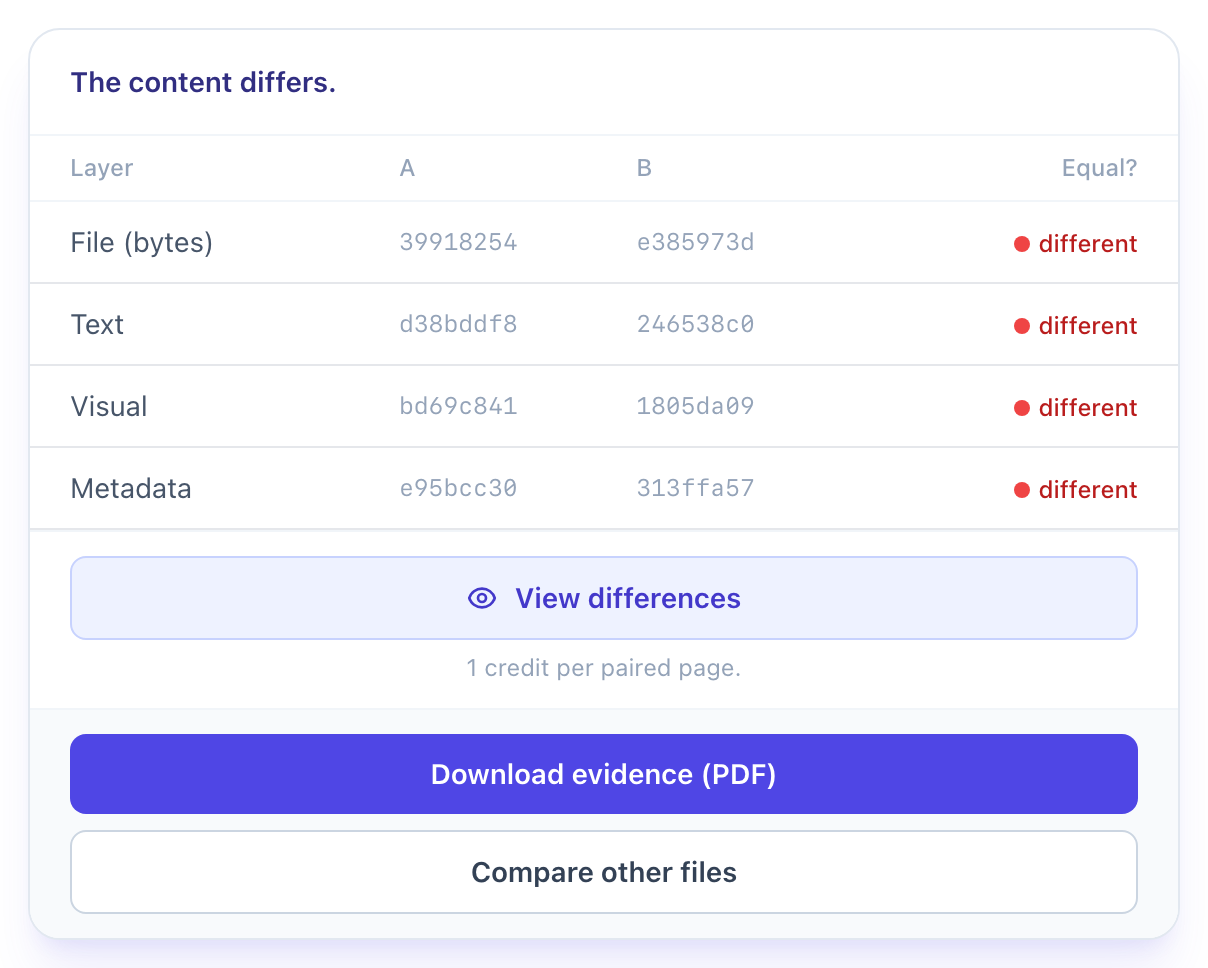
How do you compare two PDFs and find every difference?
Start by deciding what "difference" means for your task. If you want to know whether a signed contract is the exact file you approved, run a content comparison that checks bytes, text, visual rendering, and metadata separately. If you want to see where a clause moved or a figure changed, run a visual diff that highlights the pixels. Most people reach for one tool, get a confusing result, and assume the file is fine when it isn't.
The workflow that actually holds up: upload the old version as file A and the new version as file B into the PDF Compare tool. You get an equality matrix that marks each of the four layers as identical, different, or not applicable, plus a plain-language verdict such as "Same content, different metadata" or "Same text, different appearance." When the matrix flags a visual difference, switch to the Visual Diff tool to see exactly where. One tells you that something changed; the other shows you where.
Almost every competing tool forces a single comparison model on you: text-only, or a redline overlay. The useful mental shift is treating comparison as a choice between an equality check and a pixel check, because a re-saved file and a re-typed clause are completely different problems that happen to produce similar-looking alerts.
Why do two PDFs look identical but still differ?
A PDF is not one thing. It's a stack of layers, and two files can match on some layers while quietly diverging on others. That's why "they look the same" is not the same statement as "they are the same document." A content comparison separates the layers so you can see which one actually moved.
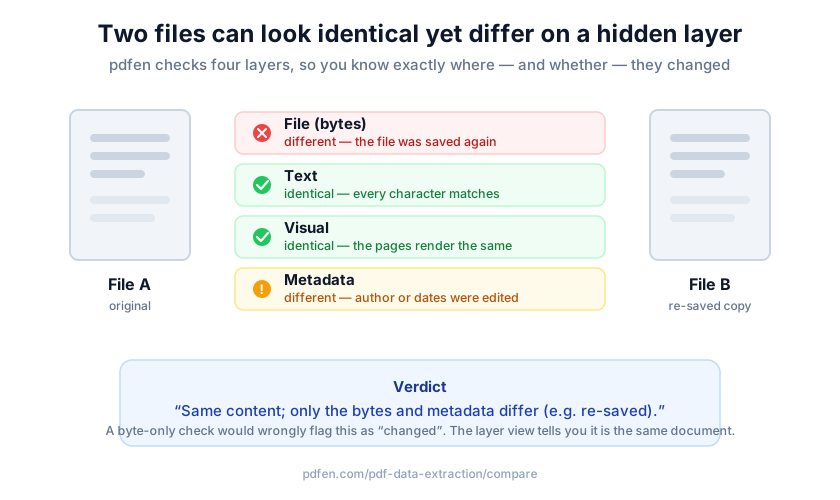 The four layers pdfen compares: bytes, text, visual and metadata.
pdfen checks four layers and reports each independently:
File (bytes). A byte-for-byte hash. If this matches, the files are literally identical and nothing else needs checking.
Text. The extracted text content, ignoring how it's drawn. Same words, same order.
Visual. How the pages render. Same text can look different if fonts, spacing, or layout changed.
Metadata. Author, creation date, producer, and other embedded fields that never show on the page.
The verdicts follow from the matrix. "Same content and metadata; only the bytes differ" usually means the file was re-saved. "Same content, different metadata" often means metadata was stripped or edited. "Same text, different appearance" points to a font or layout change. In our experience the metadata-only difference is the one that surprises people most: the visible document is unchanged, but the file has been re-exported through a different tool, which matters when you're establishing whether a document is the original.
Two PDFs can share identical extracted text yet differ on the byte and metadata layers when a file is re-saved or its metadata is stripped, which is why a layered equality check (file, text, visual, metadata) reports each layer separately instead of collapsing them into a single pass or fail.
When do you need a visual diff instead of a text compare?
Use a visual (pixel) diff whenever the text layer can't be trusted or doesn't exist. Scanned contracts, image-only PDFs, stamped signature pages, and files where the layout itself is the point all defeat text-based comparison. This is the choice between a visual diff and a text compare, and getting it right saves hours of chasing phantom changes.
The Visual Diff tool renders both files page by page and compares them pixel by pixel. It produces a heatmap, highlighted regions, and a "% changed" figure per page, and it flags pages as added, removed, or moved. It also handles scans that have no text layer at all, the exact case most text-only diff tools miss. You can review the result in five view modes: side by side, heatmap, onion skin, swipe, and difference.
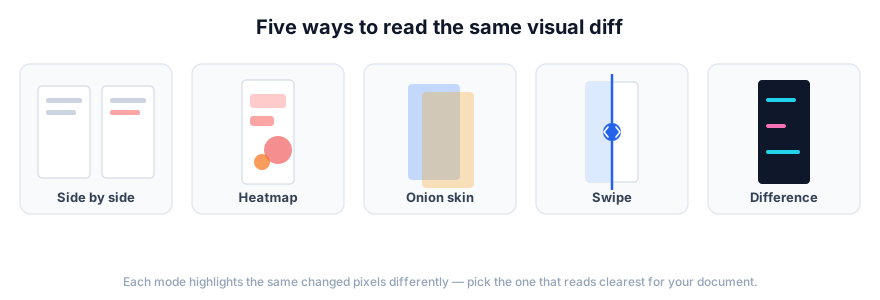 The visual-diff view modes: side by side, heatmap, onion skin, swipe and difference.
One caveat we build into the export itself: a pixel comparison shows where the rendered pixels differ. It is not a legal or forensic judgment about the content. If a signature block shifted two millimetres because of a different printer driver, the pixels differ even though nothing meaningful changed. Read the heatmap as "look here," not as "this was tampered with." That distinction protects you when you're comparing two scanned PDFs for differences and need to explain the result to a colleague or a court.
Why does Adobe Acrobat compare mark everything as changed?
If you've ever wondered why Adobe Acrobat's Compare tool marks the whole document as changed, you're not alone. The Adobe Community forums are full of the same reports, and the causes are usually structural rather than mysterious. Understanding them tells you when to switch tools.
Several recurring failure modes show up in real threads. First, security settings: Acrobat can refuse with "These documents have security settings which prevent comparison," even when both files claim no security (Adobe Community). Second, mismatched page sizes: when the two PDFs have different page dimensions, the markups can disappear entirely. Third, over-flagging: the tool marks the whole text as changed instead of the real edits, usually because the underlying text stream was re-flowed. The inverse also happens: the tool sometimes returns "No differences were found" when changes are plainly present.
The pattern behind all of these is the same: a text-first comparison breaks when the document's structure shifts underneath it. Convert a PDF to Word and back, change the page size, or run it through a different producer, and the position offsets alone generate a wall of false redlines. That's the case where a pixel-based visual diff, which ignores the text stream and looks only at the rendered image, gives you a cleaner answer.
How do you prove what changed between two contract drafts?
Spotting a difference and proving it are two different standards. For contract review, compliance, and dispute work, you need a record you can attach to a file, not just a highlighted screen you glance at. This is where comparing PDF contract versions moves from "spot the difference" to "prove what changed."
Both pdfen tools produce exportable evidence. The content comparison offers a "Download evidence (PDF)" button that captures the four-layer matrix and its verdict. The visual diff exports a diff PDF, a JSON file, and PNG images, so you can hand a colleague the exact pages and regions that moved. The Visual Diff tool prices per paired page rather than behind a subscription, which keeps a 60-page lease agreement predictable to review.
pdfen also compares email trees, which almost no other tool does. Feed it two .eml or .msg files and it compares node by node, matching each attachment and showing which nodes were added in B or removed in B. For anyone reconciling two versions of a forwarded contract thread, that per-attachment matrix answers "did an attachment change or get swapped" without opening each file by hand.
To prove what changed between two contract drafts, pdfen exports the comparison as evidence (a PDF matrix from the content check, or a diff PDF, JSON, and PNG from the pixel check) and compares .eml/.msg email trees node by node, flagging attachments added or removed rather than only highlighting on-screen differences.
pdfen vs Adobe Acrobat: which PDF compare tool fits?
Adobe Acrobat's Compare Files is capable and well documented; the real issue is access and reliability, not ambition. It's part of the paid Acrobat Pro desktop app, and the forum threads above show where it stumbles. Here's the side-by-side.
Factor | Adobe Acrobat Compare | pdfen |
|---|---|---|
Access | Acrobat Pro subscription, desktop install | Online, no install, free to try |
Comparison model | One report (text/visual filters) | Separate 4-layer content check and pixel diff |
Scans without text layer | Yes, pixel compare (Pro desktop) | Yes, pixel diff online, no install |
Email tree (.eml/.msg) | No | Yes, node-by-node per attachment |
Exportable evidence | Report PDF | Evidence PDF, diff PDF, JSON, PNG |
Known failure reports | Security, page-size, over-flagging | Pixel diff is flagged as non-forensic by design |
If you already run Acrobat Pro and it works for your files, keep using it; Adobe's own how-to guide and help documentation are solid, and current pricing lives on the Acrobat pricing page. If you need an occasional comparison, a scan-friendly pixel diff, or an email-tree check without committing to a subscription, an online tool fits better.
Is it safe to compare PDFs online without uploading?
Let's be clear about privacy, because the marketing around it is often misleading. Any online comparison tool, pdfen included, works by receiving your files, so "compare PDF without uploading" is not something a browser-based service can honestly promise. When a tool claims to be fully client-side, read the fine print.
For genuinely sensitive documents, your realistic options are a local desktop tool, a self-hosted CLI such as the open-source diff-pdf, or an online service whose retention and deletion policy you've actually read. We've found that most teams don't need absolute local processing for routine version checks; they need a clear retention policy and a fast result. But for privileged material, choosing local processing is the defensible call, and pretending an upload didn't happen helps nobody.
Frequently asked questions
Why does Acrobat say my documents have security settings when they don't?
Acrobat's Compare tool sometimes refuses with "These documents have security settings which prevent comparison" even when both files report No Security, a problem users have documented repeatedly. The usual fix is to re-save or print each file to a fresh PDF to clear the flag, then compare again. An online pixel diff sidesteps the check entirely because it compares rendered pages, not encrypted structure.
Why does Compare mark the whole text as changed instead of the real differences?
When Acrobat flags the entire document as changed, the text stream underneath has usually been re-flowed, often by a round trip through Word or a different PDF producer. Every character's position shifts, so a text-first comparison sees everything as new. Switch to a visual diff, which ignores the text stream and compares the rendered image, to isolate the genuine edits.
How do I compare two scanned PDFs that have no text layer?
Text-based comparison can't read a scan, so it either fails or returns nothing useful. Use a pixel-based visual diff instead: it renders each page as an image and highlights where the pixels differ, then reports a "% changed" per page. The Visual Diff tool handles scans directly and marks pages as added, removed, or moved.
Can a PDF comparison prove a contract was tampered with?
No, and any tool claiming otherwise is overreaching. A comparison shows what differs and on which layer, not who changed it or why. pdfen's pixel diff even prints this on the export: it flags where pixels differ and is not a legal or forensic judgment. Stating that limit up front is what makes the evidence usable, because it states its own boundaries.
What's the difference between a visual diff and a text compare?
A text compare matches the extracted words and reports insertions and deletions; it's fast and precise when the text layer is clean. A visual diff renders both pages and compares pixels, so it catches layout, font, and image changes and works on scans. For version control of clean digital drafts, text compare wins; for scans, stamps, or layout shifts, the visual diff is the right call.
Comparing two documents shouldn't require a subscription, an install, or guesswork about which layer changed. Try the PDF Compare tool for a four-layer equality check, or the Visual Diff tool when you need to see exactly which pixels moved, and export the result as evidence you can file. If it turns out the metadata layer is what changed, see our guide to reading and removing PDF metadata.
By Daan van Tongeren, founder of PDFengine.
Related Articles
How to deliver a newspaper ad PDF: the 240% ink limit, ISOnewspaper26v4 and GWG2015 explained
Your newspaper wants GWG2015, ISOnewspaper26v4 and max 240% ink. Here is what that means, why a prof...

Can ChatGPT, Claude or Gemini Convert Email to PDF? What AI Can (and Can't) Do
No AI assistant can natively convert .eml or .msg to PDF. But Claude + MCP bridges the gap — here's...