
How to Make a Print-Ready PDF: The Complete Guide (CMYK, Bleed, Fonts & PDF/X)
Founder, PDFengine

A print-ready PDF is a file your commercial printer can send straight to press without changes. In practice that means four things: it follows the PDF/X exchange standard, uses CMYK color, has all fonts embedded, and includes bleed past the trim edge: 1/8 inch (0.125 in) at most US printers, 3 mm in Europe. If any one of those is missing, the printer will usually bounce the file back.
The good news: you don't need to rebuild your design or buy expensive software to get there. You can check what's actually wrong first, then fix only the parts that fail.
Key Takeaways
Print-ready means four requirements pass at once: PDF/X, CMYK color, embedded fonts, and 1/8 in (3 mm) bleed.
Files most often get rejected for missing bleed and RGB color that shifts on press.
Start by checking your existing PDF, then fix only what fails, instead of starting over.
Bleed, resizing, grayscale and PDF/X-4 conversion with your printer's color profile can all be done online, no install needed.
A free preflight check reports color space, font embedding, and PDF/X status in plain language.
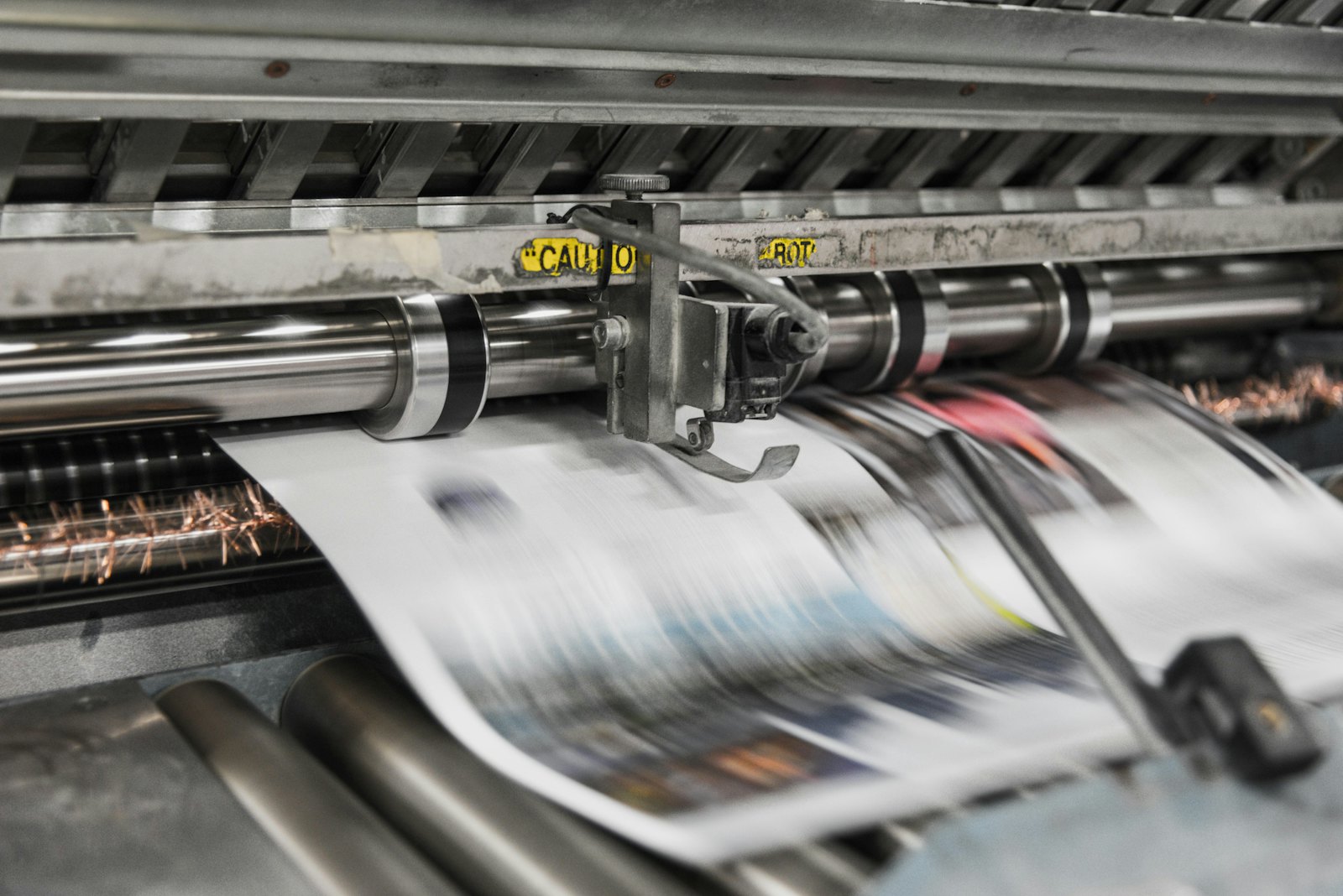 Commercial presses print in CMYK, which is why RGB files shift color.
What is a print-ready PDF?
A print-ready PDF is a self-contained file that meets a printer's technical spec so it can go to press with no manual fixes. Think of it as a contract: the printer agrees to print exactly what's in the file, and you agree the file carries everything needed, the right colors, fonts, page size, and bleed.
The format that makes this contract enforceable is PDF/X, an ISO standard built specifically for graphic arts exchange and maintained alongside the wider PDF family by the PDF Association. A regular PDF can hide problems: missing fonts, screen-only RGB color, no bleed. PDF/X closes those gaps by requiring that everything is present and unambiguous.
Here's the catch most guides miss. Knowing the four requirements is easy. Knowing whether your file passes them is the hard part, and it's where files get rejected.
Why do printers reject PDFs?
Printers reject files for a small set of repeat offenders: RGB instead of CMYK, fonts that aren't embedded, no bleed, and the wrong page size. These problems usually aren't visible on screen, which is exactly why people are surprised when a file bounces back.
The Adobe and PrintPlanet forums are full of these moments. A self-publishing author on PrintPlanet asked which export preset and which "Compression, Marks and Bleeds, Output" settings to change, the classic sign of someone who built a good-looking file that still won't print correctly. On the Adobe Community, another user found that trim marks showed up in the exported PDF but the bleed area was empty, even though objects extended past the bleed line in InDesign.
These are not rare edge cases. They're the default failure modes. Let's take the four requirements one at a time.
How do you check if a PDF is print-ready?
Check first, fix second. Before changing anything, run your existing PDF through a preflight check that reports its color space, whether fonts are embedded, and its PDF/X status. That tells you which of the four requirements already pass, so you only spend time on the ones that fail.
This is the step most articles skip. They assume you're starting a fresh design in InDesign. But a huge share of files today come from Canva, Word, Google Docs, or a freelance designer, and the owner just needs to know if the file is usable.
PDFengine's print-ready check does exactly this. It's free, needs no account, and returns a plain-language report instead of a wall of prepress jargon. Upload, read the report, then decide what to fix.
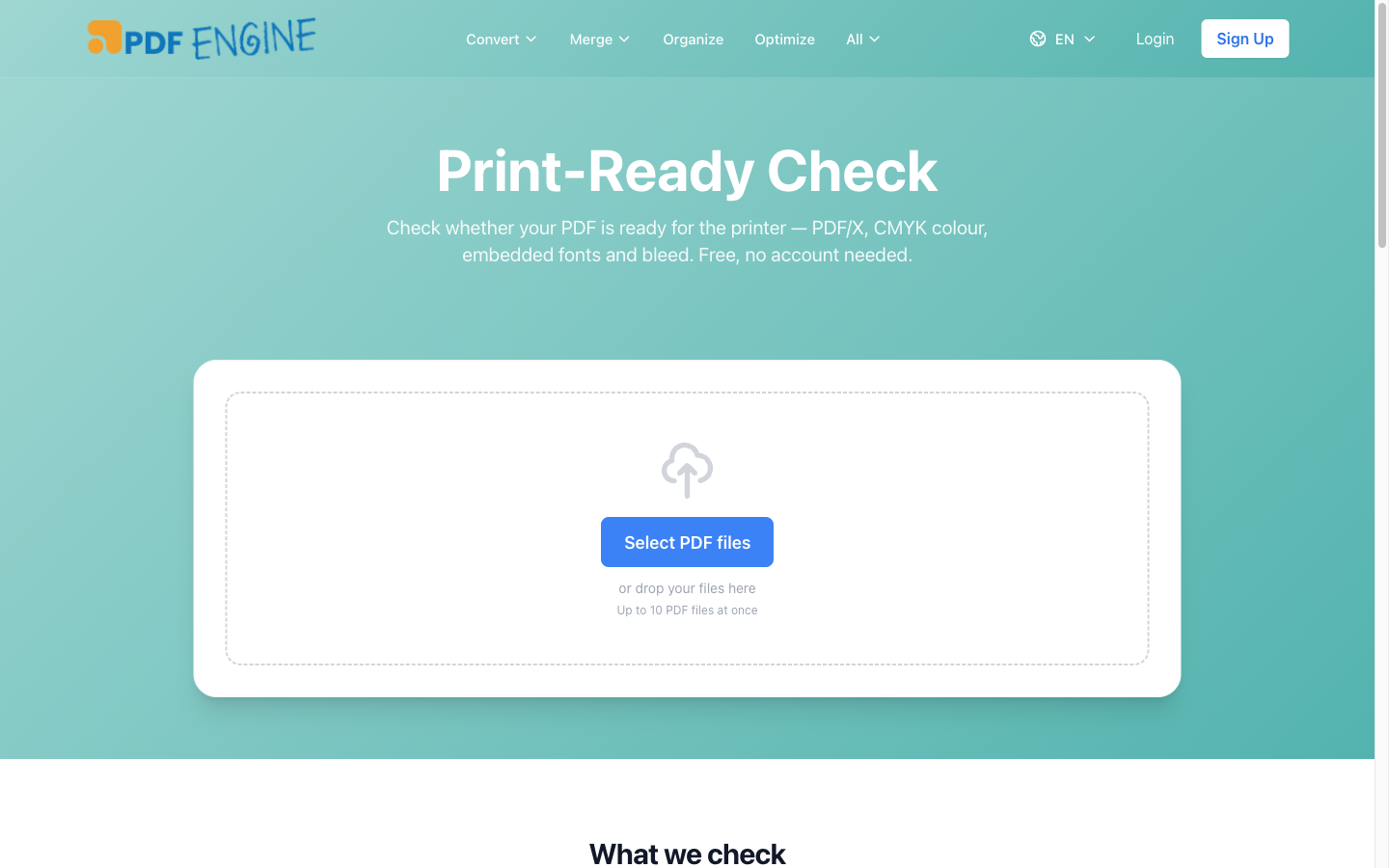 The free check reports color space, fonts embedded, and PDF/X status, no account needed.
CMYK vs RGB: why does color matter for printing?
Presses print with four inks, cyan, magenta, yellow, and black, so your file needs CMYK color. Screens emit RGB light, which can produce bright blues and greens that ink physically can't reproduce. Send RGB to a press and those colors shift, often dramatically, which is why a printer's spec almost always says CMYK.
This trips up even careful designers. A common question is whether exporting with the printer's profile (such as Coated FOGRA39, ISO 12647-2:2004) converts RGB photos to CMYK automatically, or whether each image should be converted in Photoshop first for better control. Based on Adobe's documented export workflow, exporting with a destination profile does convert images on the way out, which works for most jobs, while manual conversion gives more control over critical images. Adobe's own export for print help walks through the relevant settings.
Which CMYK, though? True RGB-to-CMYK conversion is a color-managed step that depends on the press profile: coated paper, uncoated paper and newsprint each take a different amount of ink. PDFengine reports your color space for free in the check. The RGB to CMYK tool converts to the print profile you pick (FOGRA51 by default), which is fine when the printer only asks for CMYK and does not add a PDF/X marking. When the spec also asks for PDF/X with a named profile, such as FOGRA39, FOGRA51 or a newspaper profile, use Convert to PDF/X-4: it converts RGB and existing CMYK to exactly that profile and embeds it. Not sure which one your printer means? See which color profile your printer wants.
One trap to know about: writing a profile name into a PDF does not change its colors. A file can carry a newspaper profile and still exceed the newspaper's ink limit. We explain the difference in output intent vs color conversion. If you only need black and white, the PDF to grayscale tool converts both RGB and CMYK to true DeviceGray while keeping fonts embedded and the layout identical.
What is bleed, and how do you add it to a PDF?
Bleed is extra artwork extending past the trim line, usually 1/8 inch (0.125 in) in the US and 3 mm in Europe, so that when the printer cuts the page, no white slivers appear at the edges. Cutting is never pixel-perfect. Without bleed, a tiny misalignment leaves a white hairline along your background color or photo.
This is the single most common reason a file fails. Remember the forum user whose bleed area came out empty despite trim marks showing? That's a setup mistake in the design app, and it's avoidable. If your artwork already runs to the page edge, you can add bleed after the fact.
PDFengine's add bleed tool adds bleed plus optional crop marks: 3 mm by default, or enter 3.175 mm for the 1/8 inch most US printers ask for. It runs in the browser, costs one credit, and uses permissive open tooling, so your file isn't sent through heavyweight desktop software. If your page size is also wrong, the resize PDF tool scales content proportionally to A3, A4, A5, Letter, or Legal while keeping the orientation.
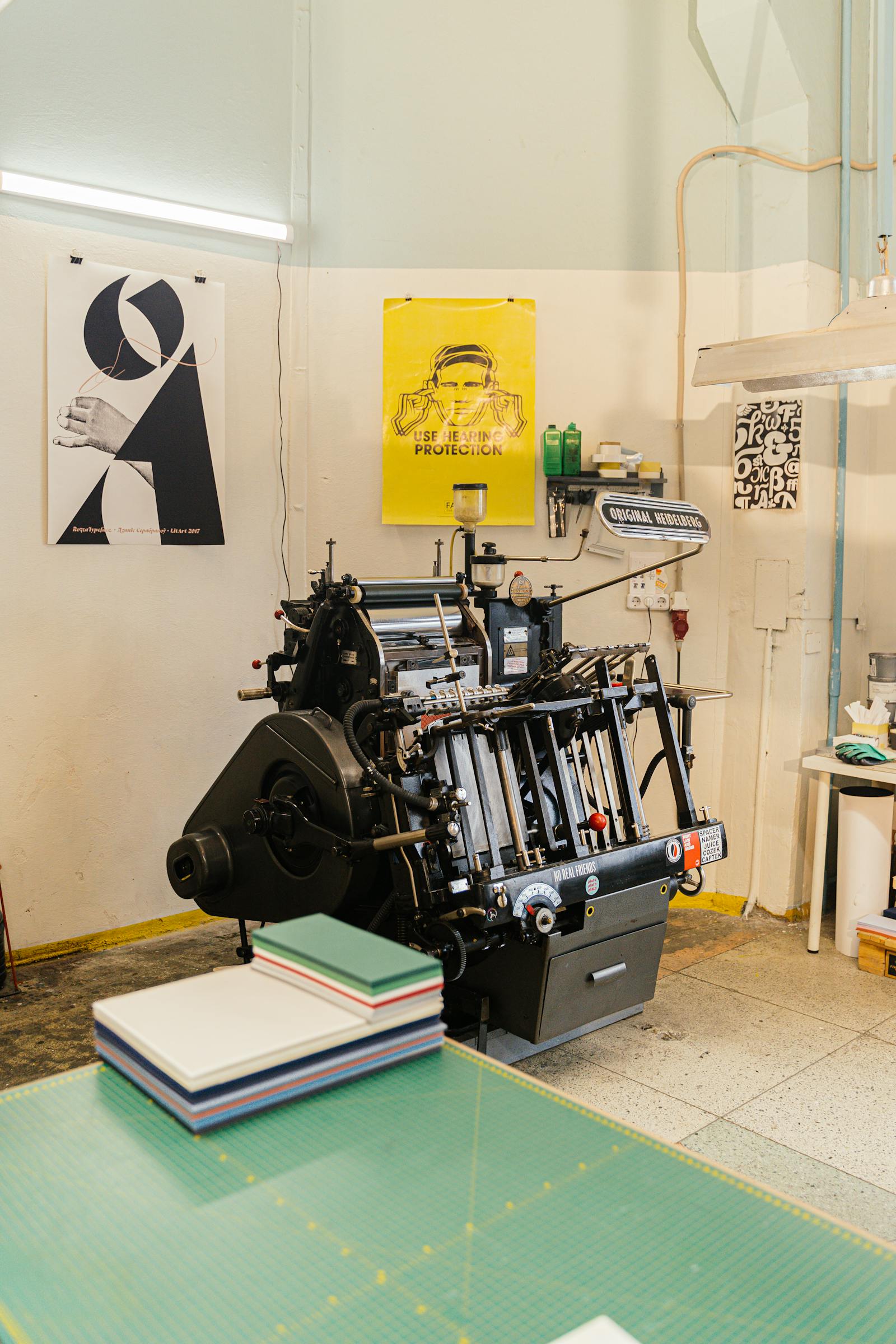 Bleed exists because trimming is mechanical, not pixel-perfect.
Why must fonts be embedded in a print-ready PDF?
Fonts must be embedded so the printer's system shows the exact glyphs you designed with. If a font isn't embedded, the printer's software substitutes a different one, and your headlines reflow or render in the wrong typeface. PDF/X requires embedding precisely to prevent this.
Be honest about what can and can't be fixed after export. If a font was embedded at export time, great. If it was never embedded, the PDF only holds the font's name, not its shapes. A tool can then embed it only if it has that very same font; anything else is a substitution, which is exactly what PDF/X is meant to prevent.
This is why the check matters first: PDFengine's preflight tells you whether fonts are embedded. The embed fonts tool embeds the fonts it has available, and the PDF/X-4 conversion stops with a clear message instead of silently swapping a font it doesn't have. The only exception is the standard PDF fonts such as Helvetica, which get a replacement with identical letter widths. For a brand font that can't be embedded, re-exporting from the design app with embedding enabled remains the reliable fix.
PDF/X: which version do you need?
PDF/X is the ISO standard that ties the other three requirements together, requiring CMYK or spot color, embedded fonts, and defined trim and bleed boxes. The two versions you'll meet most are PDF/X-1a and PDF/X-4. PDF/X-1a is older, fully flattened, and very safe for simple CMYK work. PDF/X-4 supports transparency and is the modern default for most jobs.
Which one? Use whatever your printer's spec names. If they don't specify, PDF/X-4 is the safer modern choice. The key point: PDF/X is a result of getting CMYK, fonts, and bleed right, not a separate switch you flip at the end.
PDFengine reports PDF/X status in the free check, so you can confirm your export hit the standard. If it didn't, or you have no access to the original design file, Convert to PDF/X-4 turns an existing PDF into PDF/X-4 with the print profile you choose: FOGRA51, FOGRA39 (also in its 300% variant), FOGRA52, GRACoL 2013, SWOP 2013, GRACoL 2013 Uncoated, or one of two newspaper profiles. The colors are actually converted to that profile, not just labeled. The result isn't formally certified by an external validator, so if your printer requires a preflight report, run theirs as the final step. Delivering an ad to a newspaper? Read the 240% ink limit explained first. For the full set of browser tools, see the print-ready hub.
PDFengine vs Adobe Acrobat Pro: which should you use?
Adobe Acrobat Pro's Preflight tool is the industry standard, running hundreds of predefined checks and offering fixups for almost everything. PDFengine covers color space, font embedding, bleed, and PDF/X, the requirements behind most print rejections, checking files for free and fixing them in the browser for a few credits. The right tool depends on how often you do this and how deep you need to go.
| PDFengine | Adobe Acrobat Pro |
|---|---|---|
Cost model | Free check; 1–4 credits per fixed file | Subscription-based (check Adobe for current pricing) |
Install | None, runs in browser | Desktop app, Windows or Mac |
Platforms | Any OS, including Linux & Chromebook | Windows and Mac only |
Preflight depth | Color space, fonts, PDF/X status | Hundreds of checks and configurable fixups |
Learning curve | Plain-language report, instant | Nested in Print Production, steep |
Bleed / resize | One-click tools | Manual fixups, must know which |
CMYK conversion | Real ICC conversion to a European, North American or newspaper print profile, with or without PDF/X-4 | Convert Colors with any profile, configurable |
Font embedding fix | Embeds available fonts; stops instead of substituting | Fixup available |
File handling | Auto-deleted server-side after processing | Local on desktop |
If you're a full-time prepress professional handling complex jobs daily, Acrobat Pro earns its subscription. Acrobat is subscription-based and desktop-focused, so check Adobe for current pricing before you commit. Also worth noting: Acrobat Standard does not include Preflight, so users who expect it there have to upgrade to Pro. By contrast, if you have one file to check and fix before a print run, a free browser check plus targeted fixes will get you there faster and cheaper.
Frequently asked questions
Will exporting from InDesign with my printer's profile convert RGB photos to CMYK automatically?
Generally yes. Exporting with a destination profile like Coated FOGRA39 converts RGB images to CMYK on the way out, as described in Adobe's export for print documentation. For most jobs that's fine. For hero images or brand colors, converting manually in Photoshop first gives you more control over how out-of-gamut colors are handled.
My bleed area is empty in the exported PDF even though objects extend past the bleed line. Why?
This is an export setting, not a design problem. In the PDF export dialog, the "Use Document Bleed Settings" option (or the bleed values under Marks and Bleeds) must be enabled, otherwise InDesign clips at the trim box and your bleed disappears. If your file is already exported flat, you can add bleed to a PDF afterward with an online tool.
What export preset should a self-publishing author use for a book or cover?
Start from a "Press Quality" or PDF/X-based preset, then set bleed (usually 0.125 in for US printers, 3 mm in Europe), confirm CMYK output, and enable font embedding. The exact values come from your printer's spec sheet, ask for it if you don't have one. After exporting, run a free print-ready check to confirm color, fonts, and bleed before you order.
Can an online tool truly embed fonts that were never embedded?
Only if it has the exact same font. If a font wasn't embedded at export, the PDF contains just its name, so a tool has to supply the font itself. Be wary of tools that quietly swap in a look-alike: your text will reflow. PDFengine embeds the fonts it has and stops with a message when it would have to substitute. For uncommon or brand fonts, re-exporting from the source file with embedding turned on is still the reliable fix.
Which color profile should I use for print?
The one your printer names. In North America most printers ask for US Web Coated (SWOP) v2, or GRACoL 2013 for sheetfed jobs; the converters on this site offer GRACoL 2013 and SWOP 2013 but not SWOP v2 or GRACoL 2006, so for a job that names one of those, export from your design app with that profile. Most European printers ask for FOGRA39 (ISO Coated v2) or its successor FOGRA51 (PSO Coated v3) for coated paper, FOGRA52 for uncoated paper, and newspapers use their own newsprint profile with a lower ink limit. Our guide to which color profile your printer wants compares them, with the specs of several printers side by side.
Do I need Adobe Acrobat Pro to make a print-ready PDF?
No. Acrobat Pro's Preflight is powerful but is subscription-based and desktop-focused (check Adobe for current pricing). For checking color space, font embedding, and PDF/X status, and for adding bleed or resizing, a free browser-based check plus focused fix tools cover the common cases without an install.
What's the difference between PDF/X-1a and PDF/X-4?
PDF/X-1a is older and fully flattened, no live transparency, which makes it very predictable for simple CMYK work. PDF/X-4 supports transparency and ICC color, and is the modern default for most jobs. Use whichever your printer specifies; if unspecified, PDF/X-4 is the safer current choice.
The fastest path to a print-ready file
Don't rebuild your design before you know what's wrong. Making a print-ready PDF is rarely about starting over; run the free check, read the plain-language report, and fix only the requirements that fail: bleed and resizing in the browser, color and PDF/X in your export dialog or with an online PDF/X-4 conversion. That "check first, fix only what's broken" order saves the most time and avoids surprises at the press.
Start with the free print-ready check to see exactly where your PDF stands, then use Make PDF print-ready to handle bleed and resizing in one upload, or Convert to PDF/X-4 when your printer asks for PDF/X with a specific color profile. No account needed to check, no software to install, and your file is deleted automatically after processing.
About the author — Daan van Tongeren is the founder of PDFengine (pdfen.com), an online platform for PDF conversion, print-ready prep, and email archiving.
Related Articles
How to deliver a newspaper ad PDF: the 240% ink limit, ISOnewspaper26v4 and GWG2015 explained
Your newspaper wants GWG2015, ISOnewspaper26v4 and max 240% ink. Here is what that means, why a prof...

Can ChatGPT, Claude or Gemini Convert Email to PDF? What AI Can (and Can't) Do
No AI assistant can natively convert .eml or .msg to PDF. But Claude + MCP bridges the gap — here's...