
Organize, Store & Share: Easily Merge Your Documents
Jip Oomen
PDFengine Team
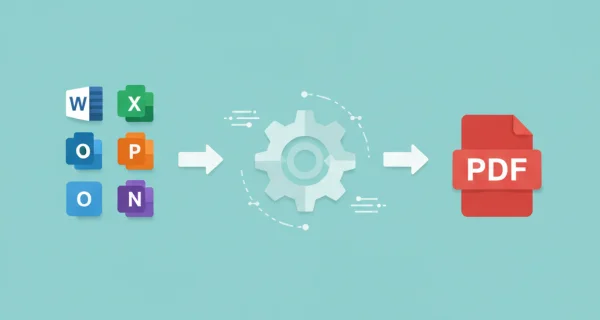
Do you have multiple resources you wish to combine in one information package, or do you wish to organize, store, or neatly share documents using just one file? By using PDFen’s merge tools you can combine, convert and merge countless documents in one go.
How? Choose one of the 11 merge options which best fits your file type. Let’s run them down one by one.
Merge PDF
When? To combine individual PDF documents
How does it work?
Go to ‘Merge’ and then to ‘PDFs’
Drop up to 20 PDF or ZIP files into the software
If you wish, add a cover page
Press ‘convert’ and download directly.
Note: Merging multiple files into one larger file will only cost one credit, no matter the amount of files uploaded.
Merge files/images
When? If you’d like to combine JPG, JPEG, PNG, HEIF, HEIC, WEBP, TIFF, and/or TIF documents.
Go to ‘Merge’ and then to ‘Files/images’
Drop up to 20 compatible files into the software
Pick the preferred page size and page orientation for your PDF.
Click ‘show more options’ to adjust margins (white spaces) at either of the edges of the document
If you wish, add a cover page
Press ‘convert’ and download your result directly.
Note: converting files to PDF costs one credit each. Merging files always costs just 1 credit. Merging 5 images into one PDF will thus cost 6 credits (conversion+merging).
Merge multiple emails
When? In case you want to organize, archive or bundle your (important) emails for future reference.
Go to ‘Merge’ and then to ‘Email’
Drop up to 20 .eml, .msg, or .zip files into the software
Choose whether to include just the email body (the email message), the email body and attachments, or just the attachments.
If you wish, add a cover page
Press ‘convert’ and download your result directly.
Note: When uploading ZIP files, all non email content will be skipped automatically. So no filtering needed!
Merge Word Documents
When? If you wish to merge individual word documents together in one PDF file.
Go to ‘Merge’ and then to ‘Word documents’
Drop up to 20 Doc, Docx, or ZIP files into the software
Specify a page range if you'd only like to merge specific parts of the documents.
Choose whether to convert headings, whether to convert bookmarks, and whether to convert to PDF/A.
If you wish, add a cover page
Press ‘convert’ and download your result immediately.
Note: consider using continuous page numbering in Word. Documents are converted separately, and without continuous page numbering, it can restart for every individual Word document.
Merge Excel Documents
When? When you wish to combine different Xls or Xlsx files into one neat PDF file.
Go to ‘Merge’ and then to ‘Excel documents’
Drop up to 20 XLS, XLSX or ZIP files into the software
Choose your preferred page size and orientation
Select whether the content should fit to page. Using this setting, every Excel worksheet will be forced onto one sheet. Content might be rescaled to make sure they neatly fit onto one page.
Enable 'autofit content' (recommended). This will make sure the cells are in Excels are widened so that all content is visible. Similar to Excel AutoFit Column Width
Choose whether to enable 'preserve metadata'; metadata of the Excel (author, title, subject) will be copied in the PDF document
If you wish, add a cover page
Press ‘convert’ and download your result immediately.
Merge Powerpoint Documents
When? Useful when you want to archive or present multiple Powerpoint documents in one, organized PDF document.
Go to ‘Merge’ and then to ‘Powerpoint documents’
Drop up to 20 PPT, PPTX or ZIP files into the software
If you only want to merge parts of the Powerpoints, apply a range
Choose how to include speaker notes
Select whether to include metadata (author, title, subject) and whether to include hidden slides in the PDF output
If you wish, add a cover page
Press ‘convert’ and download your result immediately.
Note: Powerpoint animations and transitions are not preserved in PDF format
Merge AutoCAD Documents
When? Handy if you want to make your AutoCAD documents more accessible and easy to share, or easily organize your AutoCAD documents.
Go to ‘Merge’ and then to ‘AutoCAD documents’
Drop up to 20 DWF, DWFX, DWG, DXF, or ZIP files into the software
Choose your preferred page size and page orientation
Pick your page layoutmode. With 'default' AutoCAD picks automatically. For professional drawings, 'all is usually the best choice; for previews or geometry checks, 'model' is faster and cleaner
Adjust the color mode (true colours is default) and choose whether to include all layers or only the visible and printable ones
If you wish, add a cover page
Press ‘convert’ and download your result immediately.
Merge eBook Documents
When? Relevant for combining all kinds of eBook documents.
Go to ‘Merge’ and then to ‘eBook documents’
Drop up to 15 EPUB, MOBI, DJVU and/or ZIP files into the software
Choose your preferred page size
If you wish, add a cover page
Press ‘convert’ and download your result immediately.
Note: Nearly all features of the eBook are accurately converted. Only interactive features like hyperlinks may be converted to static text.
Merge Office Documents
When? Use when you wish to efficiently group, organize or store many different file types simultaneously.
Go to ‘Merge’ and then to ‘Office documents’
Drop up to 25 DOC, DOCX, XLS, XLSX, PPT, PPTX, CSV and/or ZIP files into the software
If you wish, add a cover page
Press ‘convert’ and download your result immediately.
The bottom line
Merging your documents can save space and clutter, improve clarity with clients, or improve document accessibility. Optimize your time and documents even further by using PDF workflows. Seamlessly convert, compress and organize your documents in one step. Explore our workflows now.
Related Articles
Compressing and repairing: How to optimize your PDFs
Professionalize your PDFs by using 5 essential PDF optimization tools. Learn when and how to repair,...

Can ChatGPT, Claude or Gemini Convert Email to PDF? What AI Can (and Can't) Do
No AI assistant can natively convert .eml or .msg to PDF. But Claude + MCP bridges the gap — here's...