
How to Open HEIC Files on Windows (and Turn iPhone Photos Into a PDF)
Founder, PDFengine
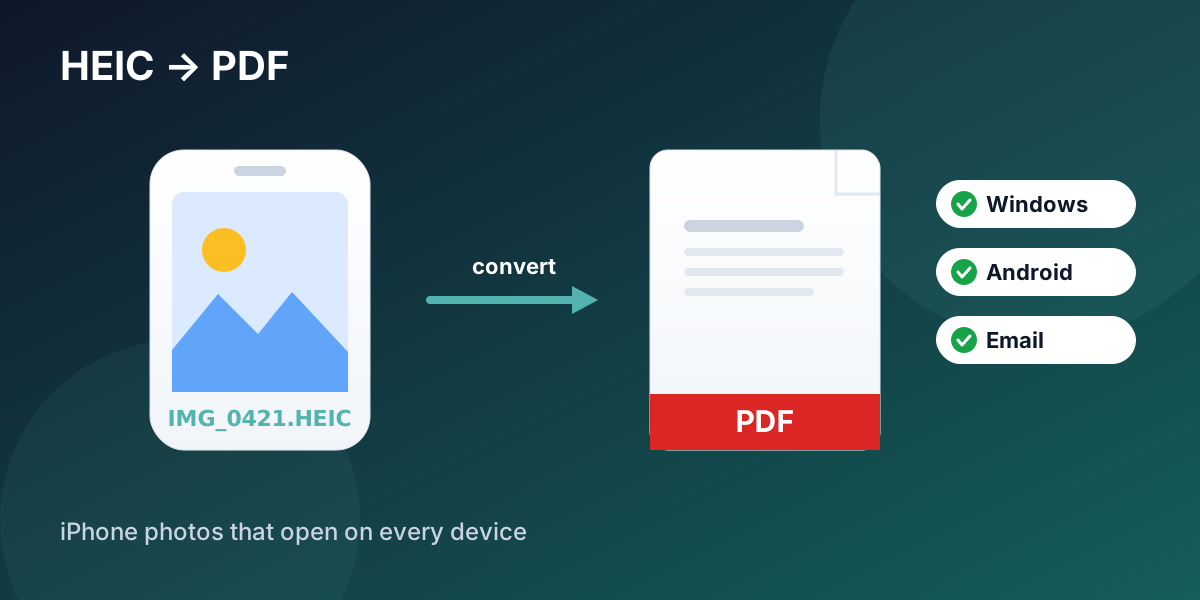
Windows can't open HEIC photos from your iPhone by default because it doesn't ship with Apple's HEIF codec. You have two fixes: install Microsoft's free HEIF Image Extensions to view them, or — if you need to share, email, print, or archive the photos — convert the HEIC files to PDF, which opens on any device with no extension at all. Converting to PDF also lets you bundle dozens of photos into one tidy file.
Key Takeaways
Windows doesn't open HEIC by default because it lacks Apple's HEIF codec, not because the file is broken.
To view a HEIC on Windows 11, install Microsoft's HEIF Image Extensions; older Windows often needs a converter.
Converting HEIC to PDF makes the photo open on every device, survive email filters, and stay print-ready.
A PDF can hold one photo per page or bundle many HEIC files into a single document.
PDFengine converts HEIC to PDF online in your browser, with no install, and deletes your files automatically afterward.
Why won't Windows open my iPhone's HEIC photos?
HEIC is the container Apple uses for its HEIF photo format, which iPhones and iPads have saved by default since iOS 11. Apple chose it because it stores roughly the same quality as JPEG in about half the file size, and it can hold richer 10-bit color (Apple, WWDC 2017). That is great on an iPhone. It is a problem the moment the photo lands on a Windows PC that has never been taught how to read it.
The pain is everywhere. On Apple's own support forum, one thread titled "How to open HEIC file in Windows" notes that "the default Windows Photo Viewer doesn't support HEIC files" — it has collected nearly 400 "Me too" votes from people hitting the same wall (Apple Community). It is not just an Apple-to-Windows issue, either: people moving photos from an Android phone to a PC run into the same black box that says "HEIC" and refuses to open (Microsoft Q&A).
One thing worth being clear about: this is not "only Apple can open HEIC." Recent versions of Windows 11 can display HEIC once you add the right codec. The default install simply doesn't include it, so the file looks unsupported until you fix the codec or convert the photo.
How do you view a HEIC file on Windows?
To preview a HEIC without converting it, install Microsoft's HEIF Image Extensions from the Microsoft Store. After that, the Windows Photos app can usually open and display HEIC files directly.
That solves looking at the photo on your own PC. It does not solve sharing it. The extension lives only on your machine, so the moment you email the HEIC, upload it to a portal, or hand it to someone on Android or older Windows, you are back to "this file won't open." If the photo has to travel, converting it is the more reliable move.
Should you convert HEIC to JPG or to PDF?
It depends on what you need to do with the photo:
Convert to JPG when you want a single, universally editable image you'll drop into another document or edit further.
Convert to PDF when you need to share, send, print, or archive — especially more than one photo. A PDF opens on every device without a codec, passes through email gateways that choke on HEIC, prints cleanly, and can carry many photos in one file with a fixed page order.
For most "I just need to send these iPhone photos to someone" situations, PDF is the safer choice precisely because it removes the format problem entirely for the person on the other end.
How to convert HEIC to PDF
The reliable method is to convert the file itself, online, in three steps. Because the conversion happens inside the document, the result opens anywhere — no extension, no Apple device required.
Step 1: Upload your HEIC files
Open the HEIC to PDF tool and drop in your photos. It runs in the browser on any operating system, so there is nothing to download. You can upload a single HEIC or a whole batch, and a ZIP of HEIC files works too.
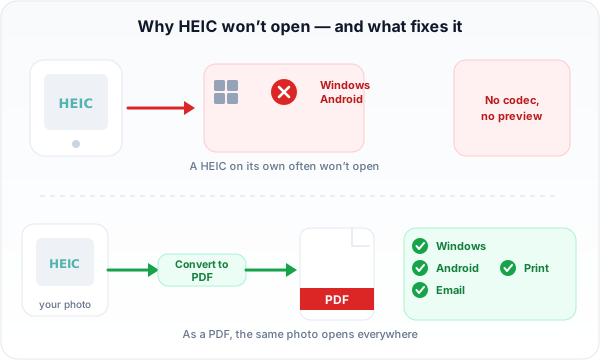 HEIC is an Apple-first format. Converting to PDF removes the codec problem for whoever receives the file.
Step 2: Choose how the PDF is built
Pick a page size (A4 or Letter) and margins, and decide whether each photo becomes its own PDF or all of them merge into a single multi-page document. Merging is what you want when you're sending a set of photos as one attachment.
Step 3: Convert and download
Click convert and download your PDF. The conversion embeds your photo at its original resolution, so you are not throwing away quality to gain compatibility.
How do I convert multiple HEIC files at once?
Upload them together and choose "merge into one PDF." This is the exact request behind another heavily-upvoted Apple Community thread, where someone with a pile of iPhone 14 photos needed to use them on Windows and was stuck converting them one by one (Apple Community, ~290 "Me too"). Batch conversion turns that tedious one-at-a-time job into a single upload, and merging keeps the photos in the order you intend.
PDFengine vs Adobe Acrobat for HEIC
Adobe Acrobat can also place images into a PDF, but it is built around a paid desktop subscription. Here's an honest comparison for this specific job.
Factor | Adobe Acrobat | PDFengine |
Pricing | Subscription-based (pricing) | Free tier to try; online tool |
Install | Desktop app | Runs in the browser, nothing to install |
HEIC handling | Supported in recent versions | Built for HEIC to PDF directly |
Batch + merge | Yes | Yes — many HEIC into one PDF, or one each |
Best for | Heavy, daily PDF editing | A fast, focused HEIC to PDF conversion |
If you live in Acrobat all day, it does this fine. If you just need your iPhone photos to open on a colleague's Windows laptop this afternoon, a focused online tool is quicker and free to try.
Frequently asked questions
Why can't Android open HEIC files either?
For the same reason as Windows: HEIC is Apple's default and many Android phones and apps don't include HEIF support out of the box. That's why converting to PDF (or sharing as JPG) is the dependable way to send iPhone photos to an Android user.
Do I lose quality converting HEIC to PDF?
No. The conversion embeds your photo into the PDF at its original resolution, so the image you see in the PDF is the image from your phone. You're changing the wrapper, not re-compressing the picture.
Can I convert HEIC to PDF on a Mac or iPhone too?
Yes. Because the tool runs in the browser, it works the same on macOS, iOS, Windows, Android, or Linux. There's nothing to install on any of them.
Is it safe to upload my photos?
Files are processed through a secure pipeline and deleted automatically after conversion. Your photos are not viewed or shared.
Ready to make your iPhone photos open anywhere? Convert HEIC to PDF now — no account needed to try it.
Written by Daan van Tongeren, founder of PDFengine.
Related Articles
How to deliver a newspaper ad PDF: the 240% ink limit, ISOnewspaper26v4 and GWG2015 explained
Your newspaper wants GWG2015, ISOnewspaper26v4 and max 240% ink. Here is what that means, why a prof...

Can ChatGPT, Claude or Gemini Convert Email to PDF? What AI Can (and Can't) Do
No AI assistant can natively convert .eml or .msg to PDF. But Claude + MCP bridges the gap — here's...