
Microsoft Publisher Ends in October 2026: How to Print Business Cards and Labels Without It
Founder, PDFengine

Microsoft Publisher stops on 1 October 2026, but what that means depends on your licence. If you use Publisher through Microsoft 365, you will no longer be able to install it, open it, or edit your .pub files after that date. If you own a standalone copy such as Office 2019 or 2021, the app keeps working on your machine, it just stops being supported. And if all you ever used Publisher for was putting ten business cards or a sheet of labels on one page, you do not need to learn a design program to replace it.
Key Takeaways
Publisher reaches end of support on 1 October 2026, alongside Office LTSC 2021.
Microsoft 365 users lose access to their .pub files. Perpetual-licence users keep theirs.
Microsoft's own advice is to save every .pub file as PDF before that date.
Most Publisher users only needed layout, not design. A print-sheet tool covers that.
Mail merge is the one thing a step-and-repeat tool cannot do. Word still handles that.
More than 1,300 people signed a petition asking Microsoft to keep Publisher alive.
When exactly does Microsoft Publisher stop?
The date is 1 October 2026, confirmed on Microsoft's own support page for Publisher. It lands on the same day as end of support for Office LTSC 2021, which is not a coincidence. After that date Publisher receives no security updates, no bug fixes, and no technical support from Microsoft.
That is the simple part. The confusing part is what actually happens to your files, and this is where most articles about the Publisher shutdown get it wrong.
Can I still open my .pub files after October 2026?
It depends entirely on how you licensed Office, and the difference is stark.
Microsoft 365 subscribers. Publisher can no longer be installed, and you will no longer be able to open or edit Publisher files. Not "unsupported". Gone.
Perpetual licences (Office 2019, Office 2021, standalone Publisher). The app stays installed and keeps running. You can still access and edit your files. Microsoft stops supporting it, so you are on your own if something breaks, but your archive is not locked behind a subscription check.
There is a third nuance worth knowing. You will read almost everywhere that no other program can open .pub files. That is not true. LibreOffice Draw imports .pub files, with real limitations: complex layouts, text flow and fonts often shift. It is free and worth a try before you assume a file is unreadable. Treat it as a rescue tool, not a replacement.
What does Microsoft itself advise?
Microsoft's guidance is short and unambiguous: "Convert your existing files to another format before 10/1/2026. After this date, you will no longer be able to open or edit these files."
The steps are straightforward. Open the Publisher file, go to File, choose Save as, pick a location, select PDF, and save. For editing later, Microsoft suggests converting the .pub to PDF first and then to a Word file.
Here is the honest counterpoint, and it comes from users rather than from Microsoft. A PDF is an archive answer, not an editing answer. In a Microsoft Q&A thread from November 2025, one user puts it plainly after trying the Word route: "I tried transferring into Word but the format is completely changed." Converting to PDF preserves what your document looks like. It does not preserve your ability to change it.
If you have decades of files, this is a real workload. A user in another thread with three decades of Publisher documents wrote that "converting hundreds of files to PDF would take hundreds of hours." A Microsoft moderator replied with the end-of-life date, the perpetual-licence exception, and a PowerShell script for bulk .pub to PDF conversion. If you are facing a large archive, ask your IT contact about that script rather than opening files one at a time.
Do I have to learn a new design program?
Probably not, and this is the question the internet keeps skipping. Search for Publisher alternatives and you get lists of design software: Canva, Affinity Publisher, Scribus, Adobe InDesign, LibreOffice Draw. All fine tools. All of them assume you want to design.
Most Publisher users we hear from were not designing. They had a logo, a name, a phone number, and a template. What they actually needed was arrangement: ten identical cards on one A4 or Letter sheet, or twenty-one labels in the right grid. That is layout, not design, and the two problems have very different solutions.
Which replacement route fits which task?
| Word / PowerPoint | Design tool (Canva, Scribus, LibreOffice Draw) | pdfen print sheets |
|---|---|---|---|
Learn new software? | No, you already know it | Yes, a real learning curve | No, upload and download |
Opens .pub files? | No (via PDF conversion only) | LibreOffice Draw: partly | No |
Full sheet with cut lines? | Manual, fiddly | Yes, if you build it | Yes, automatic |
Mail merge / variable data? | Yes | No | No |
Design a card from scratch? | Limited | Yes | No |
Install needed? | Already installed | Yes | No, runs in the browser |
Two of those "No" answers are ours. They matter more than the "Yes" ones, so let me be specific about both.
How do I print 10 business cards on one A4 or Letter sheet?
You bring a finished card design and let a tool repeat it. That is the whole job.
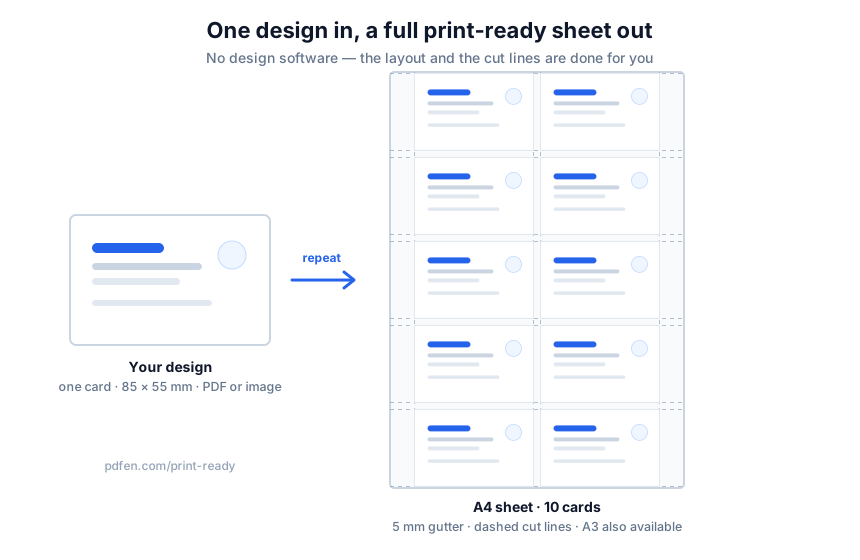 One card design, step-and-repeated into a grid of 85 by 55 mm cards with 5 mm gutters and thin cut lines.
Upload a single business-card design as an image or a PDF to print business cards. The tool step-and-repeats it into a grid of cards with a 5 mm gutter and thin cut lines. You pick the size, either the European 85 by 55 mm on A4 (or A3 if you want more per sheet) or the US 3.5 by 2 inches on Letter, ten cards per sheet. Images, PDFs and ZIP files all work. You print the result and trim along the lines.
What it does not do: it will not design the card for you. If you do not have a design yet, make it in Word, PowerPoint, Canva or anything else, export one card as PDF or PNG, then come back.
How do I print address labels without a Publisher template?
Same principle, different grid. Upload one label design to address labels and it becomes a full sheet of 63.5 by 38.1 mm labels, 21 per A4, with a 2.5 mm gutter. That grid matches Avery L7160 in Europe and 5160 on US Letter, so standard label sheets line up.
This is the right tool when every label is the same: a return address, a "Handle with care" sticker, a product label, an archive-box marker. It is the wrong tool the moment each label needs different text, which brings us to the awkward part.
Why don't my labels line up?
Nine times out of ten, it is scaling. Your printer driver has Fit to Page switched on, which shrinks the artwork by a few percent. That is invisible on a normal document and fatal on a label sheet, because every row drifts a little further off. Set printing to 100 percent or Actual Size and the problem usually disappears.
The second cause is paper size. An A4 layout sent to a US Letter tray, or the reverse, shifts everything vertically. Avery documents both causes in its help articles on misaligned printing and template misalignment.
Do a test print on plain paper first and hold it against a label sheet up to the light. Thirty seconds, and it saves a sheet of ruined labels.
What if every label needs a different address?
Then a step-and-repeat tool is the wrong answer, including ours. pdfen repeats one design across the sheet. It does not do mail merge or variable data. You cannot put a different address on every label with it, and no amount of clever settings will change that.
For variable data, the honest route is Word mail merge. Word connects to an Excel sheet or an Access database and fills a different value into each label. For the harder cases, such as duplex postcards or splitting a merge into separate documents, the add-in route people actually use is Graham Mayor's MergeTools.
This gap is genuinely painful for some Publisher users. In a Q&A thread from June 2025, one wrote: "With Publisher going end of life, printing dual sided post cards that use mail merge data from either excel or access is no longer possible. Printing separate labels is costly and a waste of time." Another asked how to start printing at label position 6 on a partly used sheet, and that thread was locked without a solution. Publisher was better at some of this than its replacements are. Pretending otherwise helps nobody.
What doesn't change after October 2026?
Your printer, your paper, your Avery sheets and your existing PDFs. Nothing about the physical side of printing depends on Publisher. Only the file format and the editing tool go away.
So the migration splits into two jobs. First, archive: save your .pub files as PDF before 1 October 2026, in bulk if you have many. Second, replace the workflow: use Word or PowerPoint for documents with variable data, and a print-sheet tool when you need one design repeated across a page.
If your recurring job is cards, labels or passport photos, the print-ready hub has the sheet layouts. Free to try, nothing to install, and if you find you need a design program instead, you will have lost five minutes.
Frequently asked questions
Will my Publisher files be deleted on 1 October 2026?
No. The files stay on your disk. Microsoft 365 users lose the ability to open them, because Publisher can no longer be installed. Perpetual-licence users keep both the files and a working app. Either way, converting to PDF before the date is cheap insurance.
Can anything other than Publisher open a .pub file?
LibreOffice Draw can, which contradicts the common claim that nothing else does. Expect imperfect results with complex layouts, fonts and text flow. It is a good rescue option for files you cannot otherwise reach, not a long-term editing environment.
I have hundreds of .pub files. Do I have to convert them one by one?
No. Microsoft has a PowerShell script for bulk .pub to PDF conversion, mentioned by a moderator in the Q&A thread linked above. Ask whoever manages your systems to run it. Manual conversion of a large archive genuinely does take hundreds of hours.
Why does Word wreck my layout when I import a Publisher file?
Publisher is frame-based and Word is flow-based, so text boxes, spacing and image anchors rarely survive the trip. Microsoft's recommended path is .pub to PDF first, then PDF to Word, which keeps the visual result closer. Expect to fix spacing by hand.
Can pdfen replace Publisher completely?
No. It has no design canvas and no mail merge. It takes a finished design and lays it out on a print-ready sheet with cut lines. For designing, use Word, PowerPoint, Canva or Scribus. For variable data, use Word mail merge.
Do I need a Microsoft 365 subscription to keep using Word for this?
Word ships with both Microsoft 365 and perpetual Office licences, so a subscription is not strictly required. Details and current options are on the Microsoft 365 page.
By Daan van Tongeren, founder of PDFengine.
Related Articles
How to deliver a newspaper ad PDF: the 240% ink limit, ISOnewspaper26v4 and GWG2015 explained
Your newspaper wants GWG2015, ISOnewspaper26v4 and max 240% ink. Here is what that means, why a prof...

Can ChatGPT, Claude or Gemini Convert Email to PDF? What AI Can (and Can't) Do
No AI assistant can natively convert .eml or .msg to PDF. But Claude + MCP bridges the gap — here's...