
Why You Should Add a Cover Page to Your PDF
Jip Oomen
PDFengine Team
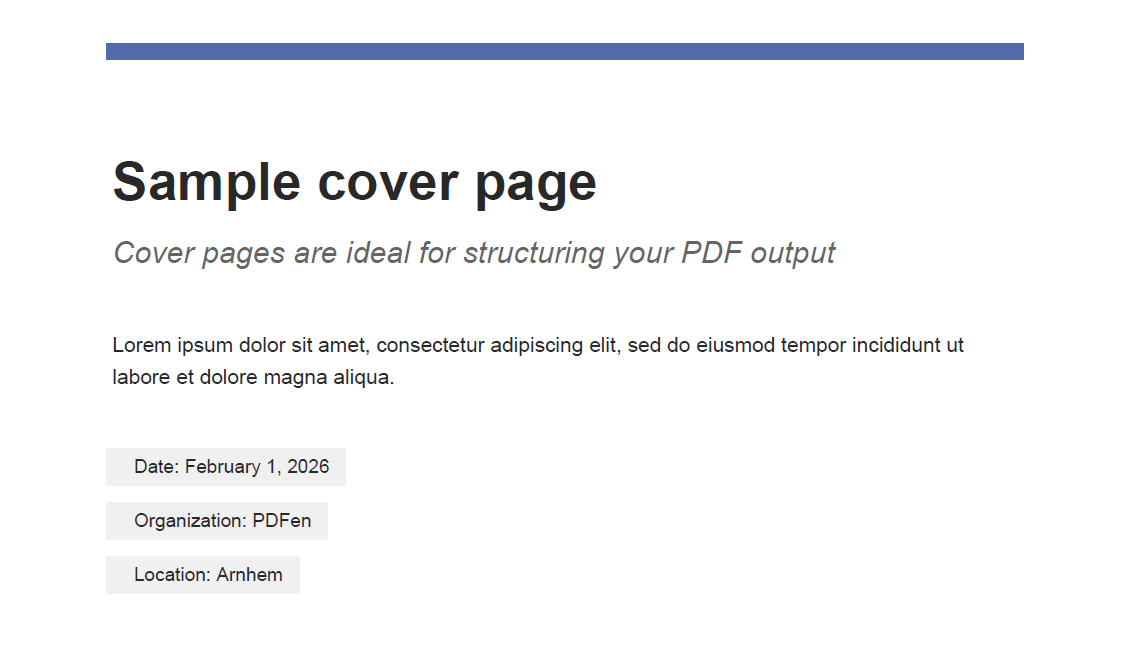
When you’re merging reports, organizing documents, or preparing files to share, the first page people see matters more than you think. A cover page isn’t just decoration. It’s structure, clarity, and professionalism in one.
On PDFen, adding a cover page takes only a few clicks, but it can completely change how your document is received. Let’s break down what a cover page is, why it’s useful, and exactly how to create one.
I. What Is a Cover Page?
A cover page is the very first page of your document that introduces what follows. Think of it as the “front door” to your file.
Instead of jumping straight into raw content, a cover page allows you to present key information in a clean, structured way, such as:
A title
A subtitle
A short introduction
Your company or organization logo
Metadata like:
Organization name
City and country
Date
--> On PDFen, the cover page is automatically placed at the beginning of your document, ensuring every merged or organized file starts with a clear overview.
You can even include a Table of Contents, which is especially useful when your PDF consists of multiple files combined into one.
II. Why Use a Cover Page? (Benefits & Best Use Cases)
A cover page does much more than make a document look nice. It improves how your information is understood and used.
1. It makes your document look professional
Whether you’re sending a report, proposal, school project, or internal document, a cover page instantly gives structure and credibility. It shows that the document is intentional, not just a collection of loose files.
2. It adds clarity when merging multiple files
When you merge several documents, things can quickly become confusing. A cover page helps by:
Explaining what the document contains
Providing context before the reader dives in
Showing who created it and when
3. It helps with navigation using a Table of Contents
If you choose to add a Table of Contents, PDFen will automatically list each document included in your conversion as its own section.
For example, if you merge:
Agenda – March 7
Agenda – March 14
Agenda – March 21
Your Table of Contents can show all three, along with page numbers, making it much easier to navigate long files. Viewers can easily jump to the section by clicking on the title in the Table of Contents, or by navigating the PDF sections.
4. It’s perfect for reports and document bundles
A cover page is especially useful for:
Monthly or quarterly reports
School or university assignments
Business proposals
Client document bundles
Internal documentation
Project archives
--> Any time you want to present multiple documents as one structured file, a cover page is a smart addition.
III. How to Add and Customize a Cover Page on PDFen
Adding a cover page on PDFen happens during your conversion; whether you’re merging, optimizing, or organizing documents.
Step 1: Upload your files
Drag and drop your documents into the tool.
Step 2: Click “Add”
On the next screen, you’ll see “Add” in the top left. Here, you can choose to add:
A cover page
A blank page
A text page
Select ‘Cover Page’.
IV. What can you customize on the cover page?
You have full control over the layout and information. Add however many of these elements you'd like:
Main content
Title
Subtitle
Introduction text
Logo
Upload your company or organization logo
Choose alignment:
Left
Center
Right
Metadata
Organization name
City and country
Date
Table of Contents
Add a custom title for your Table of Contents
Enable “Show sections” to automatically list each uploaded document
Page numbers can be shown
--> Pro tip: the table of contents will show the file names as sections. Edit the names of the files you upload to change the section names as well.
Headers, footers, and page numbers
Add header or footer text
By using the preset page %p of %P you can add page numbers in the header of footer text
V. Extra Tools That Work Great With Cover Pages
PDFen also offers two related page options that help you structure your document even more:
➕ Blank Page
A completely empty page you can use as a divider between sections. You can choose:
Orientation (portrait or landscape)
Format (A4, Letter, Legal)
➕ Text Page
Similar to a blank page, but with editable content:
Add a title
Add short or long text
Perfect for introducing a new section or report inside a larger document.
VI. Save Time with Templates
If you often use the same layout, you can save your cover page as a template. That means:
You don’t have to re-enter details every time
You can edit and further develop your cover page later
You can choose whether to save changes in your cover page or use it just once
--> Currently, you can store one template and reuse or modify it for future conversions.
VII. Full Control Over Your Final Document
If you add one, the cover page is fixed as first page of the document. However, you can:
Rearrange the order of your uploaded files
Move blank or text pages where needed
Customize the output file name (for example: Merged Reports March 2026)
VIII. In short
A cover page turns a simple PDF into a structured, professional document. With titles, branding, metadata, and even a Table of Contents, you make your file easier to understand, navigate, and trust.
And with PDFen, setting it up takes just a few clicks.
Related Articles
Compressing and repairing: How to optimize your PDFs
Professionalize your PDFs by using 5 essential PDF optimization tools. Learn when and how to repair,...

Can ChatGPT, Claude or Gemini Convert Email to PDF? What AI Can (and Can't) Do
No AI assistant can natively convert .eml or .msg to PDF. But Claude + MCP bridges the gap — here's...