
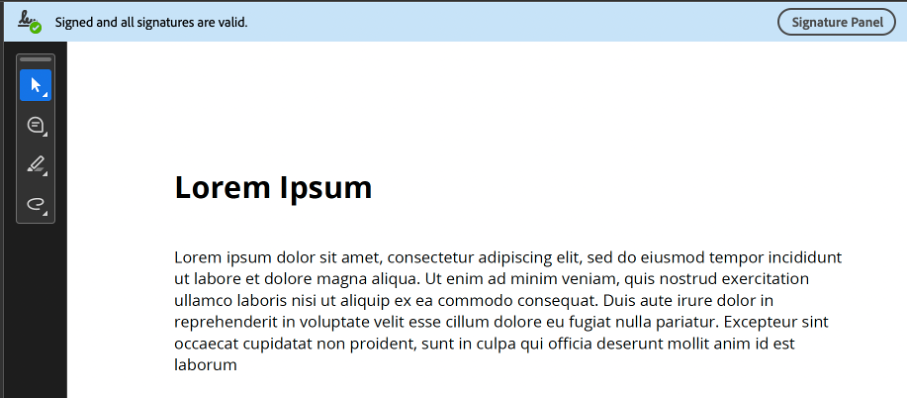
Green checkmark in Adobe Acrobat
Add a qualified electronic timestamp (eIDAS Art. 41) to your PDF. The timestamp is embedded directly in the document and visible as a green checkmark in Adobe Acrobat.
How it works
- 1. Upload your PDF document
- 2. We embed a qualified timestamp from a European TSA
- 3. Download your PDF with the green checkmark
Timestamp your PDF
One PDF, a qualified European TSA, a green checkmark in Adobe.
or drag your PDF here
What is a qualified electronic timestamp?
A qualified electronic timestamp is a cryptographic proof, issued by a Qualified Trust Service Provider on the EU Trusted List, that a specific document existed in exactly this form at a specific moment. Under Article 41 of the eIDAS Regulation it carries a legal presumption that the date, the time and the integrity of the data are correct — throughout the entire European Union.
- Proves when a document existed, not who wrote it.
- Reverses the burden of proof: the other party has to show the date is wrong.
- Recognised in every EU member state, without any further agreement.
- Stays verifiable even after the document leaves your systems.
Without qualified timestamp
- No proof of when the document existed
- Timestamps can be disputed in court
- Adobe shows a warning or unknown signer
- No legal presumption of accuracy
How it works
- Upload your PDF document
- We embed a qualified timestamp from a European TSA
- Download your PDF with the green checkmark
File date, ordinary timestamp or qualified timestamp?
The three are often lumped together, but only one of them shifts the burden of proof in a dispute.
| File date | Ordinary timestamp | Qualified timestamp | |
|---|---|---|---|
| Who sets the time? | Your own computer | A time-stamping service | A QTSP on the EU Trusted List |
| Can it be altered? | Yes — change the system clock | No, but trust depends on the provider | No — supervised and audited |
| Legal presumption (eIDAS Art. 41) | None | None | Yes — date, time and integrity |
| Who has to prove what? | You prove the date is correct | You prove the date is correct | The other party proves it is wrong |
| Green checkmark in Adobe | Not applicable | Only if the TSA is on the AATL | Yes, via the EU Trusted List |
| Valid across the EU | No | By agreement only | In all member states |
Why a qualified timestamp?
eIDAS qualified
Issued by a Qualified Trust Service Provider (QTSP) on the EU Trusted List. Legal presumption of accuracy under eIDAS Art. 41.
Embedded in the PDF
The timestamp is embedded as a PAdES DocTimeStamp directly in the PDF. No external proof file needed.
Visible in Adobe
Adobe Acrobat validates the timestamp and shows a green checkmark with the exact date and time.
When do you need one?
Anywhere the question "did this already exist back then?" can cost you money.
Intellectual property and prior art
Designs, concepts, manuscripts and source code. A qualified timestamp establishes a date of existence you can rely on before a patent application or in an infringement dispute — far cheaper than a notarial deed.
Tenders and deadlines
Prove that your bid, quotation or submission was complete before the deadline passed, without depending on a mail server timestamp that the other party can question.
Contracts and addenda
Timestamp the version that was actually agreed. Any later change produces a different document, so a swapped-in "final version" no longer matches the stamped one.
Board minutes and decisions
Record when a decision was taken and in what wording. Useful for governance, liability questions and audits where the moment matters as much as the content.
Evidence and incident reports
Screenshots, log exports and inspection reports lose their value once the date can be questioned. A qualified timestamp fixes the moment the evidence was captured.
Archiving and compliance
Show an auditor that a record has not changed since it was archived. The timestamp travels with the PDF, so the proof does not depend on your own systems.
How to check the timestamp in Adobe Acrobat
The green checkmark appears on its own, but this is where you find the details.
-
1
Open the PDF in Adobe Acrobat Reader
A blue bar appears at the top: "Signed and all signatures are valid."
-
2
Open the signature panel
Click the pen icon in the left-hand sidebar, or the "Signature panel" button in the blue bar.
-
3
Expand the document timestamp
You will see an entry of the type "Document timestamp" with a green checkmark and the exact date and time.
-
4
Check the certificate details
Under "Certificate details" you can see which timestamp authority signed and that the certificate chains to the EU Trusted List.
No green checkmark? Then Acrobat is probably not up to date. Acrobat refreshes its trusted lists roughly every 30 days — check for updates and reopen the document.
What that looks like
Two screenshots from Adobe Acrobat, of a PDF we stamped with this very tool. You can download that file below and walk through the steps yourself.
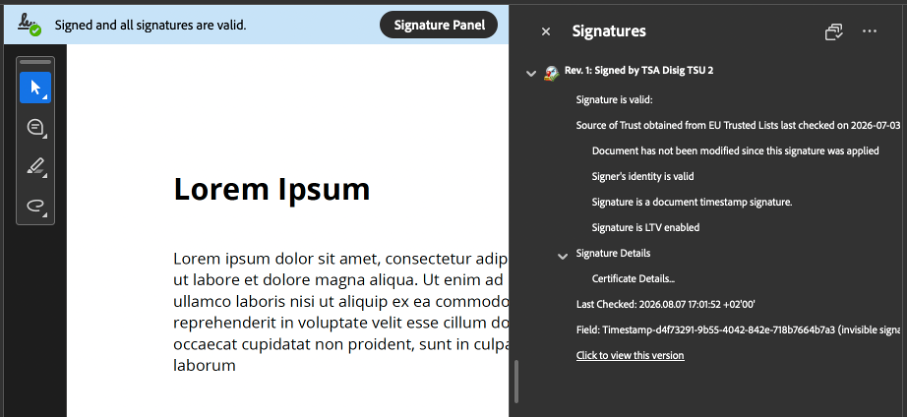
About the "Signature is LTV enabled" line in that screenshot: Acrobat reaches that verdict using its own trusted lists, not data inside the file. We deliberately do not embed revocation information (DSS/VRI) in the PDF. It makes no difference to the green checkmark, but it does mean a validator without the EU trusted list can reach a different verdict.
Check it yourself
The same PDF before and after stamping. Open both in Adobe Acrobat Reader and compare.
The original shows no blue bar and no signature panel — the content of both pages is otherwise identical.
A timestamp is not a signature
Both show a green checkmark in Adobe, which is exactly why they get confused. They answer different questions.
A qualified timestamp answers: when?
It proves that this exact document existed at this moment and has not changed since. It says nothing about who created it or whether anyone agreed to it. You need no certificate of your own and no identity check.
A qualified signature answers: who?
It ties a document to an identified person and carries the same legal weight as a handwritten signature. That requires a personal certificate and identity verification by a trust service provider.
They combine well: sign first, then timestamp. The timestamp then also proves the signature was already there at that moment — which keeps it verifiable long after the signing certificate expires.
What the law says
Regulation (EU) No 910/2014 (eIDAS) sets the rules for electronic timestamps across the entire union.
Article 41(2) — presumption
A qualified electronic timestamp enjoys the presumption of the accuracy of the date and time it indicates, and of the integrity of the data to which they are bound. In practice: a judge takes it as correct unless the other party proves otherwise.
Article 41(1) — always admissible
An electronic timestamp may not be denied legal effect or admissibility as evidence purely because it is electronic, or because it is not qualified. Being qualified is what adds the presumption on top.
Article 41(3) — recognised EU-wide
A qualified timestamp issued in one member state is recognised as qualified in all others. A Slovak QTSP therefore has exactly the same standing before a Dutch, German or French court.
This page explains how the technology and the regulation work. It is not legal advice; for a specific case, consult a lawyer.
Technical specifications
What exactly happens to your PDF.
- Timestamp authority
- Disig a.s. (Slovakia) — qualified service on the EU Trusted List, status "granted"
- Protocol
- RFC 3161 Time-Stamp Protocol over HTTPS
- Format in the PDF
- PAdES DocTimeStamp (ETSI EN 319 142), added as an incremental update
- Hash algorithm
- SHA-256
- What reaches the TSA
- Only the SHA-256 hash of the document — never the file itself
- Existing signatures
- Remain intact and valid; the original bytes are not rewritten
- Limits
- One PDF at a time, up to 50 MB. Encrypted PDFs must be unlocked first.
- Cost
- 20 credits per document, paid account required (onetime or premium)
Three kinds of proof, three different questions
They look alike but do not answer the same thing. Here is which one you need when.
| Property | Fingerprint | Proof package | You are here Qualified timestamp |
|---|---|---|---|
| Answers the question | Does this version differ from that one, and in what respect? | Did this file already exist at that moment, and is it unchanged since? | Did this document already exist at that moment — and can the recipient see it straight away? |
| Where the proof lives | In a token and a JSON file you keep yourself. | In a separate ZIP alongside your document, verifiable offline. | Inside the PDF itself, as a PAdES DocTimeStamp. |
| When it is ready | Immediately. | Anchored in the daily run; requesting one stamps immediately. | Immediately. |
| Visible in Acrobat | No. | No. | Yes, green check mark. |
| Works on | PDF, Office, images and email with attachments. | Anything you convert here. | Any PDF you upload, including files from elsewhere. |
| Cost | 1 credit per file. | Included with the conversion; downloading needs a paid subscription. | 20 credits, paid account. |
Fingerprint
- Answers the question
- Does this version differ from that one, and in what respect?
- Where the proof lives
- In a token and a JSON file you keep yourself.
- When it is ready
- Immediately.
- Visible in Acrobat
- No.
- Works on
- PDF, Office, images and email with attachments.
- Cost
- 1 credit per file.
Proof package
- Answers the question
- Did this file already exist at that moment, and is it unchanged since?
- Where the proof lives
- In a separate ZIP alongside your document, verifiable offline.
- When it is ready
- Anchored in the daily run; requesting one stamps immediately.
- Visible in Acrobat
- No.
- Works on
- Anything you convert here.
- Cost
- Included with the conversion; downloading needs a paid subscription.
Qualified timestamp You are here
- Answers the question
- Did this document already exist at that moment — and can the recipient see it straight away?
- Where the proof lives
- Inside the PDF itself, as a PAdES DocTimeStamp.
- When it is ready
- Immediately.
- Visible in Acrobat
- Yes, green check mark.
- Works on
- Any PDF you upload, including files from elsewhere.
- Cost
- 20 credits, paid account.
They do not exclude each other: one document can carry a fingerprint, a proof package and an embedded timestamp at the same time.
Frequently asked questions
What is a qualified electronic timestamp?
A qualified electronic timestamp (QTS) is an electronic timestamp issued by a Qualified Trust Service Provider (QTSP) listed on the EU Trusted List. Under eIDAS Article 41, it enjoys the legal presumption of accuracy of the date and time it indicates.
What is the green checkmark in Adobe?
When a PDF contains a valid qualified timestamp, Adobe Acrobat shows a green checkmark in the signature panel. This indicates that the document has not been modified since the timestamp was applied and that the timestamp comes from a trusted source.
Why does Adobe trust this timestamp automatically?
Acrobat and Reader ship with the European Union Trusted Lists (EUTL), a consolidated list of all qualified trust services in the EU and EEA. Our timestamp authority is on that list, so no manual configuration is needed. Acrobat refreshes the lists roughly every 30 days.
What exactly is added to my PDF?
A PAdES DocTimeStamp is appended as an incremental update: the original bytes are left untouched and the timestamp is written after them. The token contains the hash of the document, the time from the TSA and the TSA certificate chain. No visible stamp is drawn on the pages.
Is a timestamp the same as a digital signature?
No. A timestamp proves when a document existed and that it has not changed since; a signature proves who signed it. A timestamp needs no certificate of your own and no identity check. The two can be combined: sign first, then timestamp.
Does my file leave your server?
No. The timestamp is embedded on our own server, and only the SHA-256 hash of the document is sent to the timestamp authority. That hash cannot be turned back into the document, so the TSA never learns what it stamped.
Can I timestamp a PDF that has already been signed?
Yes. Because the timestamp is added as an incremental update, existing digital signatures remain valid. Any timestamps already present are kept as well — you can see the total count in the result.
Which TSA do you use?
We use Disig a.s., a Qualified Trust Service Provider (QTSP) from Slovakia, listed on the EU Trusted List. The timestamps are RFC 3161 compliant and embedded as PAdES DocTimeStamp signatures.
Why does my PDF fail to stamp?
Two causes account for almost every failure: the PDF is encrypted or permission-restricted (remove the password first), or it exceeds the size limit. A damaged PDF that Acrobat itself cannot open properly will also be refused.
How many credits does it cost?
A qualified timestamp costs 20 credits per document. You need a paid account for it — either a onetime credit bundle or a premium subscription will do. Free accounts cannot place timestamps.
Can I timestamp multiple PDFs?
Currently you can timestamp one PDF at a time. Upload your document, download the stamped version, and repeat for additional files.
How is this different from the fingerprint tool?
A fingerprint compares two versions of a document and shows where they differ: the bytes, the text, the rendering or the metadata. That comparison says nothing about time by itself. A timestamp does the opposite — it dates the document but compares nothing. If you need to show that a version you received differs from yours, you need the fingerprint; if you need to show that your version came first, the timestamp.
I already get a proof package with every conversion. Why would I add a timestamp?
Both rely on a qualified European timestamping authority, so that is not where they differ. The difference is form and timing. The proof package is a separate ZIP alongside your document: the recipient has to keep it and open it to verify anything, and anchoring happens in a daily run. A qualified timestamp is placed immediately and sits inside the PDF, where Acrobat shows a green check mark for it without anyone needing an attachment. It also works on any PDF you upload, including a document that was not created here.
Can I combine a timestamp with a proof package?
Yes, but mind the order. The timestamp is appended to the PDF as an incremental update, so afterwards the file is no longer byte-identical to the version anchored during conversion. Both proofs stay valid, but they then cover two versions of the same document. If you want one file carrying both, timestamp as the last step and keep exactly that copy.
Combine with
A timestamp fixes the moment. These tools help you prove what changed and what did not.
Fingerprint & verify
Separate hashes for the bytes, the content and the metadata — so you can show the content stayed the same while the metadata changed.
Open toolCompare PDFs
Compare two files and see on which layer they differ: bytes, content or metadata.
Open toolRemove metadata
Strip author, GPS and edit history before you share — then timestamp the cleaned version.
Open toolReady to timestamp your PDF?
Upload your PDF and get a qualified timestamp with a green checkmark in Adobe Acrobat.