

An MSG file is easy to ignore until someone sends you one and expects a clean PDF five minutes later. Then the usual problems show up: you do not have Outlook on that machine, the email needs to be shared with someone outside Microsoft, or the message has to be archived in a format that is easier to search, print, and store.
If that sounds familiar, the good news is that converting MSG to PDF is straightforward once you know what to preserve. The goal is not just to create a PDF that “looks fine.” The goal is to keep the sender, recipients, subject line, timestamps, body content, and any relevant attachments intact so the file stays useful later.
What is an MSG file?
MSG is Microsoft Outlook’s message format for a single email item. It can contain the email body, subject, sender and recipient data, timestamps, embedded formatting, and sometimes attachment references or embedded attachments. That makes it useful inside the Microsoft ecosystem, but less convenient when you need to share the message broadly or keep it in a long-term archive.
PDF is the opposite in one important way: almost everyone can open it. A PDF is easier to review, print, attach to a case file, or upload into a document management system. That is why teams in legal, finance, procurement, and support often convert important emails before they move them into a broader workflow.
Why convert MSG to PDF?
Opens anywhere: PDFs work on any device, including systems where Outlook is not installed.
Easy to share: clients, auditors, and external partners can open a PDF without needing mailbox software.
Fits retention policies: PDFs are consistent, printable, and easier to index in document management systems.
Neutral handoff format: when teams use Outlook, Google Workspace, and case management platforms side by side, PDF is the format that works for everyone.
How to convert MSG to PDF without Outlook
The simplest approach is to use a converter that accepts MSG directly and renders the message into a PDF while keeping the email headers visible. That matters, because a PDF without sender, recipient, subject, and date information is much less valuable later. If attachments are part of the record, choose a workflow that includes them as well.
With PDFengine, for example, you can upload MSG files directly and convert them into PDF without opening Outlook first. If the email includes additional files that need to stay with the message, you can include them in the same document workflow instead of rebuilding the record manually.
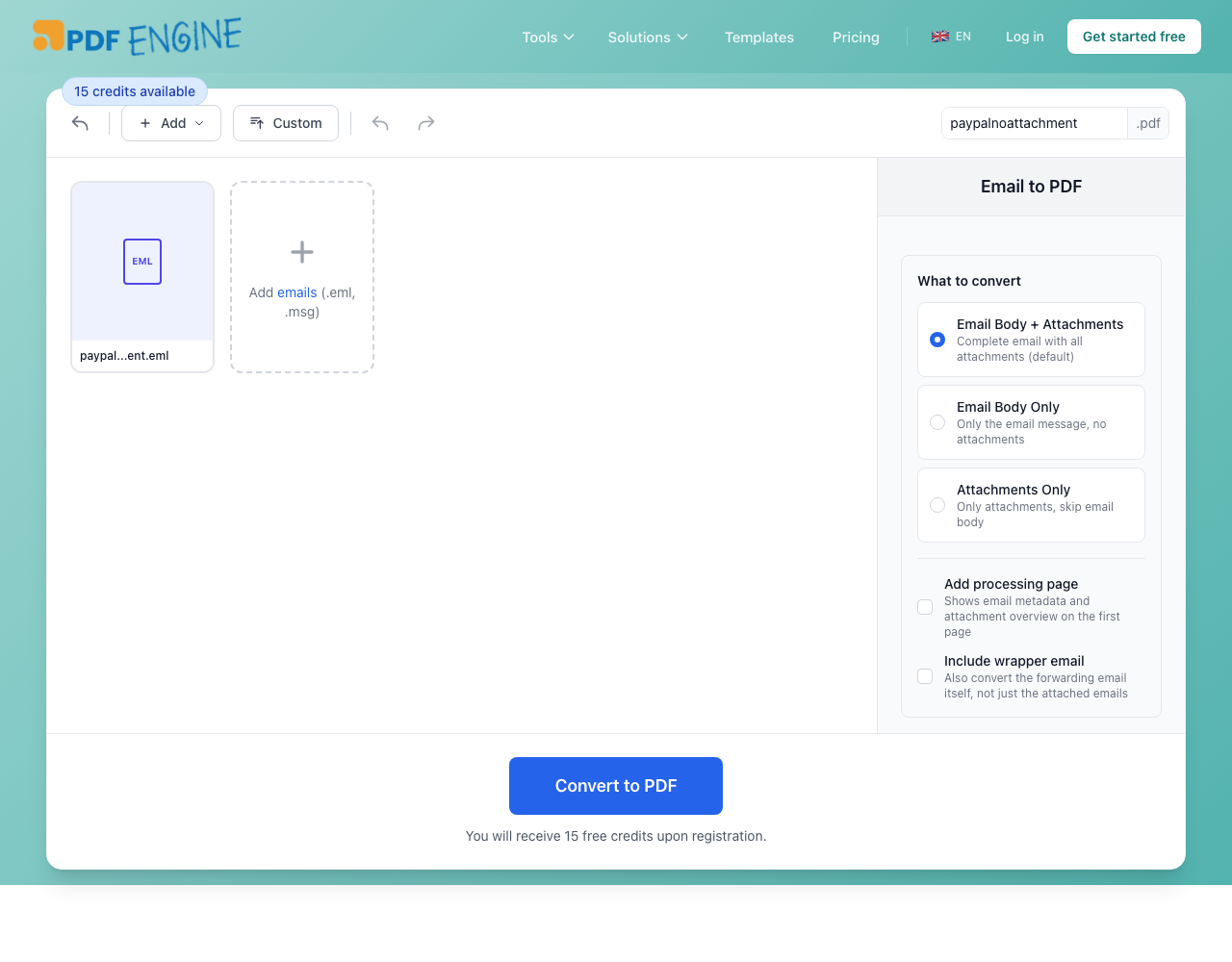
Try it directly: Upload your MSG or EML file on PDFengine
A good conversion flow usually looks like this:
Upload the MSG file or a batch of MSG files.
Choose PDF as the output format.
Keep email metadata visible in the rendered output.
Decide whether attachments should be merged, appended, or handled separately.
Download the final PDF or batch archive.
What to preserve during MSG to PDF conversion
Not every converter treats email messages seriously. Some only capture the visible body text. That is fine for casual reading, but poor for compliance or recordkeeping. When converting MSG to PDF, check that the output preserves the message headers, inline images, attachments where needed, and the original reading order.
If the email contains scanned attachments, OCR can be useful as a second step. It turns image-based pages into searchable text, which makes the final PDF far more practical when you need to find a name, invoice number, or case reference months later.
When batch MSG to PDF conversion makes sense
Single-file conversion is enough for the occasional message. But if you are exporting customer support threads, HR records, legal correspondence, or project mailboxes, batch MSG to PDF conversion saves a lot of time. Instead of opening messages one by one, you can process a folder in bulk and keep the output consistent.
That consistency matters more than most teams expect. When filenames, page layout, and metadata presentation stay uniform, it becomes easier to review large archives quickly and easier to hand them over to another team.
Common mistakes when converting MSG to PDF
Stripping the headers: a PDF without sender, recipient, subject, and date is much less useful for compliance or legal purposes.
Forgetting attachments: if the attachment is part of the record, leaving it out creates an incomplete document.
Relying on print-to-PDF: this approach depends on a local Outlook installation and breaks on any machine where Outlook is not present.
Skipping OCR: when scanned attachments are part of the message, skipping OCR means the content stays unsearchable.
If you are converting emails for evidence, compliance, or long-term archive use, “good enough” usually is not good enough.
Frequently asked questions
Can I convert MSG to PDF without installing Outlook?
Yes. Tools like PDFengine accept MSG files directly and convert them to PDF without requiring Outlook to be installed on your machine.
Will the email headers be visible in the PDF?
With a proper converter, yes. Sender, recipient, subject line, and timestamps are preserved and visible in the rendered PDF output.
What happens to attachments during conversion?
Depending on the tool and settings, attachments can be converted and appended to the PDF, merged into the same document, or handled as separate files. PDFengine lets you choose.
What is the difference between MSG and EML?
MSG is a Microsoft Outlook proprietary format that can store emails, tasks, and calendar items. EML is an open standard used by most other email clients. Both can be converted to PDF, but they require different parsers.
Can I convert a large batch of MSG files at once?
Yes. PDFengine supports batch conversion — upload multiple MSG files or a ZIP archive and process them in one go.
Does converting MSG to PDF make the content searchable?
The email body text is searchable in the PDF by default. For scanned attachments embedded in the message, running OCR as a second step makes those pages searchable as well.
Convert your MSG files to PDF with PDFengine
PDFengine converts MSG files to PDF directly — no Outlook required. Upload a single file or a batch, keep email headers and attachments intact, and download a clean PDF ready for sharing or archiving.
Start converting: pdfen.com/email-to-pdf
Related tools and guides
Final thoughts on MSG to PDF conversion
If you need to convert MSG to PDF without Outlook, focus on preservation, not just convenience. A useful PDF should keep the context of the original message, travel easily between systems, and remain readable years later. That is why direct MSG support, batch conversion, attachment handling, and optional OCR are worth paying attention to from the start.
In short: convert the message once, preserve it properly, and avoid the messy workaround loop of opening, printing, renaming, and re-checking every file by hand.
Related Articles
How to deliver a newspaper ad PDF: the 240% ink limit, ISOnewspaper26v4 and GWG2015 explained
Your newspaper wants GWG2015, ISOnewspaper26v4 and max 240% ink. Here is what that means, why a prof...

Can ChatGPT, Claude or Gemini Convert Email to PDF? What AI Can (and Can't) Do
No AI assistant can natively convert .eml or .msg to PDF. But Claude + MCP bridges the gap — here's...