
How to Convert Outlook & Office 365 Email to PDF: 8 Methods Compared
Founder, PDFengine

The fastest way to convert an Outlook or Office 365 email to PDF depends on what you actually need. For a single email, the built-in Print to PDF works. To keep attachments, merge several emails into one file, or process a whole folder, you need a real converter — because Print to PDF drops attachments and can't combine messages.
This guide compares eight methods, with and without extra software, so you can pick the right one in a minute.
Key Takeaways
Outlook's built-in Print to PDF handles one email at a time but discards attachments and can't merge or batch.
The "new Outlook" for Windows removed the old "Save as PDF" option — Microsoft confirms Print to PDF is now the only built-in route (Microsoft Support).
To keep attachments, merge multiple emails, or convert PST/OST/MBOX/OLM archives, upload the raw
.eml/.msgfiles to PDFengine — no Outlook required.You can also forward an email straight to PDFengine and get the PDF back, use the API, or convert through ChatGPT or Claude with the PDFengine connector.
Records matter: the FBI logged $2.77 billion in business email compromise losses in 2024 alone (IC3), and FINRA Rule 4511 requires firms to keep email for at least six years.
The top 3 methods at a glance
Most people land here for one of three reasons: a quick single email, a batch with attachments, or hands-off automation. Here are the three methods that cover the vast majority of cases, with honest trade-offs.
Method | Best for | Pros | Cons |
Built-in Print to PDF (no software) | One simple email, no attachments | Free; already installed; instant | No attachments; can't merge; no batch; broken/limited in new Outlook |
Upload to PDFengine ( | Attachments, merging, bulk, archives | Keeps attachments; merges; handles PST/OST/MBOX/OLM; PDF/A; no install | You first export the email out of Outlook |
Forward to PDFengine | Fastest one-off, any device | Zero install; works from phone; converts attachments | Needs a free account to set up your address |
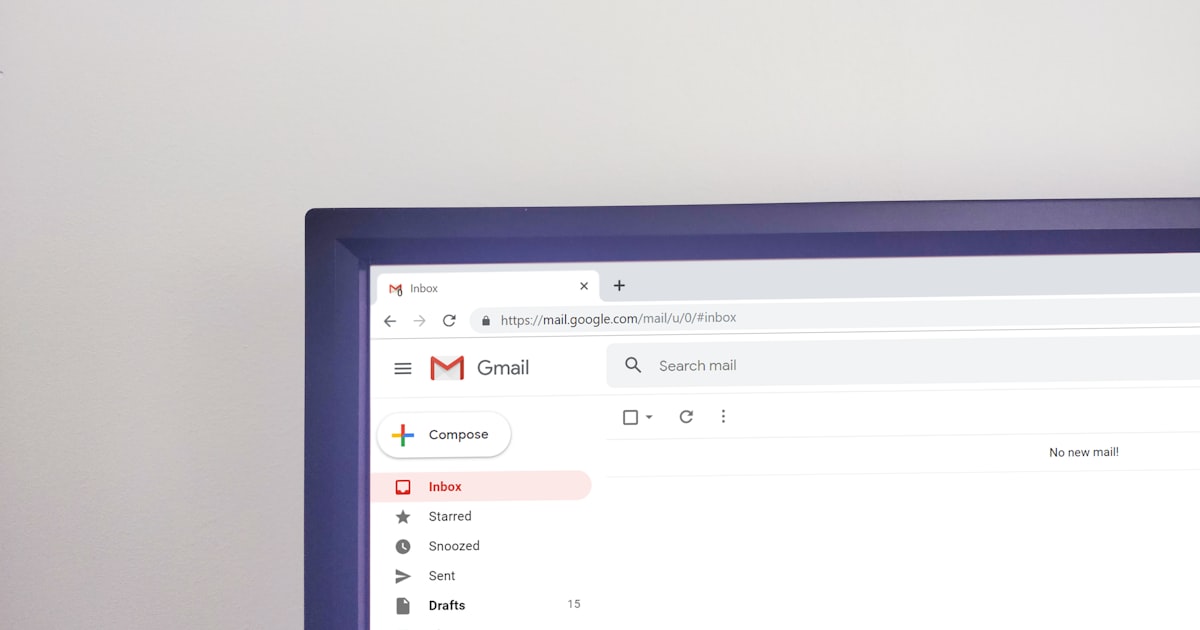 Getting an email out of your inbox and into a clean PDF takes seconds — once you pick the right method.
The rest of this guide walks through all eight methods, then explains what happens to attachments and forwarded ("wrapper") emails, and ends with a full comparison and FAQ.
Method 1: Print to PDF (built into Outlook, no software)
Outlook's built-in Print to PDF is the no-cost baseline: it turns the email you're viewing into a PDF using a virtual printer. It works everywhere, but it only captures the on-screen message — attachments are not included, and there's no way to merge or batch.
The exact steps differ per environment, and Microsoft changed them recently:
Classic Outlook (Windows):
File → Print, choose Microsoft Print to PDF as the printer, click Print, then pick a filename. (Microsoft Support)New Outlook (Windows): open the message, then More actions (⋯) → Print → Print, and select Microsoft Print to PDF. There is no native "Save as PDF" type anymore.
Outlook on the web / Office 365: open the email, More actions (⋯) → Print, then set the browser's destination to Save as PDF.
Outlook for Mac:
File → Print(or⌘P), then use the PDF dropdown → Save as PDF in the print sheet.
Why "new Outlook" frustrates so many users
If you recently switched and thought you were losing your mind, you're not. Microsoft's own support page states plainly that "New Outlook doesn't include PDF as one of the defaults Save as types." The redesign removed the familiar export, leaving only the Print to PDF workaround — and that workaround drops attachments. Threads on Microsoft's community are full of it: "In the old version of Outlook, you could easily save an email in PDF format. How do you do that in the New Outlook?" (Microsoft Q&A).
So Print to PDF is fine for a single, attachment-free email you just need to file. For anything beyond that, keep reading.
Method 2: Adobe Acrobat's Outlook add-in (paid, desktop)
Adobe Acrobat installs an Acrobat ribbon tab inside classic Outlook for Windows. It's far more capable than Print to PDF: you can convert selected messages or whole folders, merge them into one PDF, and include attachments when you enable that setting (Adobe Experience League).
The catch is twofold. First, it's subscription-based and desktop-focused — see Adobe's pricing. Second, the ribbon is tied to classic Outlook; it does not restore folder or merge conversion inside the new Outlook or on the web. If you've already moved to new Outlook, an Acrobat subscription alone won't bring batch conversion back unless you switch back to classic.
Adobe Acrobat's Outlook integration can merge selected emails and folders into a single PDF and include attachments, but it requires a paid subscription and runs only inside classic Outlook for Windows (Adobe). It offers no option for users on the web or new Outlook.
Method 3: Upload .eml or .msg files to PDFengine (web, no install)
Uploading the raw email file to PDFengine's email-to-PDF tool is the most reliable way to convert with attachments intact — and it runs in your browser, with no Outlook or desktop app required. PDFengine reads the original .eml or .msg, renders the message body, and converts each attachment too.
First, get the email out of Outlook:
Classic Outlook: drag the email onto your desktop, or
File → Save Asand choose the.msgformat.New Outlook / web: open the message, then More actions (⋯) → Save as (or drag it out) to get an
.emlfile.Mac: drag the email from the message list to a Finder folder to create an
.eml.
Then drop the file(s) onto pdfen.com/email-to-pdf and convert. Because PDFengine reads the file rather than a screenshot, it preserves the headers (From, To, Subject, Date, Message-ID) and can output PDF/A for long-term, compliant archiving — PDF/A has been the ISO standard for digital preservation since ISO 19005-1:2005. For the forensic side of this — header preservation and SPF/DKIM/DMARC results — see our guide on converting email to PDF with headers.
Bulk and archive conversion (PST, OST, MBOX, OLM)
Have hundreds of emails? Upload an entire Outlook PST or OST archive, a Mac OLM, an MBOX file, or a ZIP of .eml/.msg files. PDFengine extracts the messages, shows them in a preview so you can pick and reorder, and converts them in one run. This is the answer to the most common complaint on Microsoft's forums — "we have hundreds of emails to upload to client files… we are unable to print multiple emails to a PDF" (Microsoft Q&A). For more on these formats, see email archive file formats explained.
 One archive upload converts an entire mailbox — no opening and printing emails one by one.
Method 4: Merge multiple emails into one PDF
To combine several emails into a single, page-numbered PDF, use PDFengine's merge-email-to-PDF tool. Upload the .eml/.msg files (or an archive), arrange them in the order you want, and PDFengine stitches them into one continuous document instead of dozens of separate files.
This is the use case native Outlook simply doesn't cover. There's no "combine selected emails into one PDF" button anywhere in classic, new, web, or Mac Outlook — each message prints separately. Merging matters most for legal bundles, client files, and complete conversation threads that need to read as one record. A 2026 forum post captures the pain exactly: an attorney's client "needs all of my email communications… I've exported into pst but honestly I'm struggling" (Microsoft Q&A).
Method 5: Forward an email straight to PDFengine (no install)
The quickest one-off method needs no upload at all: forward the email to your personal PDFengine address and get the PDF back. After you create a free account, PDFengine gives you addresses like convert+123456789012@inbound.pdfen.com (and a merge+… variant). Forward any email to it from Outlook — even from your phone — and PDFengine converts it automatically.
This works from any device and any mail client, which makes it ideal when you're away from your desk. It also handles something Print to PDF can't: the original email's attachments come along for the ride.
Forwarding an email to a dedicated address turns conversion into a zero-install, send-and-forget step that works from any device. PDFengine detects the forwarded ("wrapper") message, converts the original email it contains, and processes its attachments — no software, no upload screen, no Outlook version dependency.
Method 6: Convert the open email with the PDFengine Outlook add-in
For people who live in Outlook, an add-in is the smoothest path: convert the email you're reading to PDF in place, without exporting or uploading anything. The PDFengine Outlook add-in reads the open message (including its attachments) and returns a PDF in a side panel.
It works inside Outlook on the web and new Outlook, so it sidesteps the "new Outlook removed Save as PDF" problem entirely. Sign in once, open any email, and convert.
Method 7: Automate it with the PDFengine API
If you convert email to PDF regularly — archiving a shared mailbox, attaching emails to case files, feeding a records system — automate it with the PDFengine API. Post an .eml or .msg to the convert/email endpoint, poll for completion, and download the finished PDF. Create a token under your API tokens page and you can wire conversion into any script, scheduler, or backend.
The API is also what powers the next method, where an AI assistant does the work for you.
Method 8: Convert emails to PDF with ChatGPT or Claude
Here's a method no one else covers: hand the job to an AI assistant. There's an honest distinction to make, though — what works with PDFengine connected, and what doesn't without it.
Without a tool connected, a chatbot can't truly convert your email. You can paste the text and ask for a summary, but ChatGPT or Claude has no rendering engine and no access to your mailbox, so it can't produce a faithful PDF with the real layout, headers, and attachments. At best you get the browser's own "print to PDF" of the chat — not the email.
With the PDFengine connector (MCP), the assistant gains real tools. Connect PDFengine's MCP server (https://pdfen.com/mcp/sse) with your API token, and Claude or ChatGPT can call start_conversion, then hand you a download link to a genuine PDF. You stay in the chat; PDFengine does the conversion. It's the same engine as the web app, driven by natural language. See the developer docs for the connection details.
PDFengine publishes a Model Context Protocol (MCP) server so AI assistants like Claude and ChatGPT can convert and merge emails to PDF through chat. The assistant calls real conversion tools rather than guessing — producing an actual PDF file, attachments included, instead of a text approximation.
What happens to attachments and forwarded "wrapper" emails?
Attachments and forwarded emails are exactly where the built-in methods fall down — and where a real converter earns its place.
Attachments. Print to PDF renders only the message body; the attachment files are dropped. PDFengine converts them instead: Office documents become PDF pages, while PDFs and images are included directly. You choose whether the output contains the body only, attachments only, or both — so a contract emailed as a Word file ends up in the same PDF as the message that sent it.
Forwarded ("wrapper") emails. When you forward a message, your forward becomes an envelope that contains the original email as an attachment. PDFengine recognises this pattern: if a message's attachments are themselves emails, it treats the message as a wrapper and converts the original email inside — not the empty forwarding note. Forward five emails bundled in one, and you get five clean PDFs (or one merged file), each with its own attachments. That's what makes Method 5 reliable rather than a workaround.
Which method should you choose?
There's no single best method — there's the best method for your situation. This table maps all eight to the job at hand.
Need | Best method | Software? |
One simple email, no attachments | Print to PDF (Method 1) | None |
One email with attachments | Forward to PDFengine (5) or add-in (6) | None |
Merge several emails into one PDF | PDFengine merge tool (4) | None |
Hundreds of emails / a full archive | Upload PST/OST/MBOX/OLM to PDFengine (3) | None |
Convert without leaving Outlook | PDFengine add-in (6) or Acrobat (2) | Add-in |
Repeated / scheduled conversion | PDFengine API (7) | API token |
Do it from a chat assistant | ChatGPT/Claude + PDFengine MCP (8) | Connector |
If you only ever save the odd email and never touch attachments, the built-in Print to PDF is genuinely enough. The moment attachments, merging, bulk archives, or compliance enter the picture, a dedicated converter saves real time — and unlike Adobe Acrobat's add-in, PDFengine runs online, on any Outlook version, with a free tier to try first.
Frequently Asked Questions
Where did "Save as PDF" go in the new Outlook?
Microsoft removed PDF as a "Save as" type in the new Outlook for Windows. Its support page confirms "New Outlook doesn't include PDF as one of the defaults Save as types," leaving Print to PDF as the only built-in route — and that drops attachments (Microsoft Support). To keep attachments, upload or forward the email to a converter instead.
Can I convert multiple Outlook emails into one PDF at once?
Not with native Outlook — each message prints to a separate file, and there's no "combine" option in classic, new, web, or Mac Outlook. To merge several emails into one page-numbered PDF, upload the .eml/.msg files (or a PST/ZIP archive) to PDFengine's merge tool, arrange the order, and convert them in a single run.
Can I include attachments in the PDF?
Yes — but not with Print to PDF, which captures only the on-screen body. A converter that reads the raw email keeps them: PDFengine turns Office attachments into PDF pages and embeds PDFs and images, with a setting to include the body, attachments, or both. Adobe Acrobat's add-in can also include attachments, but only in classic Outlook.
Why does printing a folder to PDF just give me a list, not the emails?
Because "print folder" prints the folder view — the list of message rows — not the contents of each email. It's a common surprise on Microsoft's forums. To convert the actual messages, export the folder as a PST and upload it to PDFengine, which extracts every email and converts each one properly.
How do I save an Outlook email as PDF on a Mac?
Open the email, choose File → Print (or ⌘P), then use the PDF dropdown → Save as PDF in the macOS print sheet. This relies on the system PDF engine, so it's more reliable than the Windows experience — but it still won't include attachments or merge messages. For those, upload the exported .eml to PDFengine.
Can ChatGPT or Claude convert my email to PDF?
On their own, no — a chatbot has no rendering engine or mailbox access, so it can only summarise text you paste. Connected to PDFengine's MCP server, though, Claude and ChatGPT can call real conversion tools and return an actual PDF, attachments included. It's the PDFengine engine driven from a chat window.
Convert your Outlook email to PDF now
Pick the method that fits: save a one-off with Print to PDF, or — for attachments, merging, archives, and compliance — convert your email to PDF with PDFengine in your browser, free to try. Browse all our email-to-PDF tools to pick the converter for your format. Need a courtroom-ready record? Add an evidence page with a SHA-256 hash and authentication results.
Related reading:
Related Articles
How to deliver a newspaper ad PDF: the 240% ink limit, ISOnewspaper26v4 and GWG2015 explained
Your newspaper wants GWG2015, ISOnewspaper26v4 and max 240% ink. Here is what that means, why a prof...

Can ChatGPT, Claude or Gemini Convert Email to PDF? What AI Can (and Can't) Do
No AI assistant can natively convert .eml or .msg to PDF. But Claude + MCP bridges the gap — here's...