
How to Remove Hidden Metadata From a PDF (and Anonymize a Document Before You Share It)
Founder, PDFengine

To remove hidden metadata from a PDF, open the file in a metadata remover, clear the author name, the software that made it, the dates and the other embedded properties, then download the cleaned copy. That one step anonymizes the document's hidden metadata before you send it.
Metadata is not the text you can read on the page, and confusing the two is how confidential leaks happen. In 2003, the UK government proved the cost of that confusion when it published its Iraq dossier as a Word file whose embedded revision log exposed the chain of editors behind it (Cambridge Core).
Key Takeaways
A PDF can quietly carry the author name, the last editor's Windows or Microsoft 365 username, the producer software, and the creation and modification dates.
Removing metadata clears those embedded properties. It does not black out text you can read on the page. Those are two separate jobs.
Check before you strip: a free viewer shows precisely what your file exposes to a recipient.
The 2003 UK "Dodgy Dossier" leaked its chain of editors through Word metadata (Cambridge Core).
Stripping metadata can invalidate an existing digital signature, so verify signed files first.
Does a PDF contain hidden data, and what does PDF metadata reveal?
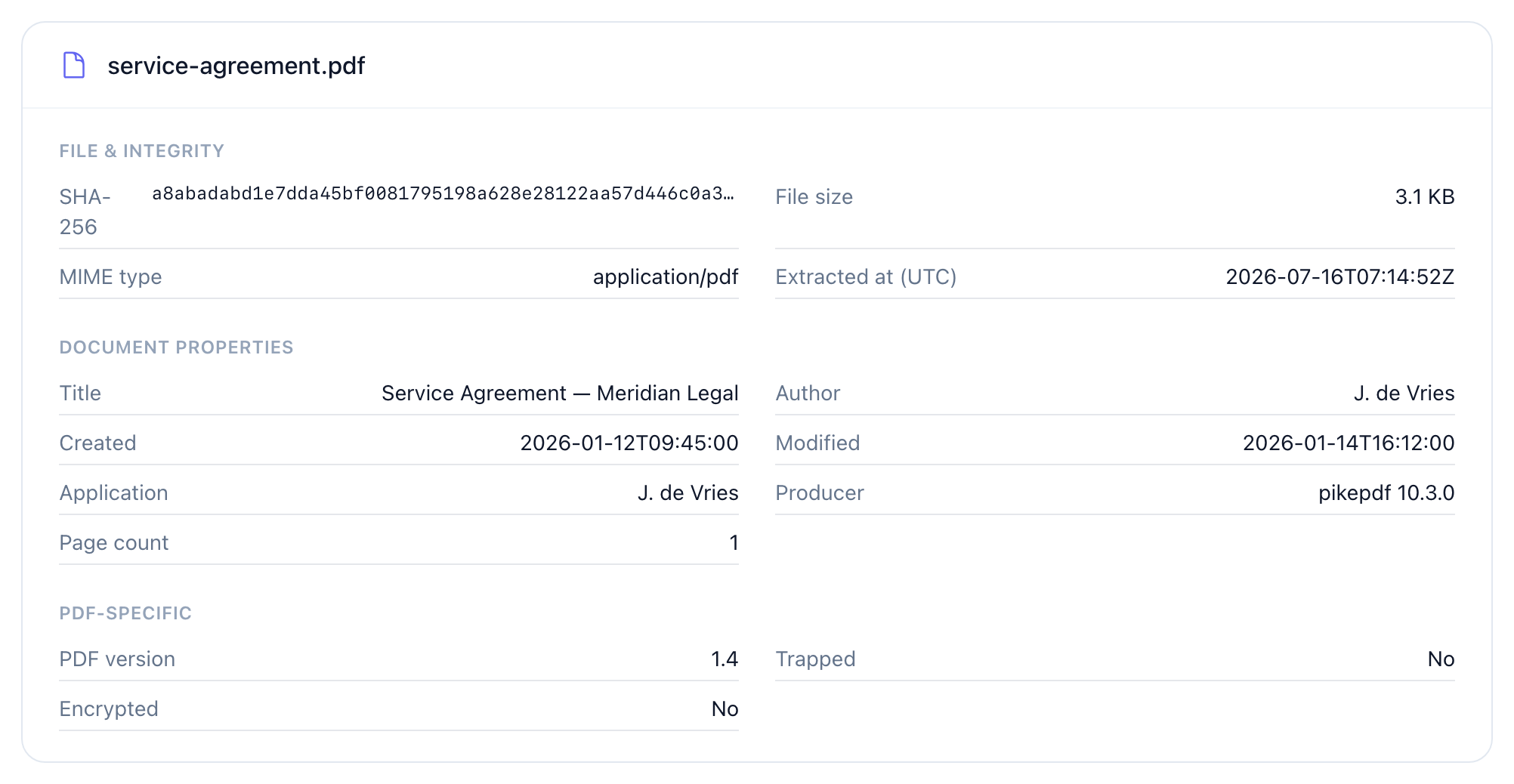
Yes, almost every PDF carries hidden data. A file that looks clean on screen still records who authored it, which program produced it, and when it was created and last changed. For lawyers and notaries, that trail is the risk: it can name a colleague, betray a template you reused, or reveal that a "final" contract was edited minutes before signing.
Most of it is inherited at save time. When you use "Save as PDF" from Word, the PDF inherits the Word Author field, which is often the licensed name typed into Office years ago. The producer field names the exact software and version. Track the modification date and you can reconstruct a timeline no one meant to publish.
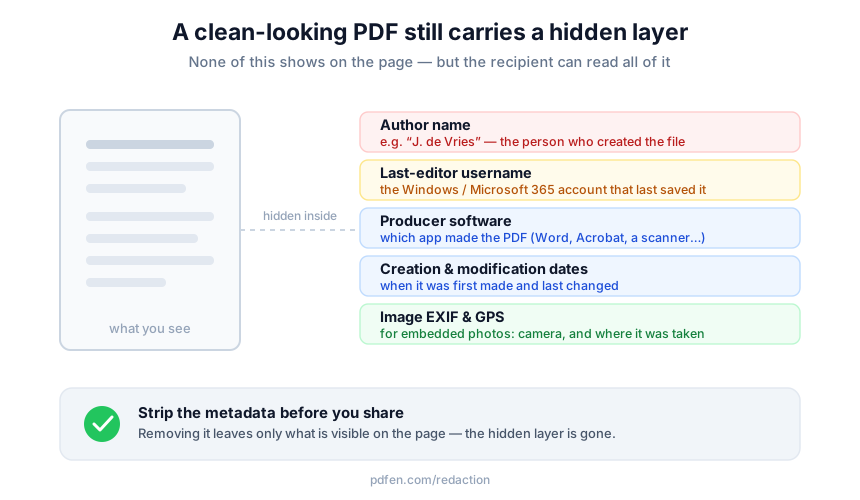 What a single PDF can quietly expose: author name, the last editor's username, producer software, creation date, modification date, and, for images, EXIF and GPS coordinates.
Images are worse. A photo or scan embeds EXIF data, and that can include GPS coordinates pinning the exact spot the picture was taken. If your PDF wraps scanned exhibits, that location travels with it. So when someone asks "does a PDF contain hidden data," the honest answer is that it usually does, and you rarely notice until it works against you.
How can you see who created or last edited a PDF?
Before you change anything, read the file. The free metadata viewer shows who created or last edited a PDF, the producer software, the creation and modification dates, the PDF version, the XMP block, and whether the file is encrypted. In our experience, the files that leak are almost always the ones nobody viewed first.
The viewer needs no account. Your file is read to display its properties, then deleted immediately, so nothing is stored on our side. That matters when the document you are inspecting is privileged or contains client data you cannot upload lightly.
It is not only for PDFs. There are dedicated viewers for PDF, email, Office and image files, so you can check an attachment before it leaves the building. If you want to see who created or last edited a PDF, read it first: seeing the author name and any editor details carried in the XMP block tends to change how carefully people handle a "routine" send.
How do you remove metadata from a PDF, including the author name?
The remove metadata tool wipes every property from a PDF or image in one click: author name, producer and creating software, creation and modification dates, the XMP block, edit history, and the last-editor username. For images it also clears EXIF, GPS included. You download a cleaned file in the same format, so the version you share reveals only what is printed on the page.
That is the direct answer to "how to remove author name from PDF." You do not open Document Properties and blank one field, which leaves other copies of that data behind. You strip the whole layer at once, under the hood using proven engines like pikepdf and ExifTool, without needing to install either.
This is also the fastest way to strip a PDF's authorship data before sending. Upload, clear, download, attach. The page content stays byte-for-byte identical, and if you ever need to prove that, the verify and fingerprint tool hashes the visible content separately from the metadata so you can show the text was never touched.
Remove metadata vs redact a PDF: what is the difference?
This is the distinction that trips people up, so let me be blunt about it. Removing metadata deletes embedded document properties. Redacting a PDF blacks out visible text you can read on the page. They protect against completely different disclosures, and doing one does not do the other.
Removing metadata will not obscure a name, a figure, or a clause that is printed in the document body. If sensitive text is visible, you need visual redaction, which is a separate task. pdfen offers visual redaction through the Safe ID copy tool inside the Redaction and Privacy hub. It blacks out fields on an identity document, runs fully in your browser so the ID is never uploaded, and flattens the result so the blackout cannot be lifted. It is purpose-built for IDs, not a general "hide any paragraph" eraser, and I would rather say that plainly than let you assume more.
Even Adobe warns that visual redaction alone is not enough: after you black out content, you should still sanitize, because comments, hidden layers and revision history survive the redaction (Adobe). The North Carolina Bar Association makes the same point for practitioners in its briefing on what lawyers need to know about metadata (NC Bar). It is also a GDPR problem: the data-minimisation principle says you should only share the personal data that is strictly necessary (EDPB). An author name or a Windows username buried in metadata is personal data you probably never meant to disclose.
How does pdfen compare with Adobe Acrobat and command-line tools?
Acrobat Pro handles this well through Redact, then Sanitize Document, which strips metadata, hidden layers, scripts, comments and form fields in one pass. The trade-off is that it is a paid desktop subscription you install, and its plain File, Document Properties edit is shallow: it leaves metadata behind. Command-line tools give total control and cost nothing, with one trap most people never hear about.
That trap deserves a warning. Running exiftool -all= on a PDF looks like it removes the metadata, but the change is reversible with -pdf-update unless you also run qpdf --linearize to make removal permanent. If you assumed the file was clean, it was not.
Approach | View before stripping | Overwrite a field (not just blank) | Reversibility risk | Install and cost |
|---|---|---|---|---|
pdfen | Yes, free viewer | Yes, edit metadata | None, download is clean | Browser, nothing to install |
Acrobat Pro Sanitize | Limited | Partial | Low | Desktop install, paid (pricing) |
exiftool + qpdf | Yes, technical | Yes | High if you forget | Command line |
Tools like iLovePDF, Smallpdf, PDF24 and single-purpose strippers can remove metadata, but it is usually a buried, strip-only afterthought with no view-then-edit flow. Word's Inspect Document only helps if you own the source .docx, which is useless for a PDF someone emailed you.
What can go wrong when you strip metadata?
Two things, and both are avoidable. First, if the PDF carries a digital signature, removing metadata can invalidate that signature. Check for a signature before you strip, and re-sign afterwards if the document needs to stay verifiable. I would rather flag this than let you break a signed agreement by accident.
Second, blanking everything can look suspicious. A document with no author and no dates sometimes raises more questions than it answers, especially in a dispute. This is where overwrite beats erase. With edit metadata you set a value instead of blanking it, so you can put Author to "Legal Dept." and give the file a deliberate, professional identity rather than a scrubbed one. The file type never changes, and it works on PDF, Office and image files.
The whole routine is three steps. View first, decide whether to strip or overwrite, then confirm the content is untouched. Do those three things and "anonymize PDF before sending" stops being a hopeful click and becomes a checked step. Ready to try it? Start in the Redaction and Privacy hub and run your next document through the remove metadata tool.
Frequently asked questions
How can I remove the author's name and all name references from a PDF?
Open the PDF in the remove metadata tool and strip every property in one pass, including the author name and the last-editor username. This is a common ask on the Adobe forums, where users report that editing Document Properties alone leaves references behind (Adobe Community). A full strip clears the whole layer, not one field.
How do I remove the author name and other document properties in a PDF?
A single-field edit in Document Properties is the wrong tool here, because it blanks one entry while author, producer, dates and the XMP block stay in the file. Strip the whole metadata layer instead: upload the PDF, clear those properties together, and download a clean copy in the same format. No fields survive to leak later.
Does removing metadata also hide the text on the page?
No, and this is the single most important thing to get right. Removing metadata clears properties like author and dates; it does not black out visible text. To hide readable content you need visual redaction, which pdfen provides for identity documents through the Safe ID copy tool in the Redaction and Privacy hub. Treat metadata removal and redaction as two separate steps.
Why does exiftool not fully remove metadata from my PDF?
Because exiftool -all= on a PDF is reversible. Users hit this on the ExifTool forum when metadata reappears after an apparent cleanup (ExifTool forum). The fix is to follow it with qpdf --linearize, which rewrites the file and makes removal permanent. If a one-click clean download is easier, that is what the pdfen tool is for.
How can I remove metadata from many PDF files at once?
Standardise on one strip-and-verify flow rather than editing files individually. Run each PDF through the same removal step, confirm the content hash is unchanged with the fingerprint tool, and keep the file type identical so nothing downstream breaks. For a large set, a repeatable clean-download routine beats hand-editing Document Properties one file at a time.
By Daan van Tongeren, founder of PDFengine.
Related Articles
How to deliver a newspaper ad PDF: the 240% ink limit, ISOnewspaper26v4 and GWG2015 explained
Your newspaper wants GWG2015, ISOnewspaper26v4 and max 240% ink. Here is what that means, why a prof...

Can ChatGPT, Claude or Gemini Convert Email to PDF? What AI Can (and Can't) Do
No AI assistant can natively convert .eml or .msg to PDF. But Claude + MCP bridges the gap — here's...