
Where Did 'Save as PDF' Go in the New Outlook? (And How to Get a PDF With Attachments)
Founder, PDFengine

If you switched to the new Outlook for Windows and your one-click "Save as PDF" vanished, you're not imagining it. Microsoft confirms the new Outlook has no PDF "Save as" type — the only built-in route is the Microsoft Print to PDF printer, and that quietly leaves your attachments behind. Here's why the option disappeared, whether it's coming back, and how to get a complete PDF (attachments included) without installing anything.
Key Takeaways
The new Outlook has no native Save/Export as PDF. Microsoft's support page states it plainly and points you to the Windows Print to PDF printer instead (Microsoft Support).
Print to PDF saves the email body only — attachments are dropped. New Outlook has no "Print attached files" option (that exists only in classic Outlook).
It is not coming back soon: there is no PDF-export item on Microsoft's roadmap, and the new-Outlook rollout is still in its opt-in stage, with classic Outlook supported into 2029.
To get a PDF with attachments, convert the raw email instead — forward it to PDFengine or upload the `.eml`/`.msg`, free and with nothing to install.
For real one-click Save as PDF and batch printing, switching back to classic Outlook still works today.
Why did 'Save as PDF' disappear from the new Outlook?
The new Outlook is, under the hood, a web app — essentially Outlook on the web wrapped in a desktop window. That redesign is exactly why the familiar Windows "Save as" menu (with PDF, .msg and friends) is gone: those were features of the old native program, and the web-based app simply doesn't have them. It's a by-design consequence of the rebuild, not a setting you've lost.
Microsoft's own support page says it without euphemism: "New Outlook doesn't include PDF as one of the defaults Save as types. The Microsoft Print To PDF utility included in Windows 10 and Windows 11 allows you to print any email message directly to a PDF" (Microsoft Support).
The frustration is everywhere on Microsoft's own forum. One of the most-viewed threads opens with: "In the old version of Outlook, you could easily save an email in PDF format. How do you do that in the New Outlook? When will the feature be available? We need it!" (Microsoft Q&A).
Is it coming back?
There's no sign of it. Microsoft's new-Outlook release notes list every weekly update, and through mid-2026 none of them add a PDF export. There's no PDF-export entry on the Microsoft 365 roadmap either. Microsoft did restore the plain "Save as" for .eml/.msg files in 2025, but a true Save-as-PDF — the kind that included attachments — has not returned.
The good news: you're not being forced off classic Outlook. The migration is still in its opt-in stage, the enterprise opt-out was pushed to 2027, and classic Outlook is supported into 2029 (The Register). So the classic workaround below is safe to rely on for now.
The Print to PDF workaround — and what it quietly loses
Microsoft's official answer is the Windows Print to PDF printer. In the new Outlook:
Open the message.
Select More actions (⋯) → Print → Print.
In the Printer dropdown, choose Microsoft Print to PDF.
Click Print, then pick a folder and filename and Save.
This is fine for a simple, attachment-free email you just need on file. But it captures only what's on screen, and that comes with two real costs people hit immediately:
Attachments are dropped. The PDF contains the message body, not the files attached to it. New Outlook (like Outlook on the web) has no "Print attached files" option — that checkbox lives only in classic Outlook. As one user put it on Microsoft's forum: "the print to PDF does not save email attachments like the 'save as PDF' option in old outlook did."
Clickable links and some formatting break. Another common complaint: "printing to PDF does not provide hyperlinks. Losing this functionality adds hours of work for me" (Microsoft Q&A).
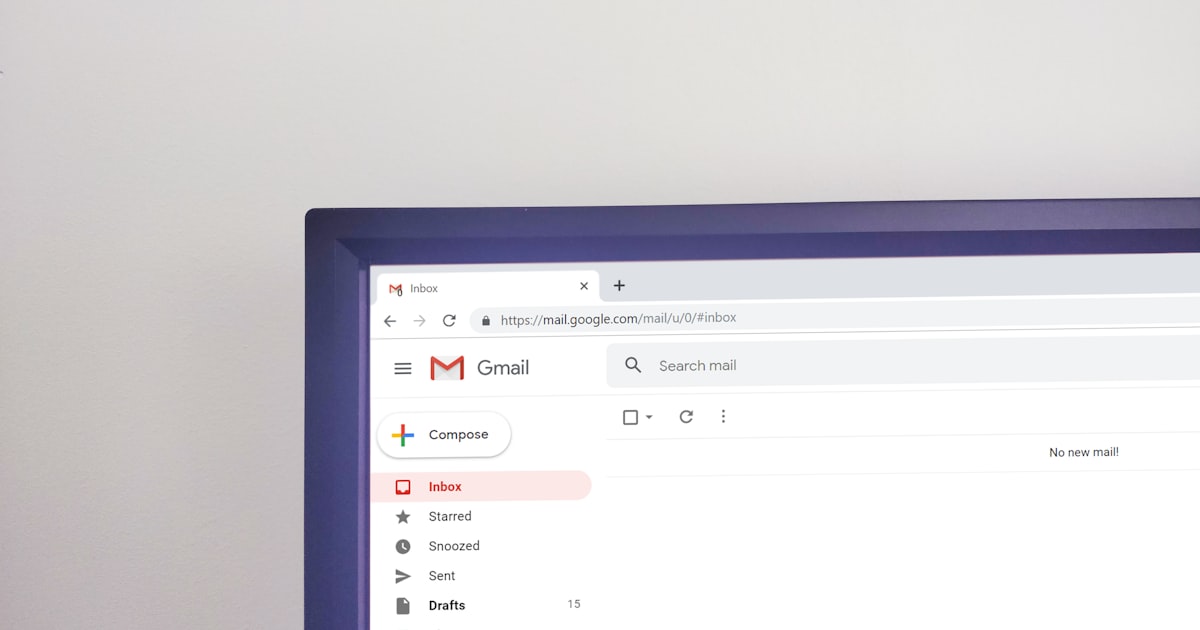 Print to PDF captures the on-screen email — the attached files are left behind.
So Print to PDF answers "how do I make a PDF", but not "how do I keep the whole email". For that, you need a tool that reads the actual email file.
How do I save a new Outlook email as PDF *with* attachments?
Convert the raw email instead of printing the view. A converter that reads the .eml/.msg keeps the body, the headers, and the attachments together — and you can do it without installing anything. With PDFengine you have two no-install routes:
Forward it. Create a free account and PDFengine gives you a personal address (like
convert+…@inbound.pdfen.com). Forward the email straight from the new Outlook — even from your phone — and you get a PDF back, attachments converted and included.Upload it. Export the message first (in new Outlook: More actions (⋯) → Save as to get an
.eml), then drop it on pdfen.com/email-to-pdf. Office attachments become PDF pages; PDFs and images are embedded.
Either way the attachments travel with the message into one PDF — the exact thing Print to PDF can't do. For the full set of options (add-in, API, even ChatGPT or Claude), see our complete guide to converting Outlook email to PDF, and for the records side — keeping headers and authentication data — see converting email to PDF with headers.
Should you switch back to classic Outlook?
If a true one-click Save as PDF matters to you, switching back is a legitimate fix — with trade-offs. Turn off Try the new Outlook (the toggle at the top right) and classic Outlook returns, with its File → Print → Microsoft Print to PDF flow that can include attachments via the Print attached files option, plus the ability to select several emails and print them to one PDF.
The downside is that you're moving against Microsoft's direction of travel. Classic is supported into 2029, so there's no urgency — but at some point the migration continues, and you may prefer not to keep one foot in the old app. If you only occasionally need a complete PDF, a no-install converter avoids the toggle altogether.
How do I convert multiple new Outlook emails to PDF?
The new Outlook can't batch them — it saves one email at a time, which is painful at scale. This is a frequent, high-stakes request; one user on Microsoft's forum was stuck with an attorney asking for everything: "My attorney needs all of my email communications… I've exported into pst but honestly I'm struggling. 3rd party apps don't seem to be much help either" (Microsoft Q&A).
Two routes work:
Export and upload an archive. Export the folder or mailbox as a PST (classic Outlook) and upload it to PDFengine, or zip a set of
.eml/.msgfiles. PDFengine extracts the messages and converts them in one run — one PDF per email, or merged into a single document for a case file.Switch to classic for a quick batch. Select the emails,
File → Print → Microsoft Print to PDF, and classic combines them into one PDF.
 A whole mailbox archive can be converted in one upload — no printing emails one by one.
Which method should you use?
There's no single winner — it depends on whether you need attachments, batch, or zero install. This table lays out the honest trade-offs.
Method | Free? | No install? | Keeps attachments? | Batch? | Works in new Outlook? |
|---|---|---|---|---|---|
Print to PDF (built in) | Yes | Yes | No | No | Yes |
Switch back to classic | Yes | Already installed | Yes (Print attached files) | Yes | No (you leave new Outlook) |
Forward/upload to PDFengine | Free to try | Yes | Yes | Yes (ZIP/PST) | Yes |
Paid Outlook add-in | No | No (install) | Yes | Yes | Often classic-only |
For a single, simple email, Print to PDF is genuinely enough. The moment attachments, batches, or compliance records enter the picture, converting the raw email — free and in your browser — saves the most time and keeps the most intact.
Frequently Asked Questions
Why is there no Save as PDF in the new Outlook?
The new Outlook is built as a web app (Outlook on the web in a desktop window), so the old native "Save as" menu — including PDF — isn't part of it. Microsoft confirms PDF is not a Save-as type in new Outlook and points users to the Windows Print to PDF printer instead (Microsoft Support).
Is Microsoft adding Save as PDF back to the new Outlook?
There's no indication of it. The new-Outlook release notes through mid-2026 add no PDF export, and there's no PDF-export item on the Microsoft 365 roadmap. Microsoft restored .eml/.msg "Save as" in 2025, but a native Save-as-PDF that includes attachments has not returned.
Why doesn't my Print to PDF include the attachments?
Because Print to PDF only renders the on-screen message. New Outlook and Outlook on the web have no "Print attached files" option — that exists only in classic Outlook. To keep the body and its attachments in one PDF, convert the raw .eml/.msg with a tool like PDFengine instead of printing.
How do I get the classic Save as PDF back?
Turn off the Try the new Outlook toggle (top right) to return to classic Outlook. Classic still has File → Print → Microsoft Print to PDF, can include attachments via Print attached files, and can print several selected emails into one PDF. Classic is supported into 2029.
Can I convert several new Outlook emails to PDF at once?
Not within the new Outlook — it saves one at a time. Export the folder as a PST (or zip your .eml/.msg files) and upload it to PDFengine to convert them in one run, or merge them into a single PDF. Switching to classic Outlook also lets you select multiple emails and print them to one PDF.
Get a complete PDF, attachments included
The new Outlook's Print to PDF is fine for a quick body-only copy, but it leaves your attachments and links behind. When you need the whole email — or a batch of them — convert it with PDFengine: forward it or upload the file, free to try and nothing to install. For every method side by side, read our complete guide to converting Outlook email to PDF.
Related reading:
Related Articles
How to deliver a newspaper ad PDF: the 240% ink limit, ISOnewspaper26v4 and GWG2015 explained
Your newspaper wants GWG2015, ISOnewspaper26v4 and max 240% ink. Here is what that means, why a prof...

Can ChatGPT, Claude or Gemini Convert Email to PDF? What AI Can (and Can't) Do
No AI assistant can natively convert .eml or .msg to PDF. But Claude + MCP bridges the gap — here's...